Using the TUI
vincent with no arguments opens the terminal UI, starting a daemon if none is
running. It is a pure API client: it holds no state the daemon does not have,
and quitting it never affects work.
vincent # opens the TUI
- The first run
- Layout
- Monitoring in three questions
- The board
- Acting on several tasks at once
- Task detail
- Answering a question
- The takeover screens
- The command palette
- Glossary
- Every key
- Rebinding keys
- Mouse, selection and paste
- When the daemon is unreachable
The first run
The very first launch shows a one-time notice: agents run full-auto by
default and can execute arbitrary commands as you. Acknowledge it once and it
does not return. The acknowledgment is stored in {data_dir}/tui.json.
It is worth reading rather than dismissing — Security model is the longer version.
Layout
The home screen is the task board and nothing else:
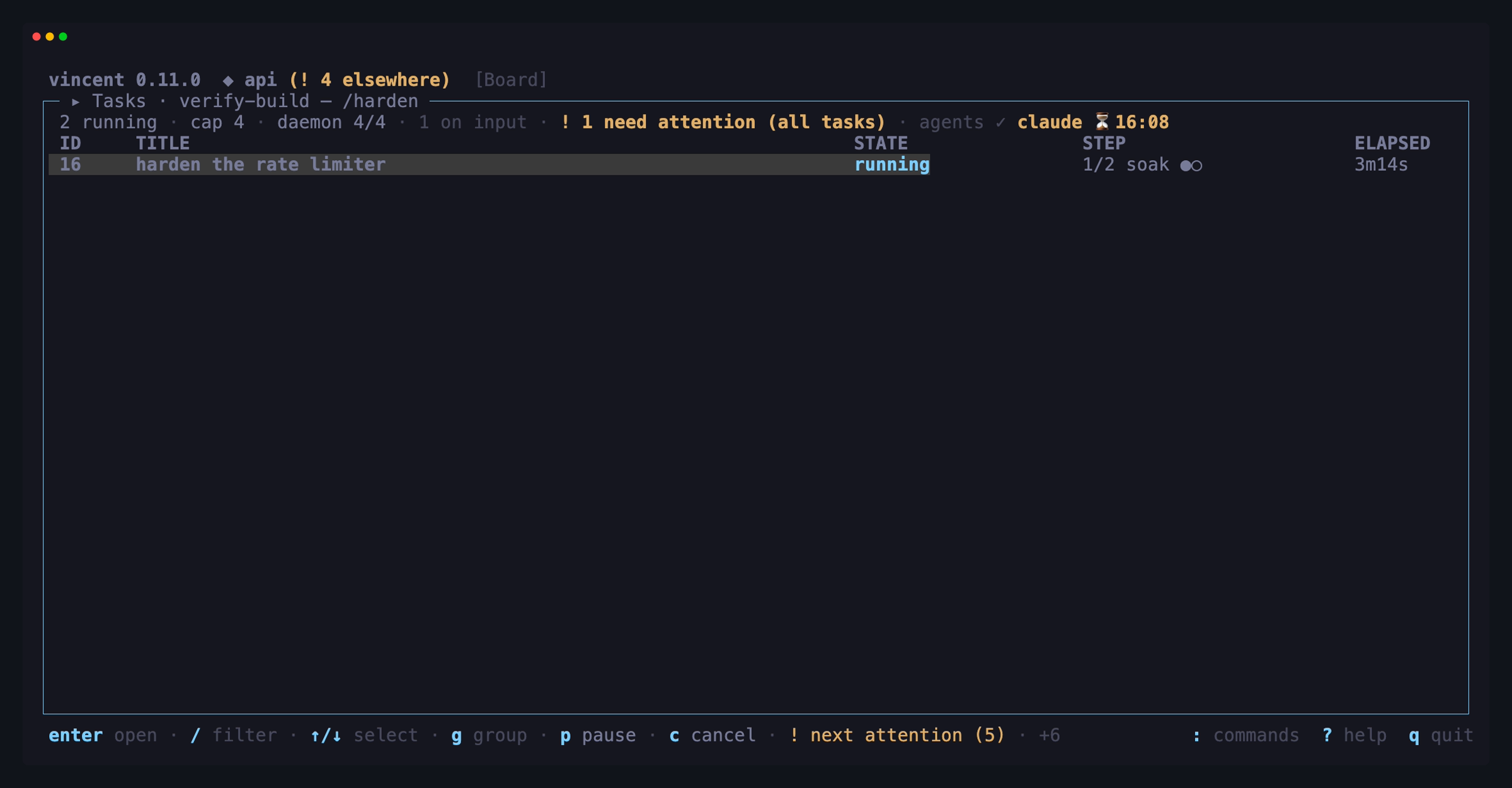
enter opens the selected task in a separate full-screen workspace, on its
Overview. That workspace has seven full-view tabs — Overview,
Output, Diff, Steps, Task Details, Step Details and
Workflow — and an eighth, Pull Request, on a task with a linked pull
request, so the surface being read gets the whole terminal. The strip draws
them in two groups: Overview, Output and Diff first, then the rest dimmed
behind a ‖. tab advances through them in that drawn order, shift+tab
goes back, and each tab’s digit, drawn beside its label, jumps directly: 0
Overview, 1 Steps, 2 Task Details, 3 Output, 4 Diff, 5 Workflow,
6 Step Details and 7 Pull Request (only when that tab is there). On a
narrow terminal the second group’s labels shorten first, then shrink to their
digits; the first group is never shortened. esc returns to the board.
New task, projects, workflows, chats, the two archived boards, issues,
triggers, daemon, and — for GitHub projects — pull requests are full-screen
takeovers too. esc
closes one layer at a time (popup → task/screen → selection → filter) and
never quits.
At 128×24 and above, New task, Projects, and Workflows use that room as a guided two-pane surface: progress or resources stay in a narrow rail, and the current decision gets the rest of the screen. Below that size they fall back to the compact form, table, or registry. Resizing does not move the cursor or close the picker, editor, project form, workflow expansion, or graph you were using.
The startup project
The header names one selected project, ◆ web. When the TUI starts it picks
that project once, by the first of these rules that names a registered project:
vincent --project <name|id>: a project name first, then a project id.- The directory you launched from: the project whose checkout, or whose task
or chat worktree, contains it. When several do, the deepest wins, so running
vincentinside a task’s worktree opens that task’s project. tui.default_projectinconfig.yaml.- The project you had selected last time, kept in
tui.json. - The first project by name.
A rule that names a project that is not registered is skipped, and a line under
the header says what was skipped and what was shown instead, for example
tui.default_project `api` is not registered — showing `web` (last used). A
pick by the directory is announced too (◆ web — from the working directory);
the other rules are silent. The line goes away at your next key.
Every selection is remembered as the last used, the startup pick included, so a
--project launch makes that project the one the next plain vincent opens on.
With several TUIs open, whichever selected a project last wins.
Monitoring in three questions
Watching work in vincent comes down to three questions, and each has a short path through the board and the task workspace. The words for states and reasons used below are defined in the Glossary.
What is happening now?
The board answers it at a glance. Each row’s state cell and STATUS column
say what the task is doing; a fan-out parent names its lanes by state, as in
waiting on lanes (×1 !1 ●1 ✓2) — see The board for every
glyph. enter opens the task on its Overview, which for a running task
names the current step and attempt. The breadcrumb in the header says where
you are, and the dim line under it follows what the running attempt is doing
right now, whichever tab you are on.
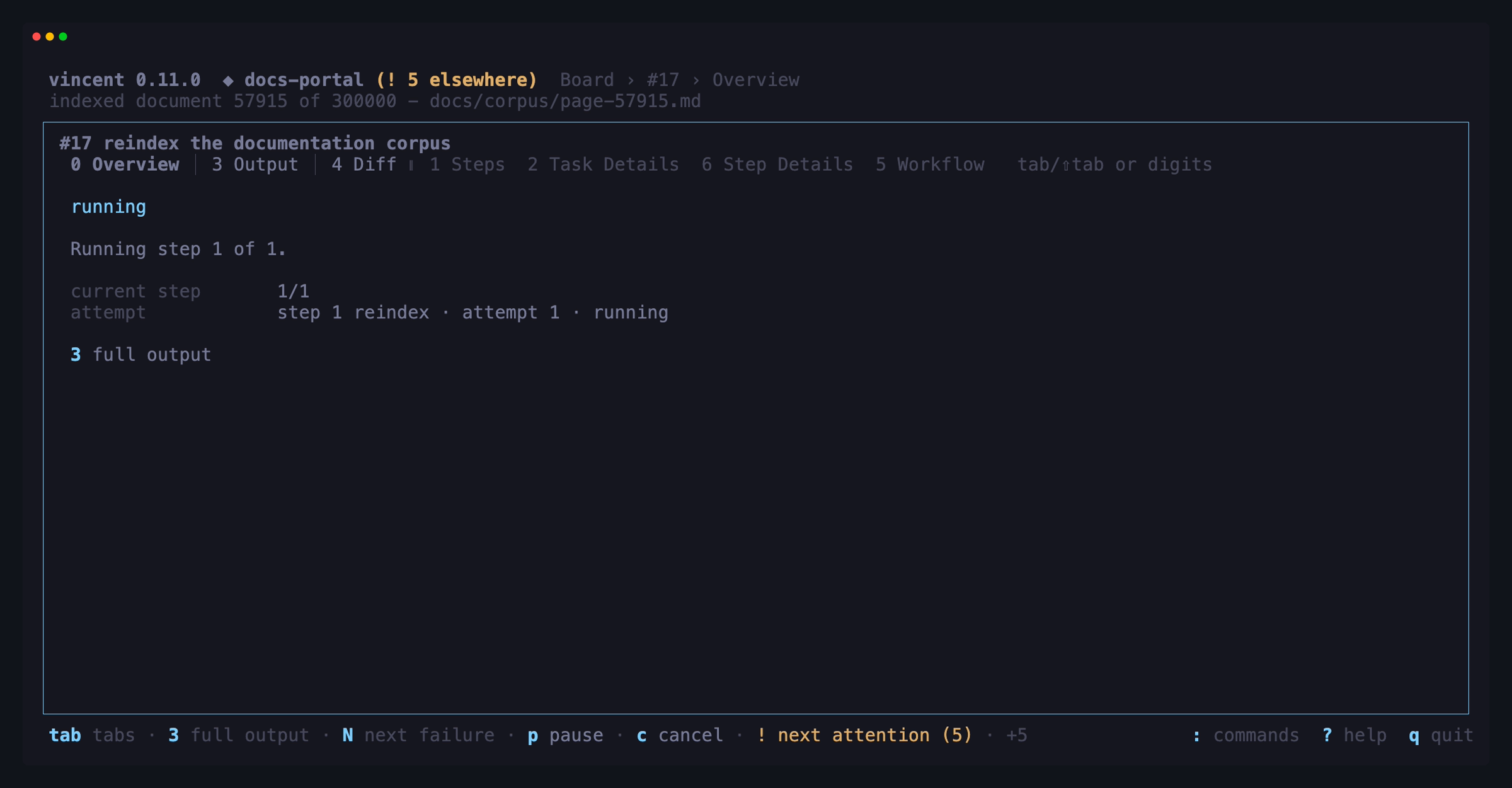
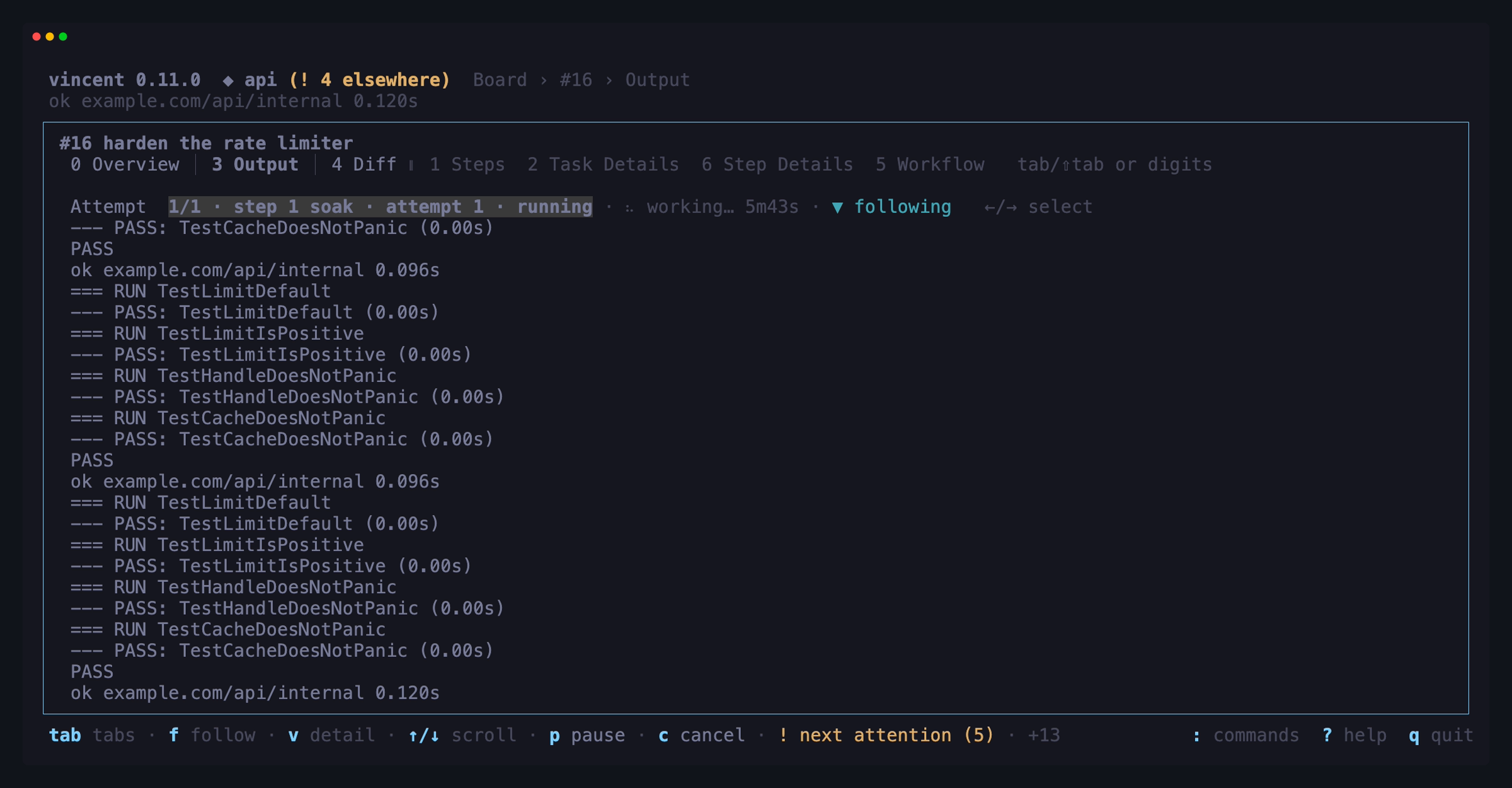
3 opens Output. Its attempt strip shows the verbosity level when it is
not normal, raw while ctrl+o is on, and — for a live attempt — the
spinner with the elapsed time and ▼ following, or ⏸ paused · N new once
you have scrolled away from the tail. See
How the pane reads.
Where and why did it fail?
! jumps the board’s cursor to the next task that needs you; H narrows the
board to those tasks and H again shows them all. Once the selected project
has nothing left, ! crosses into the next project by name that does,
switches to it and opens its task, saying so on the status line
(! — switched to `web` (task #42 needs you)); with nothing elsewhere it
wraps to the selected project’s first. The app header’s (! 2 elsewhere)
says how many tasks in other projects are waiting, whichever screen you are
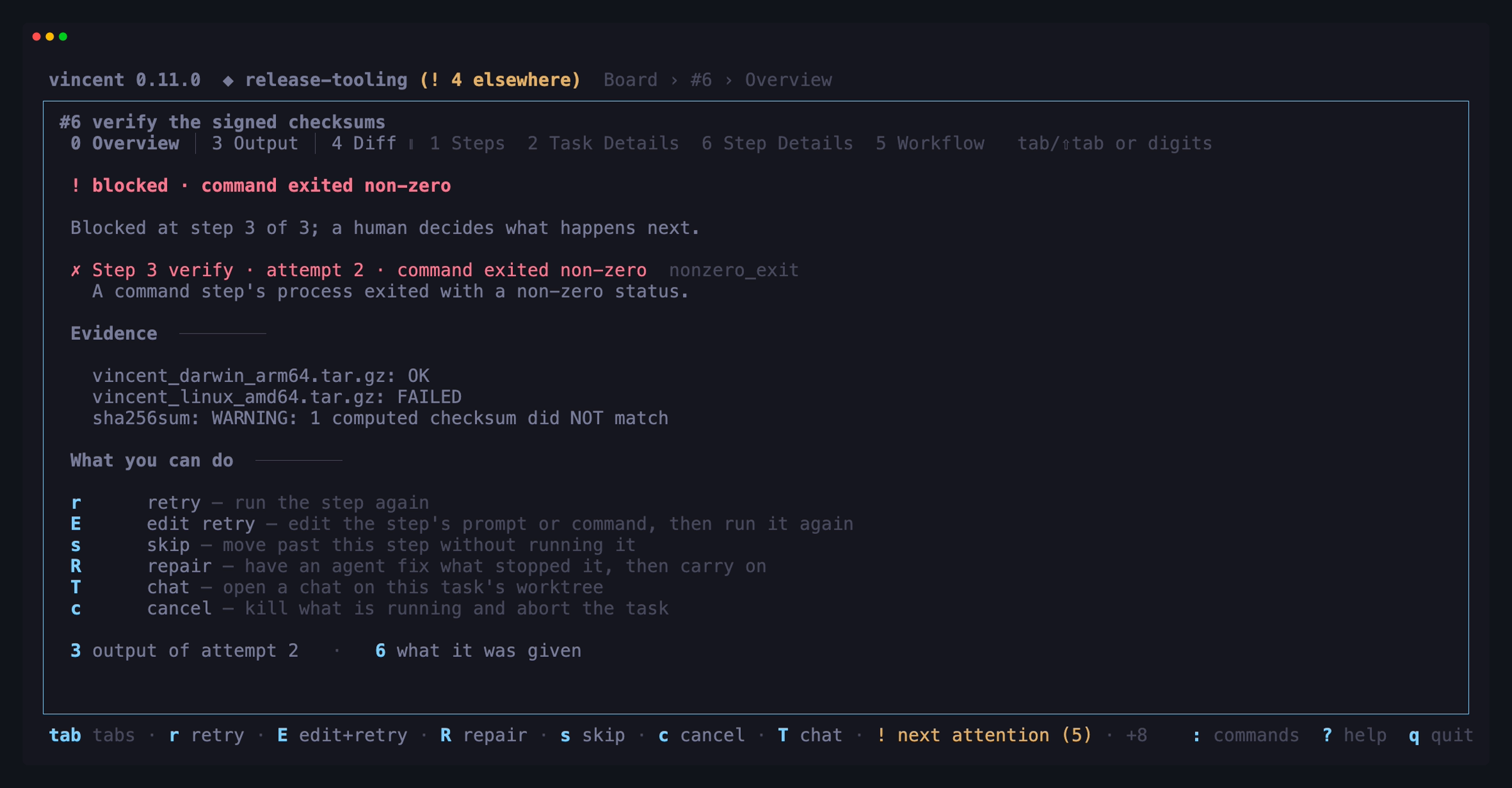
on, and the bell rings for every project. enter on a blocked task
opens a failure card: the step and attempt that stopped, the reason in
words with its code dim beside it, the last lines of the failing attempt’s
output as evidence, and the actions that answer the reason — r retry, E
edit and retry, R repair, T chat. 3 from the card opens Output where
the attempt failed, and N walks every failure in the task, a blocked lane’s
included. See Task detail,
Jumping between failures and
The action bar.
What did it deliver?
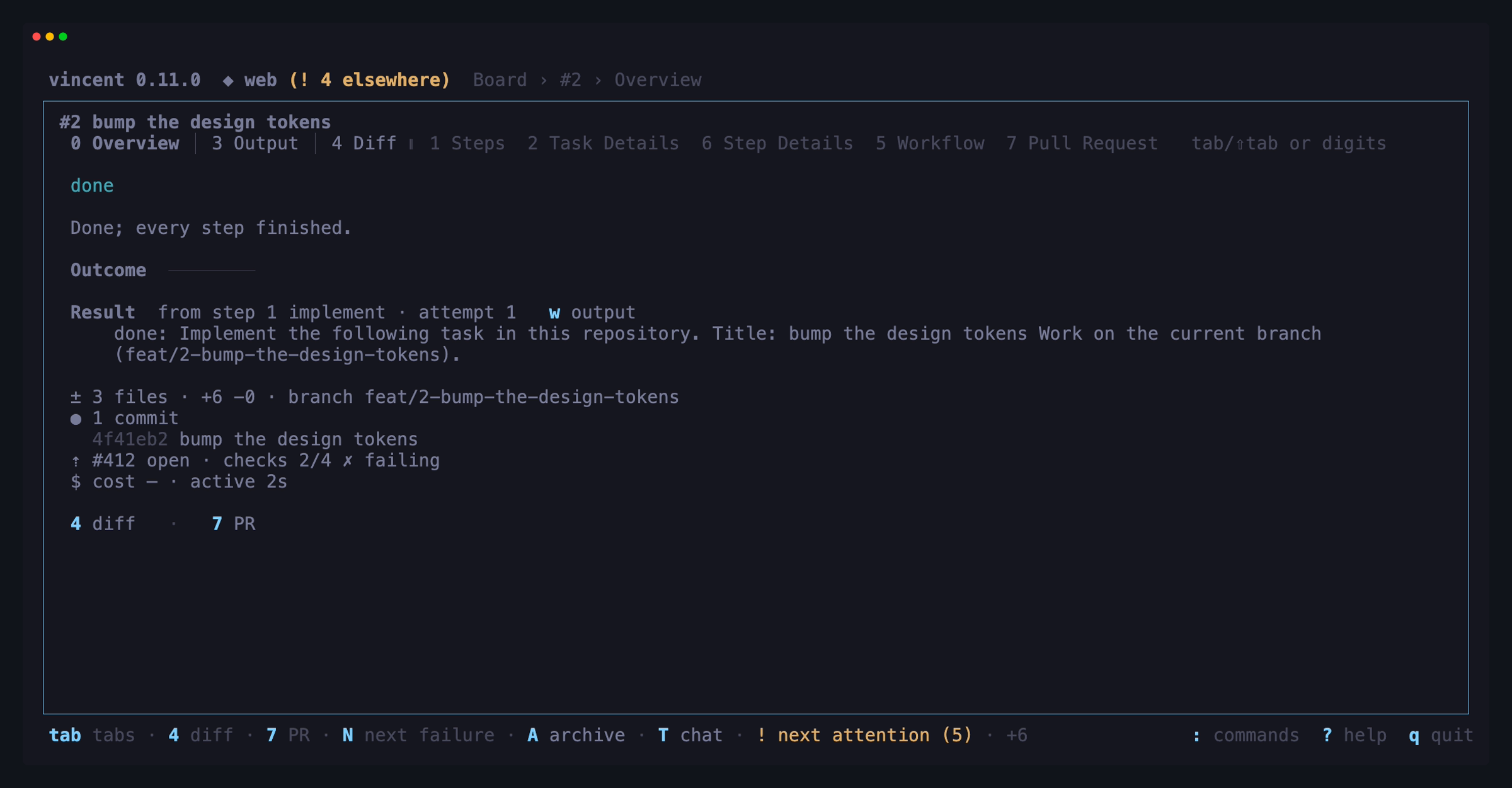
enter on a done task opens an outcome card: the result the last
successful agent attempt reported, the changes and commits on its branch, and
the linked pull request with its checks. w opens the output of the attempt
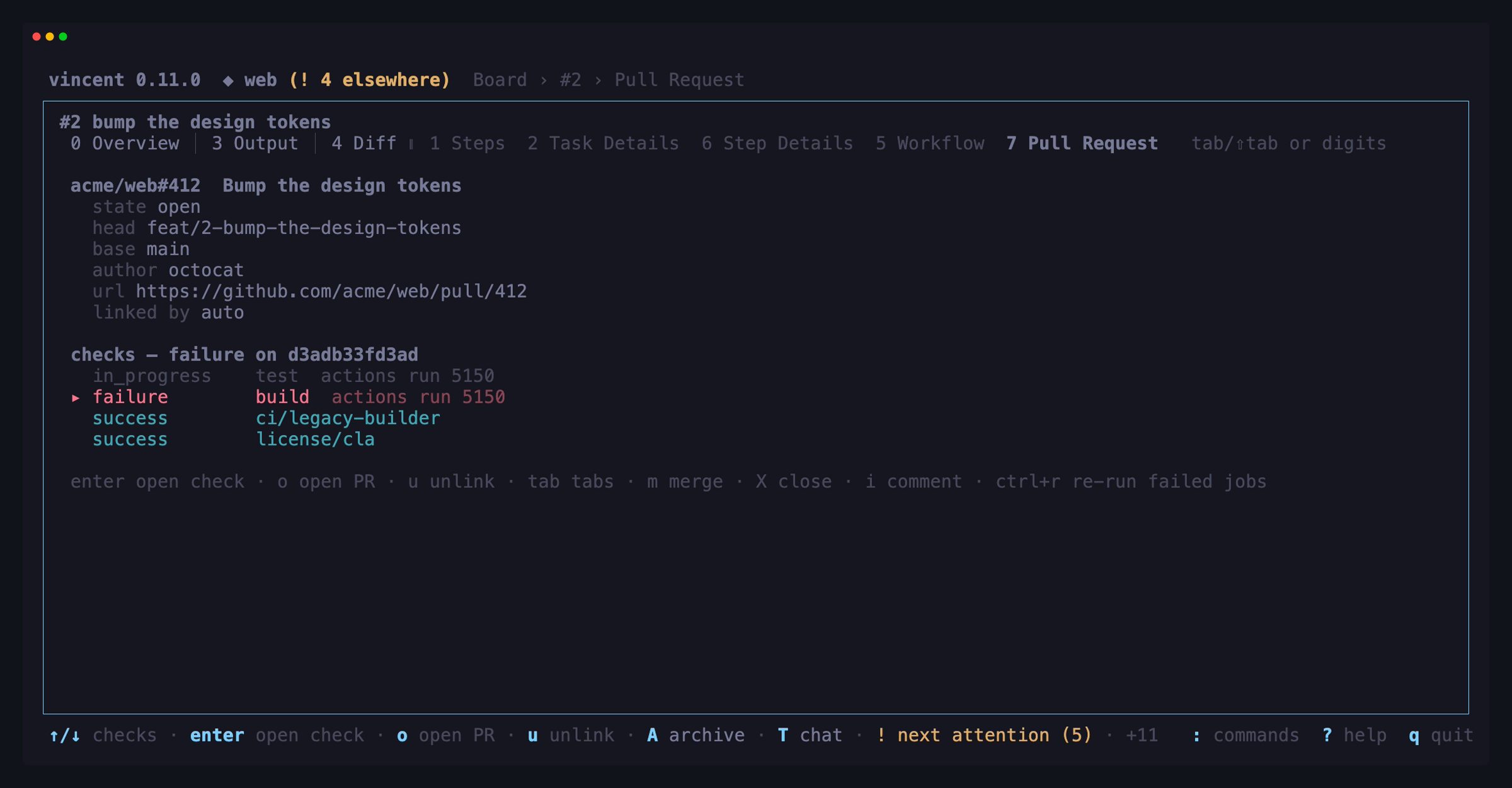
the result came from, 4 opens Diff, and 7 opens Pull Request when
one is linked. See Task detail, which covers the outcome card
and the Pull Request tab, and The Diff tab.
The board
One row per task in the selected project: id, title,
state, current step k/n with its name, elapsed, and cost so far. Switching
project swaps the rows in place, without asking the daemon for anything — the
board already holds every project’s tasks and only shows one. The header
shows running-versus-cap counts, how many tasks need a human, and which agents
need a look.
The board says only what needs a look. When nothing is waiting on you, the
needs-attention clause is not drawn at all; when something is, it reads
! 2 need attention — and ! 2 need attention (all tasks) while a filter is
committed, because the count is deliberately the whole board’s, not the
filter’s. It counts the selected project; tasks waiting in other projects are
counted by the app header’s (! 1 elsewhere) badge after the project name,
drawn on every screen and gone at zero. The footer’s hint,
! next attention (3), counts both — every task ! will visit. Every healthy agent collapses into one dim agents ✓: only an agent
that is not logged in (codex ⚠) or out of quota (claude ⏳14:20) is named
beside it, and one that is not installed is not mentioned — vincent doctor
and the daemon view list the whole catalog. With no agent installed at all the
header reads no adapters. The app header above the board drops
● connected for the same reason: it appears only while the TUI is connecting,
reconnecting or disconnected. After it, ◆ api names the project the TUI has
selected, or ◆ no project while none is registered. It selects the first
project by name; @, or a click on the segment, switches it.
On a narrow terminal the header drops the view’s tag first,
then the version, then the elsewhere badge, and shortens the project name
last. The action keys for the
selected task are in the footer, once — there is no second copy of them inside
the board.
The running count is the selected project’s, beside its own cap and the
daemon’s: 2 running · cap 3 · daemon 5/8. A project with no cap of its own
leaves the cap clause out, 2 running · daemon 5/8. Each figure counts every
task holding a concurrency slot — awaiting_input as well as running,
fan-out lanes as well as the root tasks the board lists — which is the number
the scheduler admits against, so a full pool reads as full. Because the daemon
figure can exceed what is on screen, the header explains it when it has to:
2 running · cap 3 · daemon 5/8 · 2 lanes · 1 on input, with each clause
dropped when it is zero and shed on a terminal too narrow for it. Until the
board has heard the project figures it shows the daemon’s alone, 5/8 running. A task
on a question is counted in both the slot count and the needs-attention badge,
being at once a slot holder and something waiting on you.
Three behaviors matter:
- Tasks that need you are pinned to the top with a distinct badge —
! awaiting input,! awaiting approvaland! blocked.!jumps to the next one from anywhere. A blocked row names its reason in words,! blocked · check failed, when the board has width to spare; on a board without a surplus the reason is the first thing the cell gives up, and it reads! blocked. - The terminal bell rings when a task enters
awaiting_input, so most terminals flash or badge the window even when it is not focused. - A task waiting on a clock says when it resumes. A task whose agent hit a
usage limit — or whose failed step is pacing its next attempt with
retry_backoff— isqueuedlike any other, but its state cell readsqueued → 14:20, the time vincent will try it again, on its own. It holds no slot and needs nothing from you; the detail header names the reason in full (queued · usage limit reached → 14:20,queued · waiting to retry → 14:20). See Troubleshooting andretry_backoff. - The header badges the agent, not just the task. An adapter vincent has
watched run out is named as
claude ⏳14:20besideagents ✓, and stays that way until a step on that adapter succeeds — so a board full ofqueuedrows says which window they are all waiting on. An adapter that reports its own quota is badged the same way once that reading hits 100%, and reads a bare⏳when the source named no reset, since⏳00:00would be a time vincent invented. A reading is only a statement: nothing is withheld on a percentage. A window vincent watched close is also a brake. In the default mode, a task that reaches an agent step on that adapter shows the samequeued → 14:20and waits for the window without starting the agent.
| Key | Does |
|---|---|
/ |
Filter by id, title or state; tab commits the filter, esc clears it |
H |
Show only the tasks that need you — awaiting input, awaiting approval, blocked, or a fan-out one of whose lanes is. H again shows every task |
enter |
Open the selected task |
H narrows the board to what needs you. It keeps a task that is
awaiting input, awaiting approval or blocked, and a fan-out parent whose
lanes include one of those. It lasts for the session, like the / filter,
and composes with it: a row is shown only when both keep it. Grouping still
applies, and a group left empty draws nothing. V then selects only what is
shown, and ! cycles within it. The panel title says it is on —
Tasks — needs you — /api — and a board with nothing left says so and names
the key that turns it off. Pressing H again keeps the cursor on the same
task. A parent is kept on the rollup the daemon serves on its row, so against
an older daemon that serves none, a parent whose lane needs you is not kept;
the lane’s own row is still one L away.
A cell too long for its column wraps rather than disappearing. The title,
the state, the step and the status carry across up to three lines of the same
row, so waiting on lanes (×2 ●1 ✓3) and a step’s own message are readable
without opening the task. Every row on a board is the same height — as tall as
the tallest row in the list, and never more than three lines — so a board where
nothing overflows is one line per task, exactly as before. The list, not the
part of it you can see: one long title far down the board makes the rows above
it tall too, and a filter that hides it makes them short again. What still does
not fit at three lines ends in …. Clicking any line of a row selects that row,
and j/k move a task at a time whatever the height. The id, elapsed, cost,
the pull request marker and the marker column do not wrap, and neither does
the workflow: it is a name you scan down, which a fourteen-cell wrap makes
unreadable, so under width pressure it is dropped instead. There is no project
column — the header names the one project the board shows.
The title has a ceiling. It takes whatever the fixed columns leave, up to a
comfortable width; past that the extra room goes to STEP and then STATUS —
the two columns whose content actually outgrows them — then to STATE, as far
as a blocked row’s reason needs, and only what none of them can use comes back
to the title. So a 200-column board shows
3/7 green · loop 4/10 · repair 2/3 whole instead of spending the room on a
title’s trailing blanks. A loop rollup too wide for the column it is given
drops clauses from the tail rather than wrapping — the body step goes first,
then the for_each item, then the counter, which is the last thing to survive.
The board speaks in the Steps tab’s glyphs. ● running, ✓ done, ×
blocked or failed, ! waiting on you (or, for a step run, interrupted by a
daemon restart), ○ not started, ■ stopped, – skipped. Colour only
reinforces a glyph, so the board reads the same without colour.
- A fan-out parent’s state names its lanes by state:
waiting on lanes (×1 !1 ●1 ✓2)is one blocked lane, one waiting on you, one running and two done. Blocked lanes come first, so when the cell is too narrow for all of it, the done count is cut before the blocked one. A state with no glyph is spelled out (1 paused). The breakdown comes from the task’schildrenrollup, which the task list serves on every row that has lanes. Against an older daemon, whose list rows carry no rollup, a parent’s row shows a barewaiting on lanes; open the parent, or pressL, to see its lanes. - An expanded lane reads
lane apirather than repeating its parent’s title. - With room to spare after the step and any loop rollup,
STEPadds one pip per workflow step:3/5 build ✓✓●○○. The pips never make the cell wrap or take width from another column, so at 80 columns they are usually absent.
The board also has a STATUS column: what the task’s newest step run
said about itself, if it said anything —
compiling internal/store, 3 tests red. It is set by the step, not by
vincent, through vincent status, so it
is empty until a workflow asks for it; see
Reporting status from a step.
The column is there only while some task on the board has a status. When it
is, it outranks the cost and the step name: a 120-column board keeps it, with
the step cut to its 3/7 counter and no COST column. It still needs a title
of 32 cells, so an 80-column board drops it before the workflow.
Below a comfortably wide title the status is cut to one line with … rather
than wrapped, so it never makes the rows taller. On a wider board it wraps like
the title.
The COST column is there only while some task on the board reported a
cost. Codex and several other agents never do, and a column of dashes is room
taken from the title to say nothing.
A task with a linked pull request carries a PR column marker,
⇡#123, whether it is still running or done. That includes a task created from
a pull request. It shows the number only; open the task’s Pull Request tab for
its state. The board reads the link from the task list and asks GitHub nothing.
PR is the first column dropped when the terminal narrows. A link you
unlinked is not marked.
Whether these three columns show is decided by every task the board holds after the filter, including tasks in folded groups and tasks scrolled out of view. So scrolling never makes a column appear or disappear.
Elapsed on the board is wall clock from the task’s start. That is deliberate: a task idle on a human for 35 of its 40 minutes must not read as “5m” on the board whose job is to flag it. The per-attempt figures in the timeline are the other measure — active time, with the excluded wait shown beside it rather than silently subtracted.
Switching project
@ opens the project picker over whatever is on screen — or click the header’s
◆ segment, or run switch project from the palette, which is the way in
from a chat’s composer, where @ mentions a file. It lists every registered
project, the selected one marked ◆ and the one tui.default_project names
marked ★ (a row can carry both), each with the figures that say where work is
waiting:
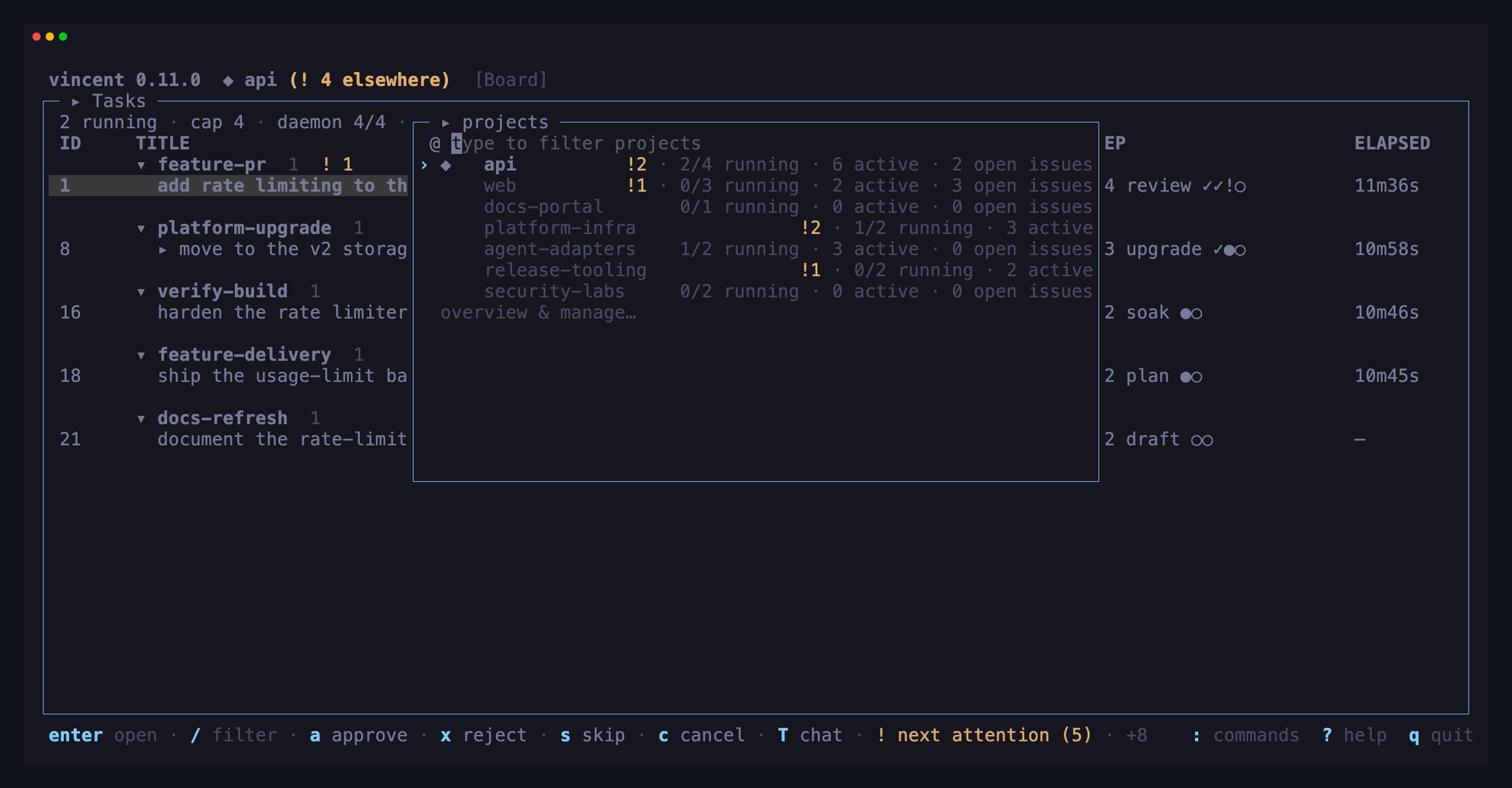
!3— tasks that need you: awaiting input, awaiting approval or blocked. Absent at zero, and never counting a chat waiting on you.1/2 running— tasks holding one of the project’s slots, against its own cap. A project with no cap of its own reads1 running: only the global cap applies to it.4 active— tasks not yet finished.5 open issues— local and imported alike.
The figures follow the daemon while the picker is up. On a narrow terminal they
drop from the end — issues, then active, then running, then attention — and the
name shortens last; the ◆ and ★ marks never do. A daemon that could not
count shows the names alone. Changing tui.default_project in the TUI’s config
editor moves the ★ straight away, even with the picker open; an edit to
config.yaml itself shows after the next reconnect.
Below the projects, the last row, overview & manage…, opens the project overview. It is not a project: the filter never hides it, and choosing it changes no selection.
| Key | Does |
|---|---|
| typing | Filter the projects by name; ctrl+v pastes into the filter |
↑ / ↓ |
Move the highlight |
enter |
Switch to the highlighted project — or, on the last row, open the project overview |
esc |
Close without switching |
A switch keeps you where you are. The board, the chats and issues lists, pull
requests, both archived boards, workflows and triggers stay on screen and
reload for the new project; the daemon and projects views are not tied to one.
A screen about one object of the old project falls back to its list: a task’s
workspace to the board, with its esc history cleared; a chat to the chats
board; an issue to the issues list. An empty new-task, new-chat, new-issue,
new-workflow or new-trigger form is reopened for the new project, and a
workflow or trigger editor, the workflow graph and a trigger dry run close,
since each is on a file of the old project.
A form you have typed into — or a chat’s composer holding an unsent message — asks first, in one line under the header:
discard the task draft and switch to `api`? y/n
y discards it and switches — you land on a fresh form for the new project,
or on the list behind a workspace or issue form. n or esc keeps the draft
and the current project; nothing is switched or saved. A form seeded from a
pull request, an issue or a chat counts as a draft before you type, and so
does a workflow fork prompt, which is seeded from the old project’s list.
Opening a task, chat or issue of another project switches to that project
first, so its screen never draws under the wrong header. This happens from the
board, a pull request, an issue’s linked tasks, a trigger’s delivery ledger, a
lane or parent jump, and when a task you just created belongs elsewhere. One
line says so — switched to `web` — until your next key. The task
workspace’s esc history starts over in the new project. If you are holding a
draft, the same confirmation asks, and n cancels the open too.
If the selected project is deleted — here, from another terminal, or while
the daemon was unreachable — the TUI moves to tui.default_project when that
names a registered project, and otherwise to the first project by name. One
line says what happened:
project `api` was deleted — showing `web` (default project)
With no project left the header reads ◆ no project and the line says
no projects remain. A form you have typed into still asks first, but
only y answers: the project it belonged to is gone. If instead the
project you were switching to is deleted while that confirmation is open,
the question goes away and you stay where you were, draft intact. A rename of the
selected project shows in the header straight away, and the next launch
opens on it under its new name.
With no project registered, every project screen — the board, the archived
boards, chats, issues, pull requests, workflows, triggers and the new-task
form — says so and points at @, whose last row opens the overview where
you add one. Workflows and triggers say it above what they still list: the
global and built-in workflows, and the triggers of removed projects. The first project you add is selected.
While the daemon is unreachable @ still opens, on the last list it had,
marked offline — list may be stale. A switch made then takes effect when
the connection returns: the screens whose loads failed reload for the
selected project, and nothing else is refetched.
Grouping
The rows are grouped by workflow out of the box. There is no project level: the board shows one project at a time, so grouping by it would draw nothing.
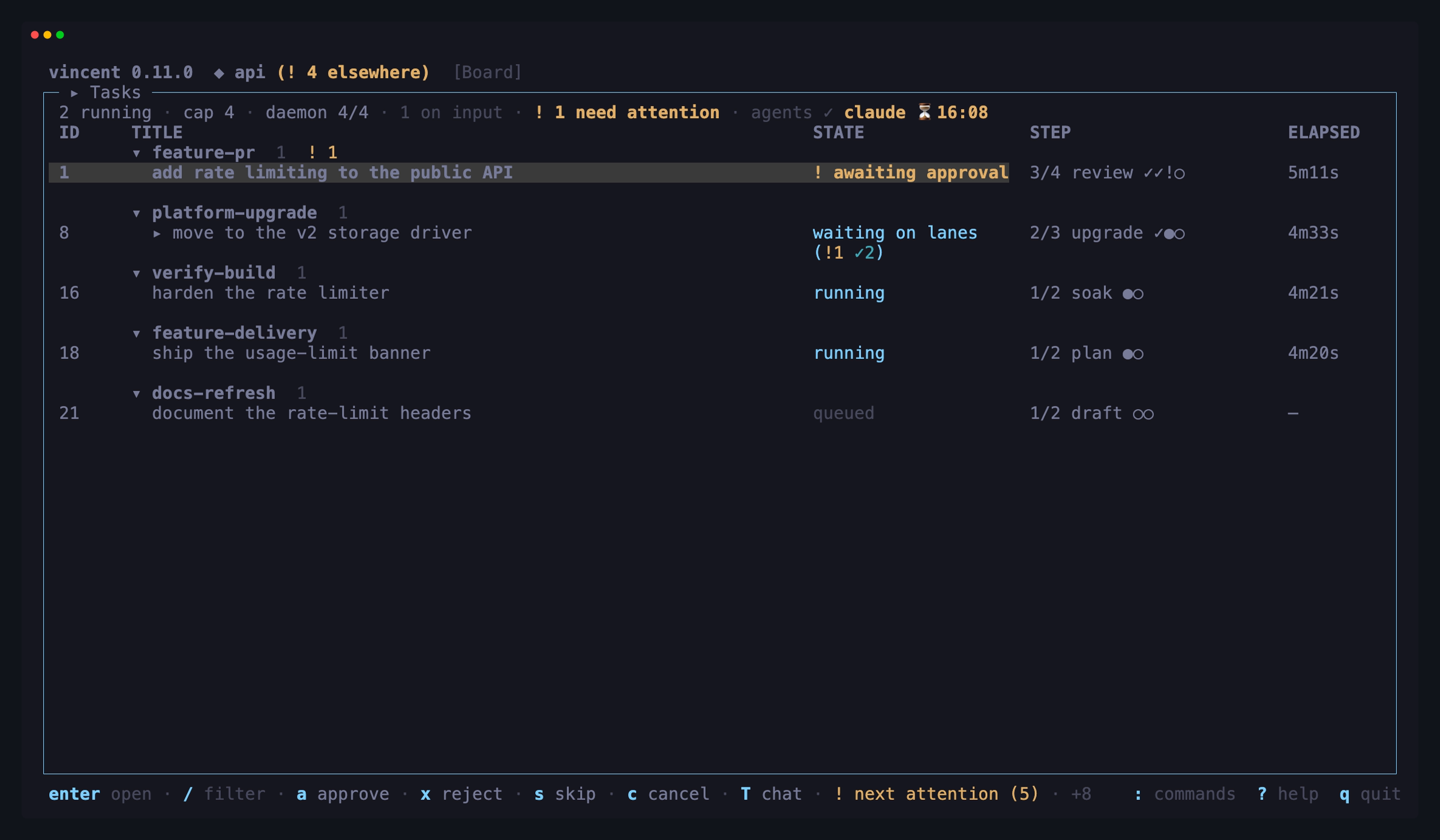
- The header shows the group’s task count, and the needs-attention badge when it holds any — a group can never be the reason you missed something waiting.
- Grouping does not reorder anything. The sort is what it always was, and a group sits where its first task does, so the group holding the oldest thing waiting on a human is the top group.
- A grouped level loses its column — the header already names it — and the
width it frees is spent on the row: on the title first, and once the title
has reached its ceiling, on
STEPandSTATUS. - An open header is a label: the cursor steps over it, and clicking it selects nothing.
- A level every task shares draws no header. A board whose tasks all run
one workflow is a flat list. The panel title names what the missing header
would have —
Tasks · verify-build— and the grouped column stays dropped. The level is judged on the tasks on screen, so a filter down to one workflow quiets it too. A fold you left on that level is kept, and applies again when a second value comes back.
| Key | Does |
|---|---|
g |
Cycle workflow → flat for the session |
The panel title names the grouping whenever it is not the configured one.
Folding groups
On an installation with six projects on it, most of the board is not what you are working on. Fold the rest away:
| Key | Does |
|---|---|
← |
Collapse the group you are in. Press it again on the header it closed to fold the group around that |
→ |
Expand the collapsed group under the cursor, one level |
C |
Collapse every group |
O |
Expand every group |
A collapsed header shows ▸ instead of ▾, and it keeps everything that made
the group worth reading at a glance: the task count, the ! needs-attention
badge, and how many of its tasks are selected. The cursor rests on a collapsed
header — that is what makes it a row rather than a label, and it is how ←
and → reach every nesting level. It is not a task, so the action keys, space
and enter do nothing there.
Three things mean a fold can never hide work waiting on you:
- the header’s badge and count survive the fold;
!(jump to the next task that needs you) opens whatever group it lands in;- a collapsed group opens by itself the moment a task inside it starts waiting for input.
Folds are kept per project and remembered across restarts, in
{data_dir}/tui.json (files): folding build in one
project leaves build open in another, and switching away and back finds the
folds as you left them. They survive g, a filter and a reconnect, and a group
is forgotten when its workflow leaves the project’s board, or with the project
when it is removed. Folds saved by an older vincent are carried over to their
project the first time the board starts. V
still selects tasks inside a collapsed group — the selection is a set of tasks,
not of rows. With group_by: [] there are no groups, so the four keys do
nothing. A fresh install has nothing folded.
Set the grouping you start with in config.yaml
(tui.board.group_by); []
gives you one flat list. A file that still lists the old project level loads
with it stripped, and vincent doctor says so.
Acting on several tasks at once
Archiving yesterday’s finished work one row at a time is the same keypress ten times with a confirmation between each. Select the tasks instead:
| Key | Does |
|---|---|
space |
Select the task under the cursor (again deselects) |
V |
Select every task the filter is showing — or clear that selection |
L |
Expand the selected fan-out’s lanes as indented rows under it, or collapse them again. Each lane row reads lane <id>. Lanes are hidden from the board otherwise, and stay out of every count |
esc |
Clear the selection |
While anything is selected, a ✓ appears beside those rows, the panel title
counts them (Tasks — 5 selected), and the action keys act on the whole
selection:
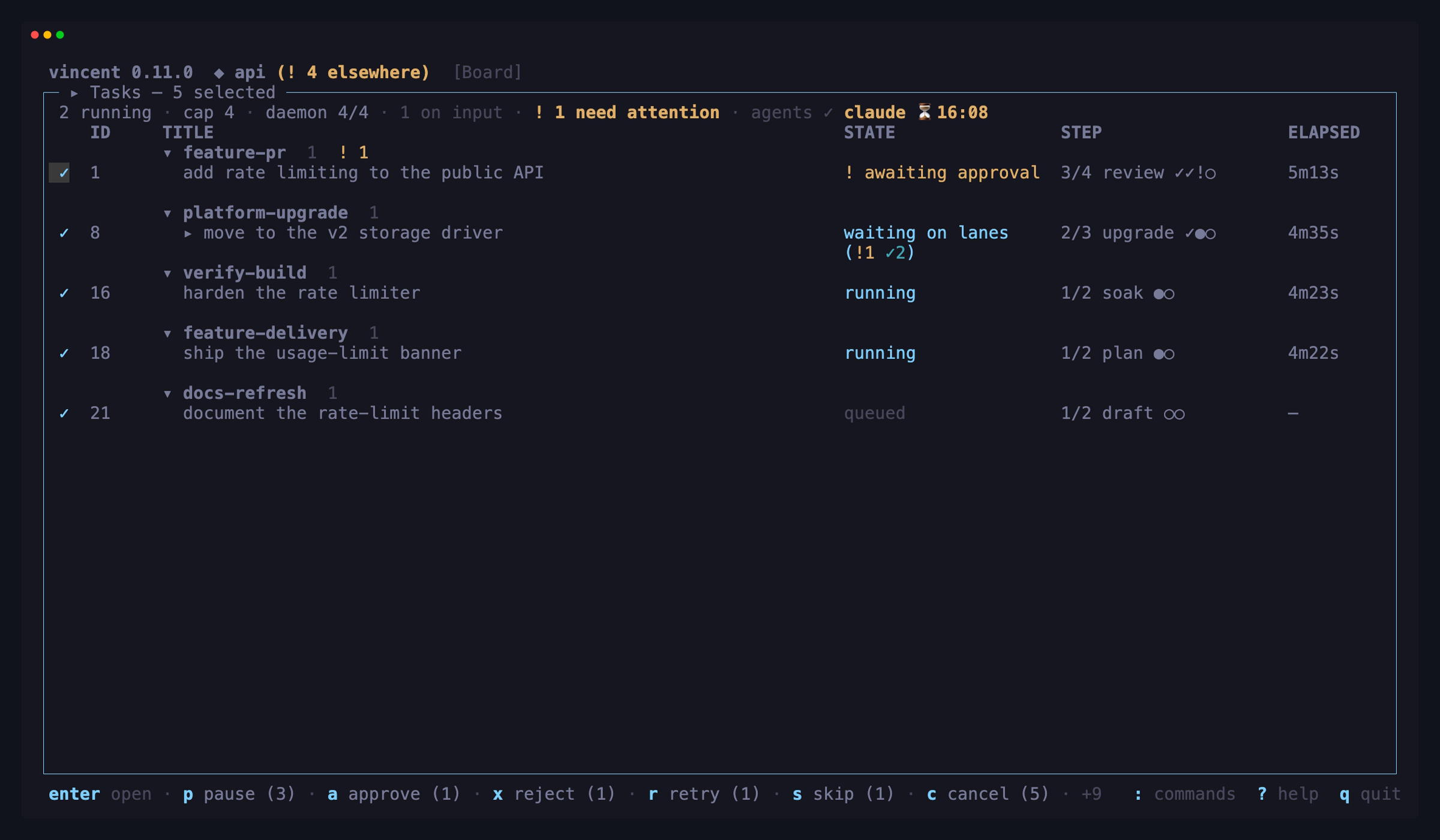
The count beside each key is how many of the selected tasks that action can
actually move — an action shows up when some selected task accepts it, and the
ones that do not are left alone. So a selection holding four finished tasks and
one still running offers A archive (4), and the running one stays where it is.
The rest of the behavior follows from what a selection is:
- It is a set of tasks, not of rows. Filtering, regrouping and refreshing do not change it — that is why the count is in the title, so a selected task the filter is hiding still says it is coming along.
- One confirmation for the batch.
Aasks once, about all of them. Behind the scenes vincent sends one ordinary action per task, so the daemon sees nothing special; you get one line back: how many moved, and the first refusal named if any refused. - Uncommitted changes still re-prompt. A bulk archive archives the clean
worktrees and asks again about only the dirty ones —
2 of 5 selected tasks have uncommitted changes. - What succeeded leaves the selection; what failed stays in it, so a retry needs no re-selecting.
- The keys work from any panel. Whatever has focus, the footer is counting
the selection, so that is what
Aacts on.
Task detail
enter opens the selected task on its Overview — from the board, the
palette, a lane jump or the pull requests takeover alike, and after ! has
moved the board’s cursor to a task that needs you. esc back out of a lane
returns you to the tab you left its parent on instead, and the takeover’s
“open a pull request” route opens on the Pull Request tab, where its form is.
The app header says where you are as a breadcrumb — Board › #12 › lane #14
api › Output — naming each task you drilled through, the task on screen and
the tab, so it also says where esc goes. On a narrow terminal the leftmost
crumbs give way to … first. The task’s #id and title are the first line
of the workspace on every tab. While the task is running, a dim line under the
header says what it is doing right now: the running attempt’s latest status
message after », or else the last line it printed, or else just the
attempt’s name. It follows the live output whichever tab you are on, and goes
away when the task stops running.
The Overview answers the question the task’s state raises, from the task the workspace has already loaded:
- Running, queued, paused, or waiting on its lanes — what it is doing: a
sentence for the state (how many lanes are still out, for a fan-out parent),
the current step and attempt, and — except while it runs, when the line
under the header says it — the attempt’s latest status message.
3 full outputjumps to that attempt’s output. - Blocked, waiting for an answer or at a gate, or aborted — what it needs:
the reason, in words and as its code, the question or the gate’s
instructions, and every action the daemon offers with its key and a line on
what it does.
3 output of attempt Nand6 what it was givenjump to the attempt it stopped on. - Done or archived — how it ended: an outcome card (below),
4 diff, and7 PRwhen a pull request is linked.
A blocked or aborted task’s Overview is a failure card. Its first
line says what stopped: ✗ Step 3 verify · attempt 2 · check failed
check_failed — the step, the loop iteration and item or the lane when there
is one, the attempt, and the reason in words with its code beside it. ✗ is a
failure, ⚠ a fan-out one of its lanes stopped, ■ an aborted task, so the
card reads without colour. Below it:
- Evidence — the last few lines of the failing attempt’s transcript,
fetched once when the card first shows that attempt. For a failed check they
are the check’s own output, not the agent’s last message. A block that no
step ran into — a dirty worktree, a missing container runtime — shows the
daemon’s explanation instead; when there is none, the card says the details
are in the daemon log (
:then daemon). - The step’s own status message, quoted — what it last said, which is not the reason it stopped.
- For a fan-out, which lane stopped it, the lane’s task and what the lane
is stuck on;
lopens that lane. - What you can do — the actions that answer the reason first (retry, with
Eedit & retry right after it, then skip, repair, chat), then everything else on offer, each with a line on what it does.
An aborted task’s card is muted and shows no evidence; it offers what the daemon offers, which never includes retry. On a short terminal the card keeps its first line and a row of action keys.
A done or archived task’s Overview is an outcome card — what the task delivered. An aborted task shows one too, under its failure card, headed incomplete — what was delivered. On a short terminal the outcome card shrinks first, and on an aborted task it goes before the failure card does. The card shows:
- Result — the summary the task’s last successful agent attempt reported
(a follow-up round counts), rendered as Markdown and cut to about six lines.
With no successful agent attempt it is the newest attempt that reported
anything, and with none of those the task’s own status message, labelled
dim as such. The label always says where it came from —
from step 2
implement · attempt 2
, with the loop iteration and item when there is one — andwopens that attempt’s output at its end. - Changes —
± 4 files · +120 −8 · branch vincent/12-…, counted from the task’s diff, which is fetched once when the card first shows. An archived task has no worktree, so it saysworktree removed — branch … keptinstead, or… gonewhen archiving deleted a branch with no commits. - Commits — how many the task made on its branch and the newest three subjects. A daemon too old to serve them, or a branch that is gone, leaves the line out.
- Pull request —
⇡ #123 open · checks 5/5 ✓ passingwhen one is linked, read from the same pull request and check rollup the Pull Request tab shows. - Cost and time — the cost (the whole tree’s, for a task with lanes) and
the active time its attempts took, then
N lanes mergedandloop ran K iterationswhen either is not zero.
Every marker is a glyph with a word beside it, so the card reads without colour. The diff and the commits are fetched once each time the task is opened, never again while you watch it.
A link is the tab’s own digit: pressing it first moves the attempt selection to
the attempt the Overview is about, then opens the tab, so Output and Step
Details show that attempt. On an aborted task 3 stays the failure card’s
link; the outcome card’s result has its own key, w. The footer lists the links the current frame draws.
If the task changes state while the Overview is open, the new frame replaces
the old one and your attempt selection stays where it was.
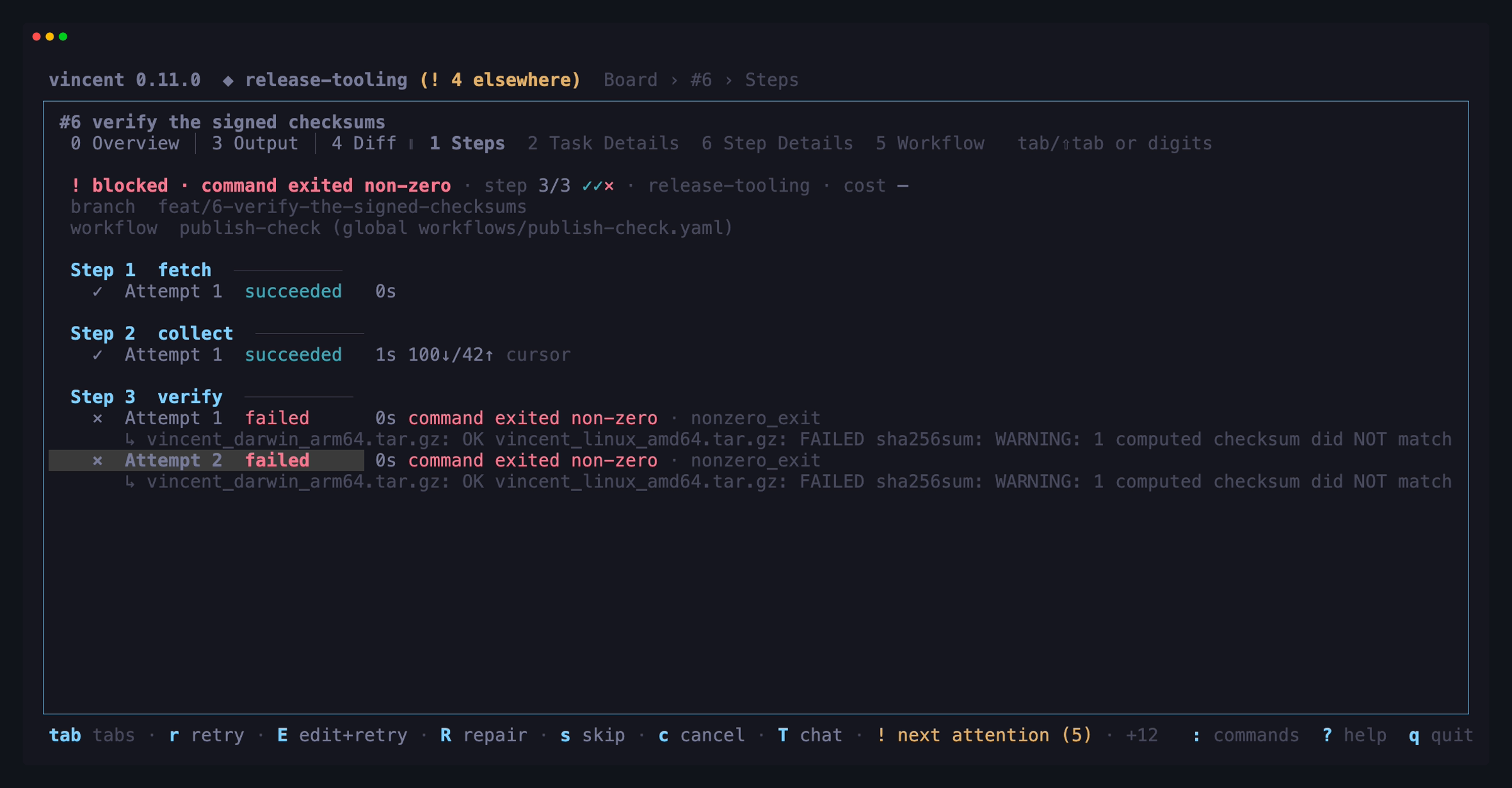
Steps (1) lists every attempt of every step with its duration, tokens and
cost. Selecting
an attempt chooses what the separate Output tab shows; the selection stays
put while you move between tabs. Press enter on an attempt to jump straight
to its output.
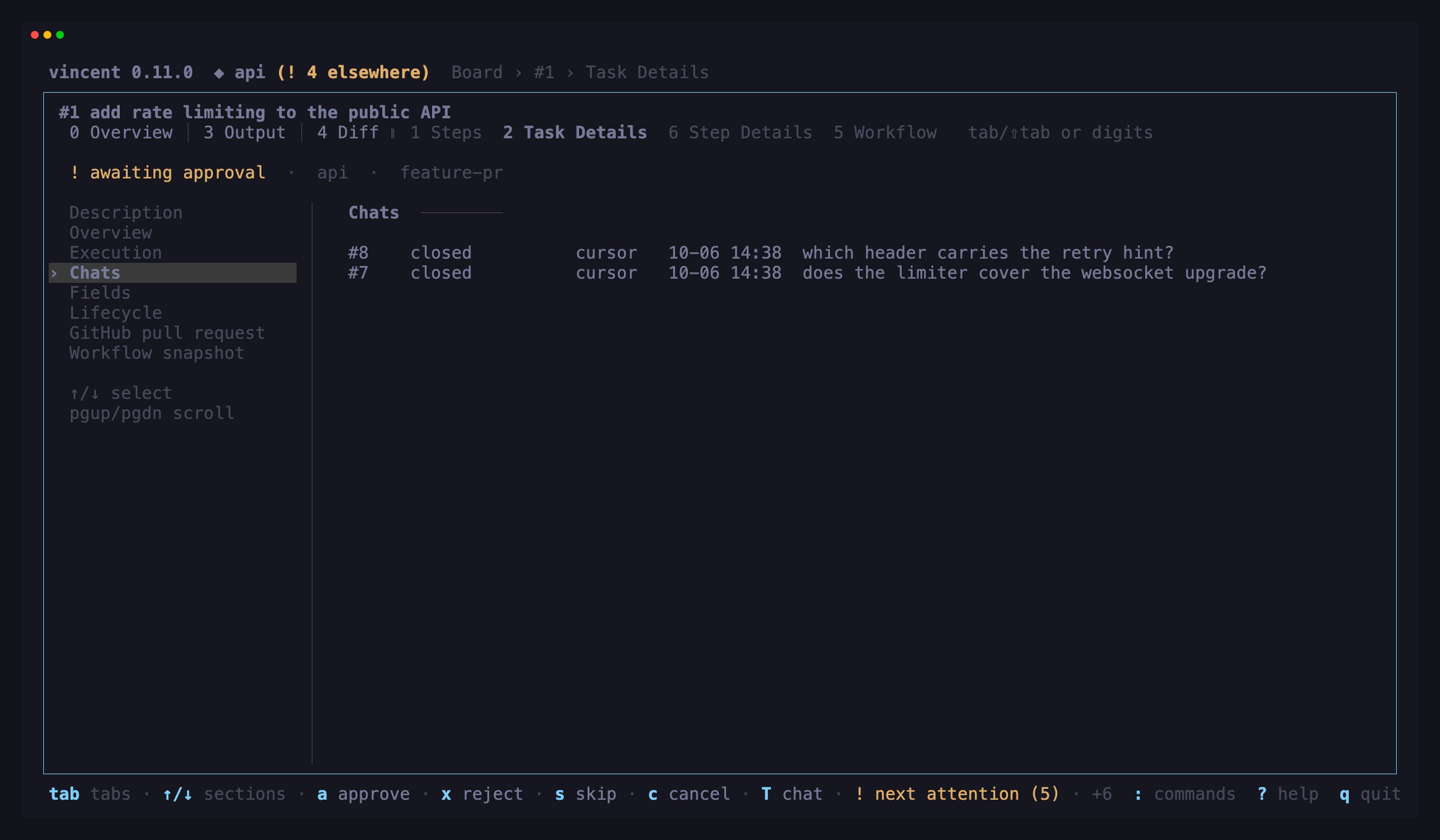
Task Details is the complete task inspector: title, description, declared
fields, state, project, workflow and its recorded origin, branch and worktree,
priority, tokens and cost, lifecycle timestamps, queue/block information,
pending input, fan-out/loop metadata, the chats opened on it,
the issue it was started from, available actions, and the task’s workflow-step
snapshot. Its left sidebar selects one section at
a time, so unrelated metadata does not compete for the screen. Use ↑/↓ or
the mouse to choose a section and pgup/pgdn to scroll long section content;
the inspector never edits anything.
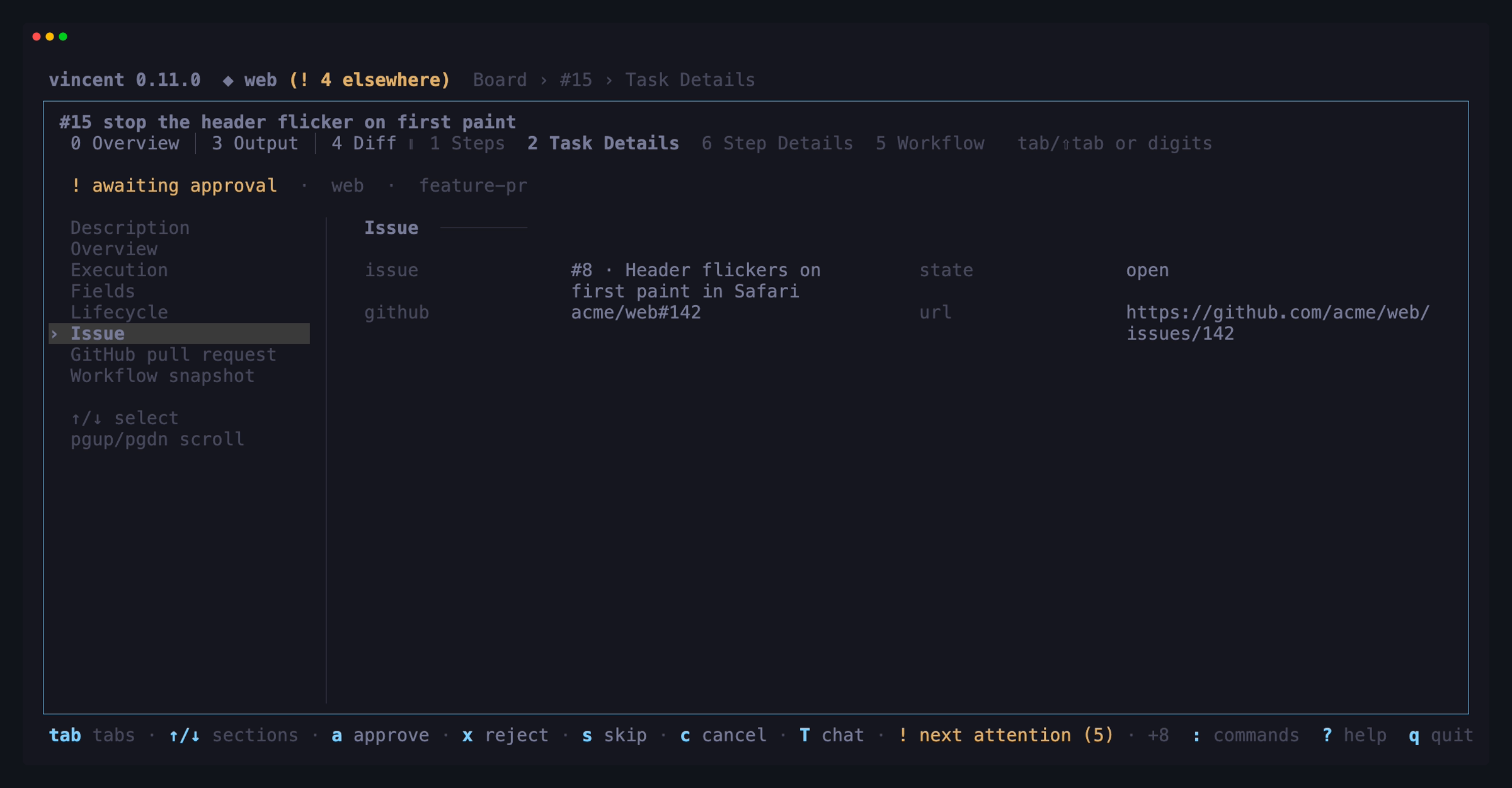
Its GitHub pull request section follows the captured issue and shows one of three things: the pull request linked to this task with its live state, the reason the integration is unusable, or — when nothing is linked — the offer to open one. Two keys work there:
| Key | Does |
|---|---|
o |
Open this task’s pull request in a browser |
P |
Push this task’s branch to origin and open its pull request — the title, body and draft flag are editable first |
P opens a small popup with the title and body vincent guessed from the task,
plus a draft toggle — all three editable:
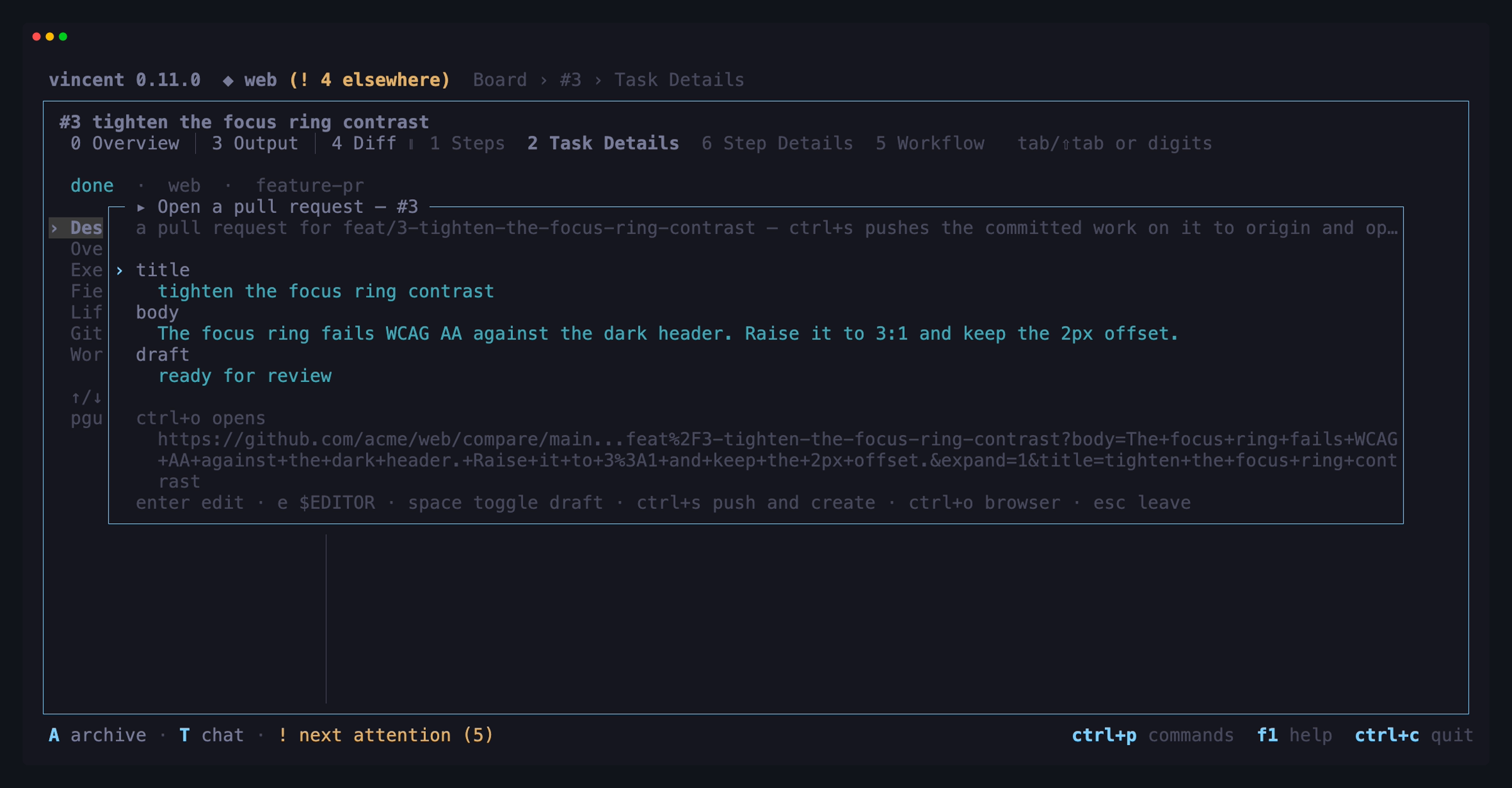
| Key | Does |
|---|---|
↑ / ↓ |
Move between the title, the body and the draft row |
enter |
Edit the row under the cursor, or toggle the draft row |
space |
Toggle draft / ready for review, on the draft row |
e |
Write that row in $EDITOR instead |
ctrl+s |
Push the branch and open the pull request |
ctrl+o |
Open GitHub’s own new-pull-request page with this prefill instead |
esc |
Close without sending anything — the draft is discarded |
Inside a field enter is a newline (a pull-request body usually wants more than
one line), ctrl+s keeps the text, and esc discards it. A title is required:
ctrl+s without one says so rather than sending something GitHub cannot use.
ctrl+s writes to GitHub. It pushes committed work
only — anything uncommitted in the task’s worktree is not in the pull request,
which the popup says above the rows — and it never force-pushes: a diverged,
protected or rejected push creates no pull request and changes nothing on the
remote. Pressing it twice sends once.
If there is no credential with write scope, or GitHub refuses the create, the
branch is still pushed and the popup points you at ctrl+o, whose page now
works because the branch is on the remote. The TUI itself never talks to GitHub:
every call is the daemon’s.
o and P are absent unless at least one registered project’s GitHub
integration is usable. Linking lives on the pull-requests screen below;
unlinking lives there and on the Pull Request tab.
Output gives the selected attempt’s live tail or historical transcript the
entire view. Its selector names the attempt and its position in the task; use
←/→ (or h/l) to show another attempt without returning to the timeline.
While the attempt on screen is still running, that selector carries the same
in-progress indicator the chat workspace draws — a turning
glyph and an elapsed clock, ⠋ working… 14s — beside the level and the follow
state, so an attempt that is thinking rather than printing is told apart from a
screen that has stopped repainting. It is on Output only, never on Diff, and it
follows the attempt being live rather than its step being an agent step: a
long command step’s pane goes quiet for exactly the same reason.

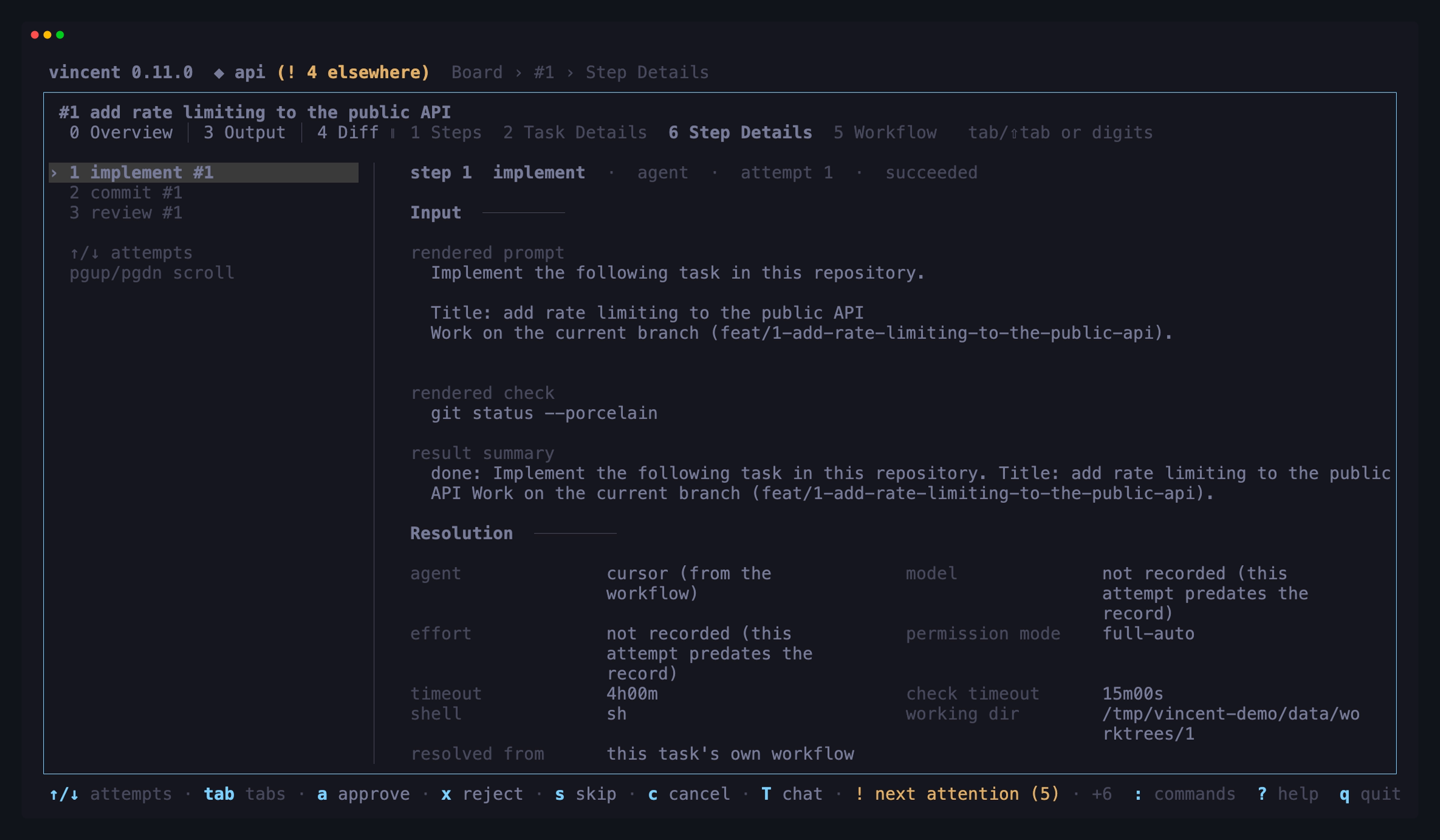
Step Details answers the question the other tabs cannot: what this attempt
was actually given. Task Details shows the workflow’s template; this shows the
substitution — the rendered prompt an agent step handed its CLI, the rendered
script a command step handed its shell, the rendered check: command. On a retry
the block vincent appends about the previous failure is marked as vincent’s, so
you can tell it from what the workflow wrote. Beneath the input come the
resolution (agent, model and effort each with the level that supplied it — step,
task, workflow or adapter — the permission mode, both timeouts, the shell, the
working directory and the include chain the step came from), the control flow
(what an if: guard rendered to, the loop iteration and total, this iteration’s
for_each item and the whole resolved list) and the outcome (tokens, cost,
durations, exit codes, reasons, the transcript path).
These are the values the attempt ran with, recorded when it ran — not recomputed
when you open the tab, which would quietly disagree once you edited config.yaml
or patched the task’s agent. The sidebar lists attempts and shares the selection
with Output and Diff, so arriving here lands on the attempt you were reading.
Two things it says out loud rather than hiding: a record cut at its 64 KiB
ceiling, and an attempt from before vincent recorded any of this, which reads
not recorded instead of showing an empty prompt.
Pull Request is the last tab, and the only one that is sometimes not
there: it appears when the task has a pull request linked and github.enabled
is on. It carries the pull request’s facts and one row per check on its head
commit — name, state, and the check’s own page — read live from the daemon on
open, on a reconciler tick and on its own poll. Nothing about a check is
stored, because a stored check result reads exactly like a current one while
being wrong, and there is no refresh key: R is repair on every tab of this
workspace, and the poll is what makes a fourth trigger unnecessary. ↑/↓
select a row, enter opens it in a browser, o opens the pull request and u
unlinks it from the task; the refusal is sticky, so the reconciler will not
link it again. Every §6 action key works here too — the tab you happen to be
reading is not a statement about what you may do to the task.

Four keys on this tab write to GitHub, and each asks first. A key is only there when its write can apply — the hint line and the footer leave it out otherwise, and pressing it does nothing:
| Key | Does | Offered when |
|---|---|---|
m |
Merge — a popup lists merge, squash and rebase with none chosen; ←/→ picks one, y merges, n or esc cancels |
The pull request is open and not a draft |
X |
Close without merging, or reopen — asks y/n first |
Close on an open pull request, reopen on a closed one; never on a merged one |
i |
Comment — type in the popup (or e for $EDITOR), ctrl+s posts, esc stops typing and then discards |
Always, once the pull request has been read |
ctrl+r |
Re-run the failed jobs of the selected check’s GitHub Actions run — asks y/n first, naming every failed job of that run |
The selected row is a failed GitHub Actions check |
The merge popup shows the head commit it merges: the one whose checks are on the
tab. If GitHub reports a different head for the pull request, the popup says the
head moved and y does nothing until the tab has re-read both. enter never
merges. In the y/n prompts, any key but y answers no. A write that has not
answered yet cannot be sent a second time, and none of the four exists while
GitHub could not be read. When the daemon refuses — the branch is behind, a
check is still running, the credential cannot write — its reason is on the
tab’s note line, and nothing was sent. After a write the tab re-reads the pull
request and its checks. The TUI itself never talks to GitHub: every call is the
daemon’s.
Diff gives the task’s file-grouped git diff the entire view. Workflow draws the workflow this task ran as a control-flow graph with its run state on it; it is documented beside the workflows screen’s graph, under Workflows below.
The header names the task’s workflow and, in brackets, where that definition
came from: adhoc (built-in), adhoc (project .vincent/workflows/adhoc.yaml),
release (global workflows/release.yaml), api (derived from task 41) for a
fan-out lane, or adhoc (unknown) for a task created before vincent recorded
it. A project or global file shadows a built-in of the same name, so the name on
its own does not say which one ran.
It sits late in the header — after the branch, before the run’s cost — so a
narrow pane truncates it early;
vincent task show prints the same
thing plus the source digest, and is where an audit is actually done.
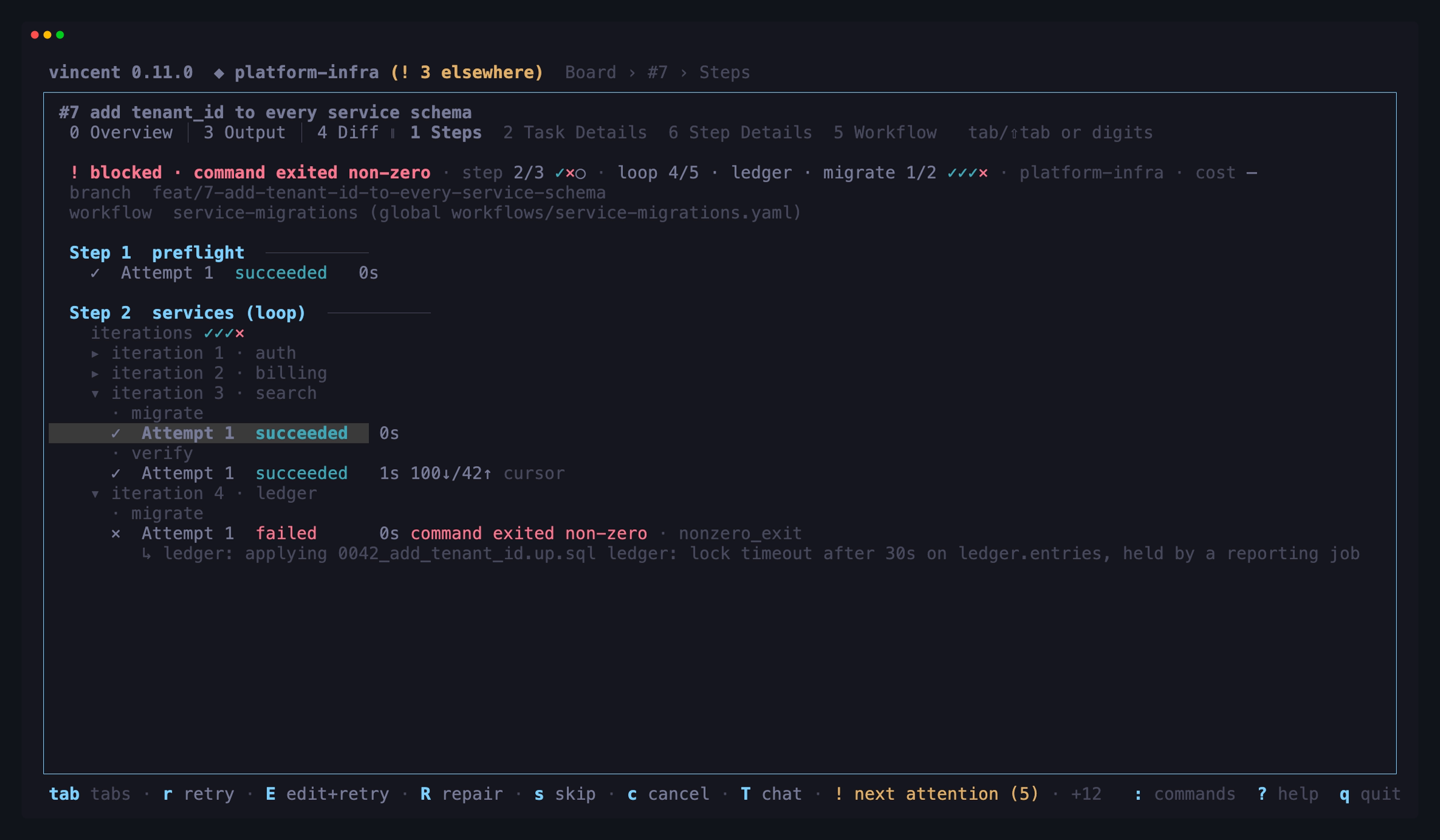
A structure step gets a fold of its own. A parallel group’s sub-steps share
the group’s index, so the group is one header and each sub-step sits beneath
it. A loop (§7.8) goes one further: its body’s rows are grouped by
iteration, folded shut with the latest one open, and a for_each iteration’s
header names the item it ran on. Ten iterations of a four-step body is forty rows,
and the one you arrived to read is almost always the iteration it stopped on.
So you can see how the iterations went without opening them, the loop’s header is
followed by one dim line, iterations ✓✓×✓●. It shows up to ten iterations, oldest
first, with …+3 in front when older ones are cut. Each glyph is that iteration’s
worst outcome: × a step failed or was rejected, ■ a break ended the loop,
● still running, ✓ everything passed or was skipped.
Folded is not unreachable. space opens or closes the iteration or round the cursor is in,
→ opens it and ← closes it, enter on a folded one’s header opens it
(and on a drawn attempt still opens Output), and O/C open and close every
iteration and round of the task — the same two letters the Diff tab uses. Latest-open is only
where the timeline starts: what you open stays open while the task refreshes,
and opening another task starts fresh. ↑/↓ stop once on a folded iteration or round,
on its header, so the cursor is always somewhere you can see; the Output tab’s
←/→ still walk every attempt, folded or not.
A multi-round fan_out (§7.6) folds the same way under a different word: its
rounds read round 0, round 1, … — 0-based, because that is the number the
transcript file and the log line use — and the same keys open and close them.
A fan_out step is on the timeline while its lanes run, not only once they
have merged: the row opens running when the round is spawned and the merge
that ends the round finishes that same row. Since the step itself executes none
of the work, its running row carries what the subtree is doing beside the state
— ×2 !1 ●1 ✓3, the same clauses the board puts beside waiting on lanes —
read live from the task rather than frozen in when the lanes were spawned. The
round is named on the row (round 0 · ×2 ●3) only
when the timeline is not already drawing round N headers above it. No other
step type is annotated.
The board’s and the header’s step column say the same thing more briefly: a
task inside a loop reads 3/7 green · loop 4/10 · repair 2/3 — the pass it is
on out of the loop’s real extent (a 3-item for_each reads loop 2/3, not the
ceiling it is bounded by), and the body step that pass is on, which is the one
thing the outer 3/7 cannot say because it counts the whole loop as one step.
The header also adds the iteration strip after its loop clause
(loop 4/5 · ledger · migrate 1/2 ✓✓×●), and one pip per workflow step after
its step counter (step 2/3 ✓●○). A parallel group, a loop or a fan-out is
one pip, and the current step of a task waiting on you is !.
Two things on an attempt line are worth telling apart. A red
check failed · check_failed is vincent’s failure reason — a fixed set of
constants, and vincent’s own verdict, in words with its code dim beside it. A cyan » 3 tests red in internal/store is the step’s
own status message, free text it set while it was running and the last thing
it said before it ended. It is never a cause: a step killed on a timeout may be
carrying a line it wrote half an hour earlier.
An attempt that did not succeed also gets a dim line beneath it with its result summary — the agent’s final message, or the tail of a command’s output. It is the sentence that decides whether to open the transcript.
| Key | Does |
|---|---|
tab / shift+tab |
Next / previous task tab |
] / [ |
Next / previous task tab |
0 |
Overview — the landing tab: what the task is doing, what it needs, or how it ended |
1–5 |
Steps / Task Details / Output / Diff / Workflow — every digit works from every tab |
d |
Switch between Output and Diff, from any tab (from Diff it goes back to Output) |
l / U |
Open a fan-out lane’s workspace / this lane’s parent task, from any tab — see Walking a fan-out |
N |
Jump to the task’s next failure, from any tab — see Jumping between failures |
3 / 6 / 4 / 7 |
On Overview, the frame’s jump links — the output of, or what was given to, the attempt it is about; the diff; the pull request |
l |
On Overview, open the fan-out lane the failure card blames |
w |
On Overview, open the output of the attempt the outcome card’s result came from, at its end |
6 |
Step Details — what the selected attempt was handed, and the resolution behind it |
7 |
Pull Request — only when this task has a linked pull request and GitHub is on; tab/shift+tab skip it otherwise |
m |
On Pull Request, merge it — the method is chosen in the popup, none preselected |
X |
On Pull Request, close it without merging, or reopen a closed one (asks first) |
i |
On Pull Request, comment on it (ctrl+s posts) |
ctrl+r |
On Pull Request, re-run the failed jobs of the selected check’s GitHub Actions run (asks first) |
↑/↓ |
On Step Details, select an attempt (←/→ do it too, and move the same cursor everywhere else) |
pgup/pgdn |
On Step Details, scroll the facts |
enter |
From Steps, open the selected attempt in Output — or open the folded iteration or round the cursor is on |
space |
On Steps, open or close the iteration or round the cursor is in |
←/→ |
On Steps, close / open that iteration or round |
O / C |
On Steps, open / close every iteration and round of this task |
←/→ or h/l |
On Output, select which attempt’s output to show |
f or G |
Follow the live output again |
v |
More or less detail: quiet → compact → normal → verbose (tool lines, then reasoning, the run’s own metadata, then unrecognized lines) |
ctrl+o |
Show the assistant’s original Markdown instead of the rendered view |
ctrl+y |
Copy an assistant message, its plain text, or one of its code blocks |
ctrl+l |
List the links in the assistant’s messages — open one in a browser or copy it |
e |
Open this attempt’s whole transcript in $EDITOR |
↑/↓ |
Select an attempt or Task Details section, scroll Output, or move between diff files — according to the active tab |
pgup/pgdn |
Scroll the selected Task Details section |
How the pane reads
Every record is a two-column gutter plus its content. What the agent said
is unmarked and sits flush left; what it did is glyphed — · reasoning, ▸ a
tool call with its outcome indented under it, # the run header, ☰ the plan.
A subagent’s work is drawn behind a ┊ rail
in front of those same marks. A monochrome terminal or an SSH session loses
nothing to that scheme, which colour alone would not survive. There are no timestamps: on an 80-column pane
they would spend nine columns of every line answering a question the timeline
already answers per attempt.
A message is a message, however it arrived. An agent sometimes delivers one answer as several records. Consecutive assistant records are read as one Markdown document, so a table, a list or a fenced block spread across them is the one thing it was written as, and its link references are numbered once for the whole message. Anything that is not assistant prose — reasoning, a tool call, command output — ends the message, and what comes after it starts the next. So does a switch between the agent and one of its subagents, or between two subagents: their prose is never read as one message.
What the agent said is rendered as Markdown. Headings, emphasis, strong
text, ordered and unordered lists, nested lists, blockquotes, inline code,
fenced code and horizontal rules become terminal structure instead of literal
syntax. That structure lives inside the assistant column — the gutter is
untouched — and every marker is a glyph, not a colour, so a heading’s ▌, a
quote’s │, a list’s •/◦/▪, a code block’s ▏ and an inline span’s
backticks all survive with the styling stripped. A code block keeps its
indentation and its hard line breaks; a line too long for the pane continues on
the next one at the block’s rail rather than being cut off. It also shows the
language the fence declared, as a dim word at the rail, and tints its body — the
tint is styling and nothing else, so stripping the escape sequences gives back
exactly the code the agent wrote, and a language vincent does not know renders
plain.
Tables and links, too. A table needs its delimiter row to be a table, so
prose containing a | stays prose. When it fits, it is drawn aligned with a
rule under the header and no borders; when the pane is too narrow for its
columns’ widest unbreakable words, each row becomes a stacked
column: value record opened by ▪ — never a clipped grid, and never a
sideways scroll. A link renders its label as ordinary text with a dim [1],
and the message ends with the [1] https://… lines that resolve them, one per
distinct destination. An image is its alt text plus its source in that same
list. Nothing here is fetched, and by default nothing is turned into a
terminal hyperlink: vincent emits no OSC 8, so a destination is text you can
read and copy, and it opens only when you pick it in the
link picker. If your terminal supports
OSC 8, set
tui.hyperlinks: true (or flip
it in the daemon view’s config editor) and the label, its [1] and the
printed destination become clickable — but only for an http or https link
that passes vincent’s sanitizer. The reference list stays either way.
Constructs outside that list — reference links, autolinks, bare URLs, titled links, HTML, footnotes — render as the characters the agent sent, and raw HTML is never parsed, fetched or executed.
Only the agent’s prose is interpreted. Reasoning, tool calls, tool results,
command output, errors and unmodeled lines stay literal behind their own gutter
marks: a # in a grep hit is a #, not a heading. The rendering is derived
too — the transcript on disk and the API keep the agent’s exact bytes, and
resizing the terminal re-renders from those rather than reflowing what was
already drawn.
The chat workspace’s conversation body is this same pane, at the same level.
Scrolling away from the tail keeps your place. A pane that is not following
holds onto the block at the top of it, so resizing the terminal, changing the
level with v or ctrl+r, toggling ctrl+o, and output old enough to be
dropped from the window all leave you looking at the same thing. Press f
(ctrl+g in a chat) to go back to following the tail.
The attempt strip says what the pane is doing. Beside the attempt’s name it
shows the level when it is not normal, raw when ctrl+o is on, and — for
a live attempt only — the spinner with its elapsed time and ▼ following or
⏸ paused · N new. A finished attempt that failed opens where it failed: at
the first line its check printed if the check failed, otherwise at the end.
Check output is marked check ▏ so it never passes for the step’s own.
Seeing the source, and taking it away
ctrl+o swaps the rendered view for the stored Markdown, exactly as the
agent wrote it — # back on the headings, backticks back on the fences. It is
the escape hatch for a render that surprised you, and it is a display state and
nothing more: the records, the live tail, the level and the transcript on disk
are untouched. Like v’s level, it is one choice for the whole session and
shared with the chat workspace — set it in either place and both follow. Unlike
the level, it has no config key: it is gone when you quit. The pane’s title — in a task’s workspace, the attempt
strip — says raw while it is on.
ctrl+y opens a copy picker: a searchable list of what can be taken out of
the assistant prose on screen, newest message first.
| Row | Puts on the clipboard |
|---|---|
markdown |
The message as the agent wrote it |
plain text |
The same structure with the punctuation gone — headings as their own line, • list markers, quotes prefixed, fences dropped |
code block |
One fenced block’s contents, with no fence and no language label, whitespace and tabs kept |
Payloads come from the source, not from what is drawn, so the pane’s width never ends up baked into what you paste, and nothing that arrives after you open the picker moves the row you are pointing at. A row names a message rather than a position in it, so picking one that is still being written copies the whole message as it stands at that moment. Escape sequences and control characters are stripped on the way out for the same reason they are stripped on the way in: a clipboard gets pasted into a terminal.
vincent tries your system clipboard first and, if that refuses, hands the text to your terminal over OSC 52 — which is the one that works over SSH. The notice says which happened, and never claims a copy it could not verify.
ctrl+l opens a link picker: every link and image in the assistant prose
on screen, one row per [n] the pane numbers it by, grouped under the same
MESSAGE n headers as the copy picker and searchable by label, message or
destination. A destination linked twice in one message is one row, because the
pane gives it one number.
| Key | Does |
|---|---|
enter |
Open the row’s destination in your browser |
ctrl+y |
Copy the row’s destination |
esc |
Close the picker |
Under the rows the picker prints the selected row’s whole destination, so
you can read exactly what enter would open before you press it. Only http
and https links open; anything else — mailto:, file:, javascript:, a
relative path — is marked copy only, and enter on it opens nothing and says
why. The result is a notice where you pressed the key — the pane’s status
line, or the chat’s note: opened <url>, the reason it could not be opened, or
the copy notice above. Raw mode (ctrl+o)
does not change the list.
What v adds
quiet is what the agent said, and whatever went wrong. Below compact it
drops the ▸ tool calls and the outcomes under them, the ✓ done · … line of a
run that succeeded, and the lines vincent’s parsers do not model — not even
their count, because a count is an offer to expand and this is the level that
makes no offers. It is the level for reading an answer rather than watching a
run: a two-sentence reply arrives as two sentences instead of buried in file
reads and greps.
A failure is never hidden by a level. An ✗ result, an error line and a turn’s
own fail reason all render at quiet, and so does the result text of an
attempt that printed nothing else — a codex turn with no assistant message —
which would otherwise leave a turn header with nothing under it. A command
step’s pane is identical at quiet and compact: quiet is a rule about what
the agent narrated, and a command step narrates nothing.
At both, a command’s output is cut to its last 20 lines: a command step’s,
each parallel or fan-out member’s, and a step’s check: (the check ▏ lines),
each under its own $ … line. When a command printed more, a dim
… N earlier line(s) (v) above the tail says how many are not shown — at
quiet too, the one count that level draws, because a tail with no count would
read as the whole output. stdout and stderr count together, so a failing
command’s last line is always on screen; while it runs, the tail slides and the
count grows. normal and verbose show all of it.
The level the pane opens at is tui.output.level in config.yaml
(configuration reference),
normal unless you set it. v changes it for the session only; reconnecting
never undoes a v press, and changing the key applies it to a running TUI.
quiet also keeps what you did. An answered question shows as
✓ answered, and a skill your message invoked shows as ▸ skill <name> <args>
— (forked) after it for a skill that ran as its own sub-run — so a /tdd
you sent visibly ran even at the quietest level. A skill the agent chose to
load is one of its tool calls and appears from compact up, on its Skill
call’s line: ▸ skill echo-probe zebra with the ✓ Launching skill outcome
under it, rather than the call and the load as two lines. While a run is live
that line reads ▸ Skill echo-probe for the moment before the load arrives. A
load that carries the agent CLI’s refusal shows at every level as
▸ skill <name> failed: <error>. A Skill call Claude Code refuses loads
nothing, so it stays ▸ Skill <name> with the refusal as the ✗ outcome
under it. The skill’s own text — the SKILL.md that
was loaded — is never drawn at any level; e opens the whole transcript,
which has it.
A conversation reset is the third thing you did that quiet keeps. When a
/clear you sent reaches Claude Code, the CLI throws its own conversation away
and starts a new one, and the pane marks the point with
# conversation reset · the agent no longer sees the turns above — one line,
at all four levels, behind the run header’s gutter, because what changed is the
frame of the conversation rather than anything inside it. Everything drawn
above that line is still there to scroll back to and is no longer something the
agent can see. Only Claude Code reports a reset; Codex and Cursor have no
equivalent, and vincent never guesses one from a session that changed.
compact is what the agent said and did, and nothing else. Reasoning is
hidden, and so is everything about the run itself.
normal adds reasoning, truncated to its first lines — and, for an agent whose
CLI reports them, two records that answer questions the pane could not answer at
all before. A # line at the top of the run names the directory the agent said
it was working in and the tools it was given, which is the only place “what
could this agent actually reach” is written down. And the closing ✓ line
carries the run’s own account of itself: how long it took, how many turns it
burned, how many tool calls a permission rule refused, and — when it is not the
ordinary one — why it stopped. stop: max_tokens on that line is the difference
between a model that finished and a model that ran out, which both read as a
bare success before.
normal also carries the agent’s running to-do list, on a ☰ line, for a
CLI that reports one. Every version of the list arrives whole rather than as a
change to the last one, so the line shows where the agent is — done entries
✓ and dimmed, pending ones ○ — and a reader who opens the pane mid-run does
not have to reconstruct it. It sits at normal for the reason the run header
does: a plan is what the agent intends, which is neither what it said nor what
it did.
verbose adds the API-time split, the cache read/write token split, a per-model
breakdown for a run that used more than one, and the lines vincent’s parsers do
not model, expanded out from behind their count.
verbose is also the only level that shows what a command printed — the
output body itself, flush left and dim, the way a command step’s own output
renders, because it is the same thing rather than vincent’s account of one. It
is held back below verbose deliberately: a step running go test ./... would
otherwise flood the level most readers use. A body long enough to hit the cap
ends in … output truncated, because a cut a reader cannot see is
indistinguishable from a command that printed exactly that much.
A file edit works the same way. Its outcome, from compact up, is the number of
lines it added and removed — ✓ +13 −9, or ✓ updated · +1 −1 for a file an
agent overwrote — in place of the tool’s sentence about it. verbose adds the
change itself under that line: the edit’s hunks, additions and removals in
the Diff tab’s colors, each @@ hunk header dim. A long line continues on the
next row rather than being cut off, and a patch long enough to hit the cap ends
in … patch truncated. Claude Code reports the change
for its edits and overwrites; cursor reports the counts for its edits and no
change, and codex reports neither.
A tool call that a permission rule refused is marked ⊘ rather than ✗, at
every level. The distinction is worth a glyph: ✗ is the agent’s problem, and
⊘ is the step’s permission mode.
Claude Code reports the run header and the run metadata
in full. Cursor reports part of both: its header is the
working directory with no tool list, because cursor names none, and its result
line carries the elapsed time — plus the API split and the cache counts at
verbose — but no turns, stop reasons or refused calls. On codex the header
does not appear. Whatever an agent does not report is left out; vincent does not
synthesise it from what it happens to know. The plan and the command
output run the other way: only Codex reports those, and on
claude and cursor they are absent for the same reason rather than invented.
When the agent runs subagents
Claude Code can hand part of a job to subagents, often several at once in the background while it keeps working itself. Their lines arrive interleaved with each other and with the agent’s own, and the pane keeps them in that order. It marks whose they are instead of regrouping them:
- A rail. Every line a subagent produced is drawn behind
┊, with its usual mark after it:┊ ▸a subagent’s tool call, its outcome indented under it,┊and then its prose. A wrapped line keeps the rail. - A label when the speaker changes. When the pane moves from the agent into
a subagent, or from one subagent to another, a
┊ ↳line names which one, by the description it was started with. The next line from the agent itself ends the rail, so the subagent after it is named again. - A completion line. When a subagent ends, the agent’s own account of it is
one line on the rail:
┊ ✓ completed · <description> · 14 tool uses · 5m00s. A subagent that failed is┊ ✗ failed, and one that was stopped is┊ ■ stopped. Tool uses and duration appear when claude reported them.
The spawn is an ordinary ▸ tool call. A subagent launched in the background
has the outcome ✓ started in background, and its completion line comes later,
whenever it finishes.
A subagent’s internals show one level quieter than the agent’s own:
| Level | What a subagent shows |
|---|---|
quiet |
Nothing: no rail, no labels, no completion line |
compact |
Its prose and its errors, and the completion line |
normal |
Also its tool calls and their outcomes |
verbose |
Also its reasoning (truncated), its plan, and a count of its unrecognized lines |
Three things never render nested, at any level. What a subagent’s commands
printed stays out of the pane, and so does the change a subagent’s edit made;
the whole transcript e opens has both, though claude rarely reports a
subagent’s change at all. And a subagent’s unrecognized lines are only ever
counted, never expanded.
Codex and cursor report no subagents, so their panes have no rail.
Reading the whole transcript
The output pane holds the end of a transcript — the last 256 KB, capped at 5000 records — because a single attempt is allowed to produce gigabytes. When a step fails, the part you want is often the beginning, which is exactly the part not on screen. When it has dropped something, the first line in the pane says so: … earlier output truncated — press e for the whole transcript.
e hands the complete file to your $EDITOR, the same way e opens a
workflow file in the workflows view. What opens is the raw JSONL on disk —
the lossless record, including lines vincent’s parsers do not recognize —
rather than the pane’s rendering. It is the same file
vincent task show <id> prints the path of.
Two cases answer instead of opening: a step that never wrote a transcript (a manual gate), and a transcript that retention has already pruned. Neither opens an empty buffer, because an empty buffer reads as “the step produced nothing”.
Follow mode belongs to the live attempt. It is unavailable on a finished one, and a step advance moves your selection only if the cursor was already on the live attempt — so reading an old step is never interrupted by a new one starting.
The Diff tab
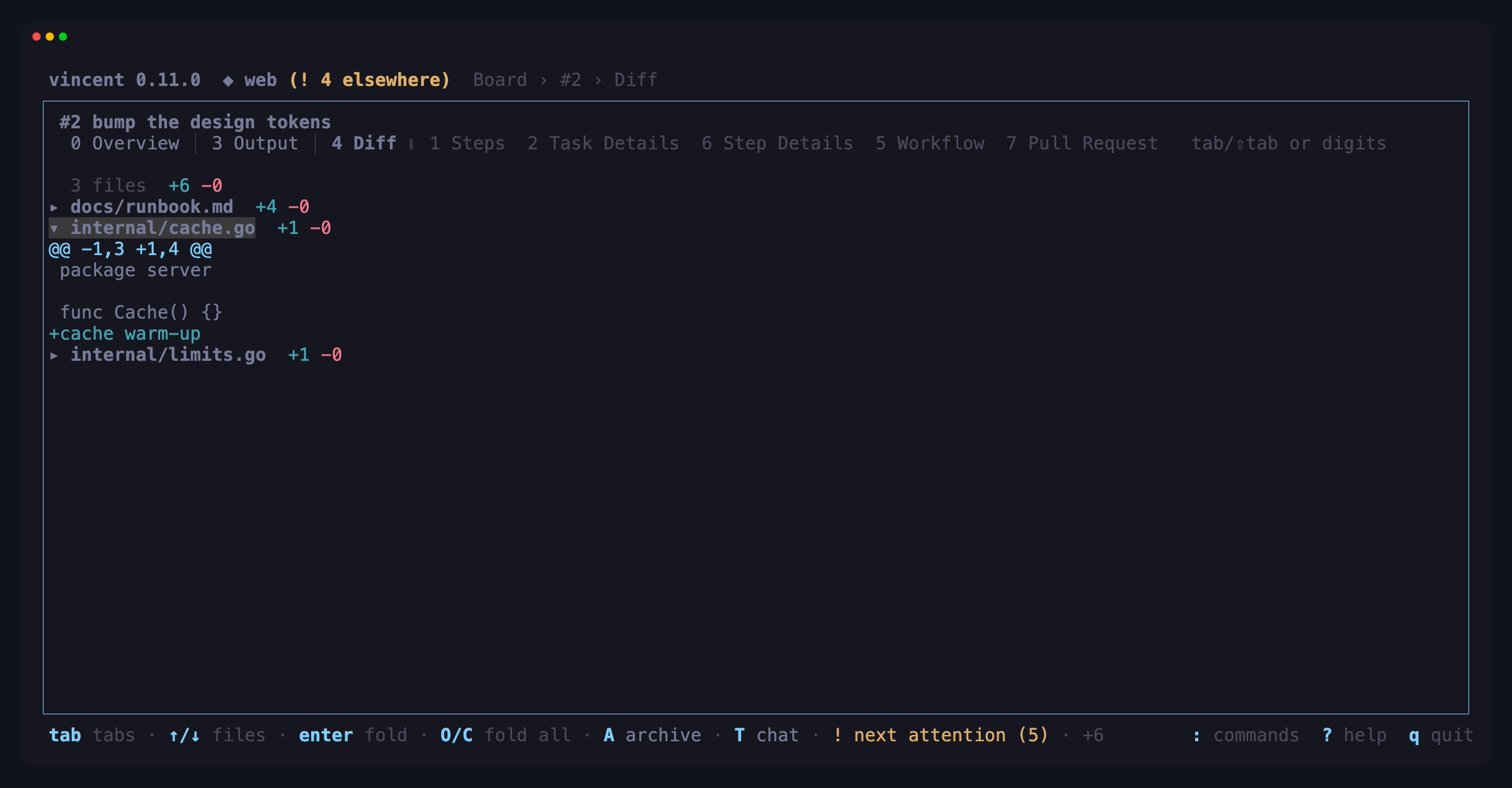
The Diff tab is git diff against the merge-base with the commit the task
was cut from, including uncommitted changes, syntax-highlighted. It is fetched
when you activate the tab and on an explicit refresh, never on every output
chunk.
It is grouped by file, and every file starts collapsed — so the first thing you see is what the task touched, not the first eighty lines of whichever file git wrote first:
| Key | Does |
|---|---|
↑/↓ |
Move between files (the pane scrolls to keep the cursor in view) |
enter or space |
Expand or collapse the file under the cursor (→/← too) |
O |
Expand every file |
C |
Collapse every file — which is how the tab opens |
pgup/pgdn, f/b, u |
Scroll by lines inside what is expanded |
[ |
Back to the Output tab (] advances to Workflow) |
Clicking a file’s row folds it; clicking a line of code selects its file and leaves it open. The mouse wheel scrolls whichever tab is on screen, unless a popup is open — a popup takes the mouse as well as the keyboard, so a tick behind it moves nothing.
The counts beside each path are the added and removed lines inside that file’s
hunks, and the line above the list totals them. A binary file says so
instead of showing +0 -0, and a rename reads old → new.
Folds are remembered per file path, so leaving and re-entering the tab — a refresh — keeps what you had open, even if the agent has since touched other files. Moving to another task starts collapsed again, and nothing is written to disk: a fold is how you are reading one diff, not a setting.
On a task that fanned out, the tab grows an outer level: lane › file, one
row per lane in the order the parent merged them, and a final the task’s own
commits holding everything that belongs to no lane. After the join the
parent’s diff is otherwise one wall of merged hunks with nothing saying who
wrote what. A lane that merged cleanly and changed nothing says so rather than
reading +0 -0, l opens the lane whose section the cursor is in, and a task
that fanned nothing out is the flat file list it has always been — including its
fold state, which is still keyed by path alone.
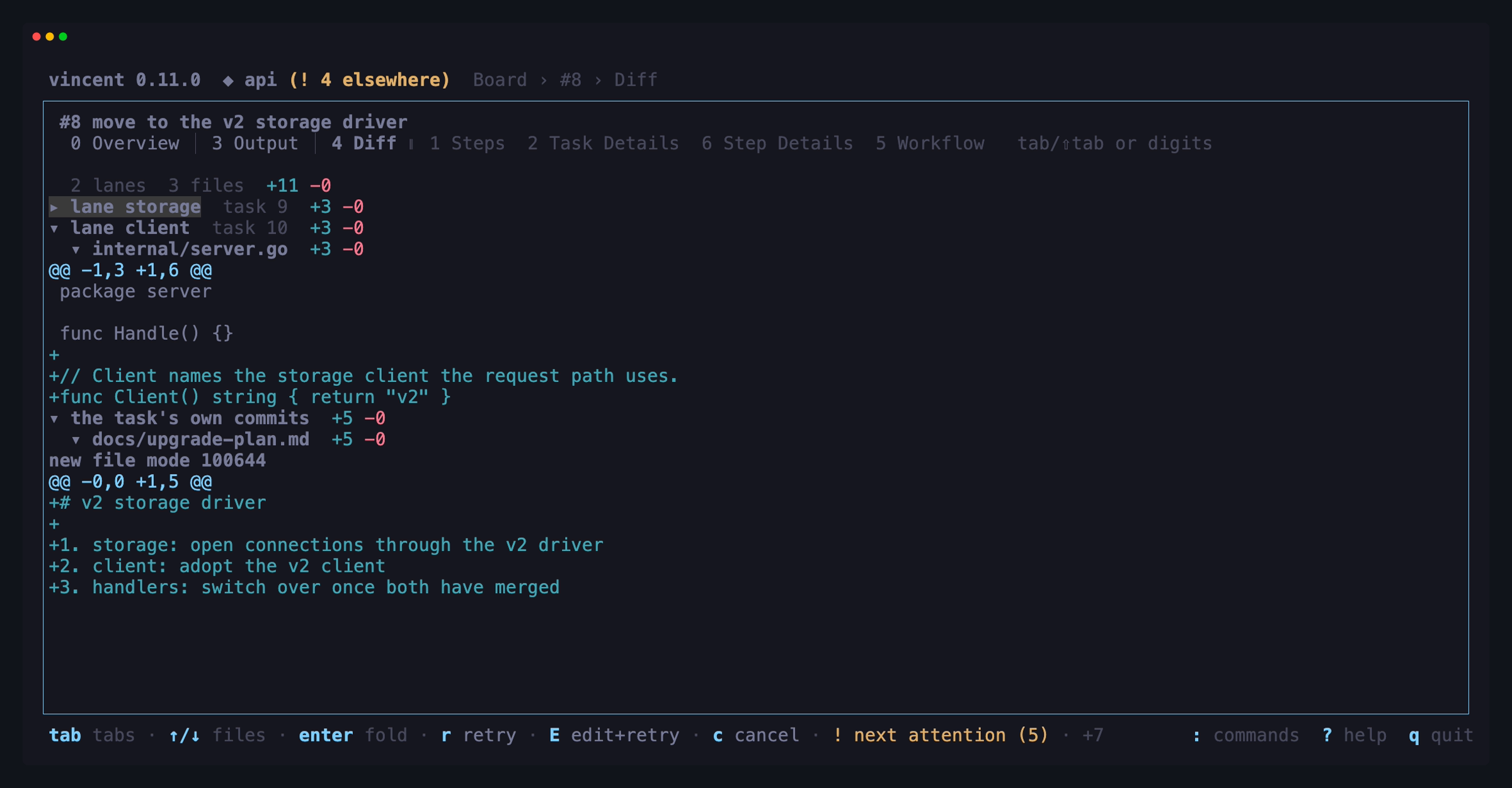
Jumping between failures
N walks a task’s failures. Its stops are the newest attempt of each step —
or of each loop iteration — that did not succeed, in the order they ran. A
step that failed and then passed on retry is not one. From wherever the
attempt cursor is, N moves to the next stop and wraps at the end. It selects
that attempt and opens the Output tab where the attempt failed: at the first
line its check wrote for a check_failed, and at the end for any other
failure. It never turns follow on. A failed iteration folded shut on the Steps
tab is unfolded, the way enter would.
A blocked fan-out lane is a stop at its fan-out step’s place. N opens the
lane as l does and lands on the lane’s own first failure. Pressing N
again walks the lane’s failures, and esc or U come back to the parent. The
Overview failure card’s 3 link lands the same way N does. On a task with
no failures, N does nothing and the status line says so.
Walking a fan-out
A fan_out step runs its lanes as real child tasks, each
with its own worktree, branch, steps and transcript. None of that lives in the
parent, so the parent’s job is to be the way in.
Lanes are kept off the board’s list on purpose — a sixty-four-lane tree would
bury the work you actually asked for — so L on a fan-out parent hangs them
underneath it as indented rows, and L again folds them away. Nested fan-outs
compose, down to fan_out.max_depth. An expanded lane row is an ordinary task
row: the same folding, the same space selection, the same action keys. Lanes
stay out of the flat count, out of every group header’s count and out of the !
attention badge, so a board with nothing expanded reads exactly as it did
before. What is expanded is remembered for the session and not written to disk —
a task id is not a label, and there is no honest way to restore one archived
while the TUI was down.
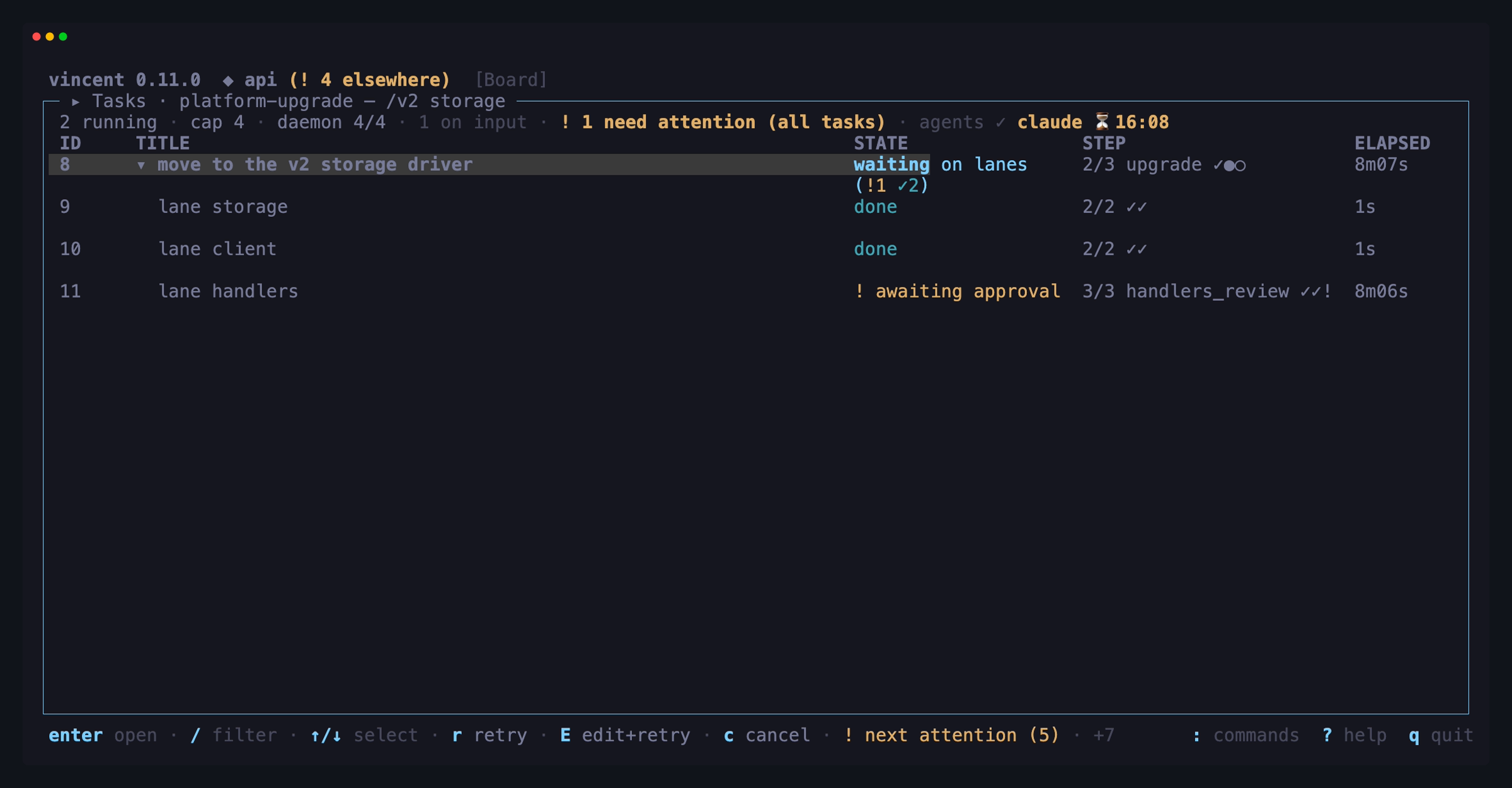
Inside the workspace:
| Key | Does |
|---|---|
l |
Open the selected lane’s workspace |
U |
Open this lane’s parent task |
< / > |
Step the Output pane’s lane selector |
esc |
Back to the task you came from, one at a time |
l and U work in every state the parent is in — a parent blocked on a
lane or parked done is exactly when a lane is worth reading. Which lane l
means depends on where you are standing: the Workflow tab’s graph cursor, the
Output pane’s selector and the Diff tab’s lane sections are each taken at their
word, the Steps timeline means the fan_out row under the cursor, and every
other tab means the lane the failure is about. U is its reciprocal — parent
task in Task Details is a jump, not a number to memorize. Where a tab
already gave l the vim meaning of →, that is kept for a task with no lane to
open.
esc pops one task, so three lanes deep is three presses back rather than
one jump to the board. A task on that trail that has since been archived is
dropped from it rather than opened.
The Output pane’s </> cycle the parent’s own output and each lane’s, so
you can watch a running lane without leaving the parent. Exactly one extra live
stream is open at a time — interleaving sixty-four would be a lossy render of
something that looks like a bug, and the transcript file is still the durable
copy.
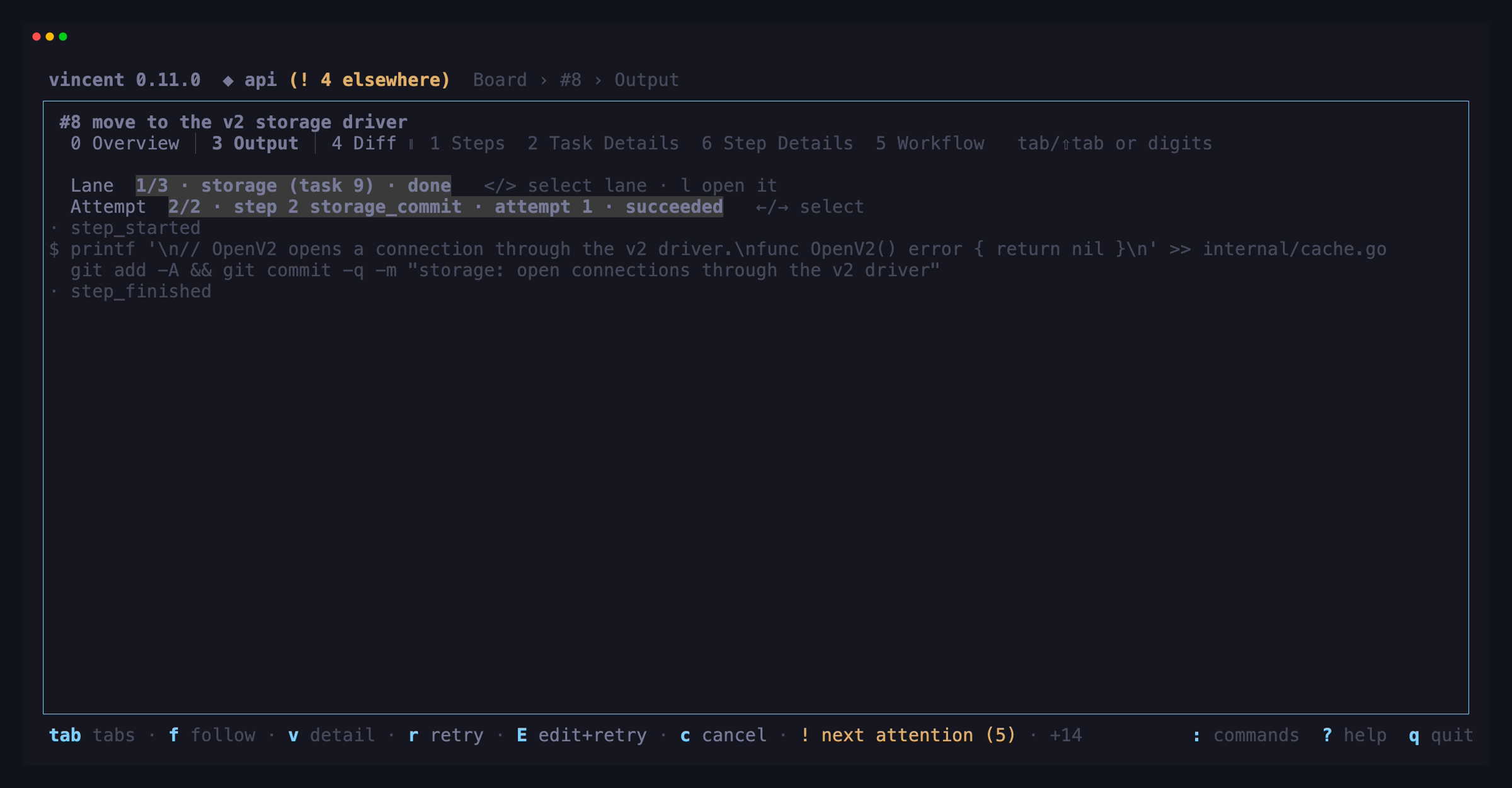
When the join fails, the workspace says which lane. A parent blocked on
lane_failed, merge_conflict, fan_out_invalid or fan_out_limit carries
the lane id, its child task, the engine’s own sentence — the conflicted paths,
the offending line or bound — and the lane’s own block reason, on the detail
header and on the fan_out step row, with l to go there. Only the attempt the
task is parked on is annotated; an earlier retried one is history.
Task Details on a task with lanes also shows tree cost: the task’s own
cost plus everything its lanes have spent, at any depth. On a root task that is
the figure
max_tree_cost_usd is
compared against, so it is where to look when a lane blocks tree_cost_limit.
It reads — when nothing in the tree reported a cost, never $0.00.
The Pull Request tab grows one row per lane beneath the parent’s own
section, with the lane’s branch and any linked pull request. Lane rows carry no
checks — checks stay one call for one task, and l opens the lane, whose own
tab has them.
The action bar
Below the panes, the action bar shows exactly the actions valid in the current state — the daemon computes that list, the TUI renders it. With tasks selected on the board it acts on all of them; see Acting on several tasks at once.
| Key | Action | Valid from |
|---|---|---|
a |
Approve the gate | awaiting_gate |
x |
Reject the gate | awaiting_gate |
r |
Retry the blocked step, or cascade the retry to every blocked lane under a parked fan-out parent | blocked, awaiting_children |
R |
Repair with an agent — a one-off run in this task’s worktree | blocked |
E |
Edit the step’s prompt or command in $EDITOR, then retry |
blocked |
s |
Skip the current step | blocked, awaiting_gate |
p |
Pause / resume | queued, running / paused |
c |
Cancel the task (asks first — a running step is killed) | most states |
A |
Archive (asks first — the worktree is removed) | done, aborted |
F |
Follow up — run more work in this finished task’s worktree | done, aborted |
T |
Chat with an agent in this task’s worktree, or reopen the chat already open on it | blocked, awaiting_gate, done, aborted |
E opens the failing step’s prompt or command in your editor, and the override
applies to this task’s snapshot only — the workflow file is untouched. On a
blocked task the footer lists E edit+retry and R repair right after
r retry, ahead of skip, cancel and archive.
R and F open a form instead of acting straight away; they are the two task
actions that need something written, which is also why neither is offered for a
bulk selection.
What each action means in full is in Task lifecycle.
Repairing a blocked task
r, E and s all leave the worktree exactly as the failed step left it —
they re-run a step, rewrite its text, or walk past it. When what is wrong is a
file, press R on a blocked task and a one-off agent goes and fixes it, in
this task’s worktree, on this task’s branch.
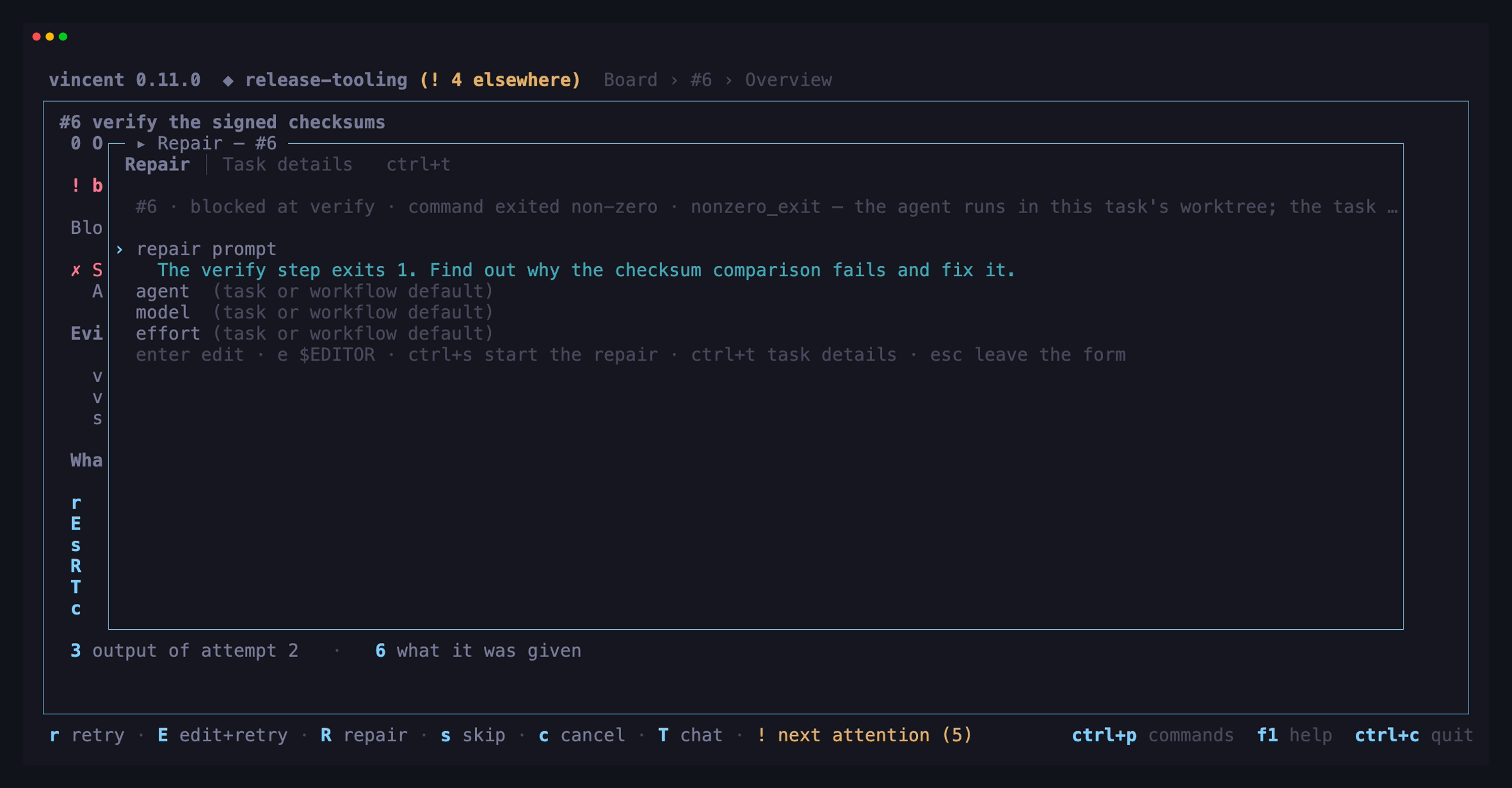
| Key | Does |
|---|---|
↑ / ↓ |
Move between the prompt and the agent / model / effort rows |
enter |
Open the row under the cursor — the prompt field, or that row’s picker |
e |
Write the prompt in $EDITOR instead |
t |
In an open agent / model / effort list, type a value it does not offer |
ctrl+s |
Start the repair |
ctrl+t |
Switch between the form and this task’s details, without leaving the popup |
esc |
Close without repairing — the draft is discarded |
The prompt is the only required row, and it is prose: write what you want done, not a template. The daemon puts the context around it — the task, the blocked step’s rendered prompt or command, the failure reason and exit codes, the last 200 lines of the failed attempt’s transcript and the path to the whole file, so the agent can read further itself.
Inside the prompt field enter is a newline (a repair prompt usually wants
more than one line), ctrl+s keeps the text, and esc discards it. Agent,
model and effort are optional; set they apply to this run only and win over the
task’s overrides and the workflow’s defaults.
When the repair agent finishes the task returns to blocked — same step, same
reason — whatever it exited with. That is the point: you look at the diff and
then decide whether to r. The repair appears in the timeline as its own
entry under the blocked step, labelled repair (ad-hoc agent), with its own
transcript, tokens and cost; it is not an attempt of that step and does not use
up its retries.
Following up on a finished task
A done or aborted task still owns everything it made — its worktree, its
branch, its commits — until you archive it. F is how you do one more thing in
there without leaving vincent: rebase the branch onto a main that moved, add
the commit a reviewer asked for, drop the stray file the agent left.
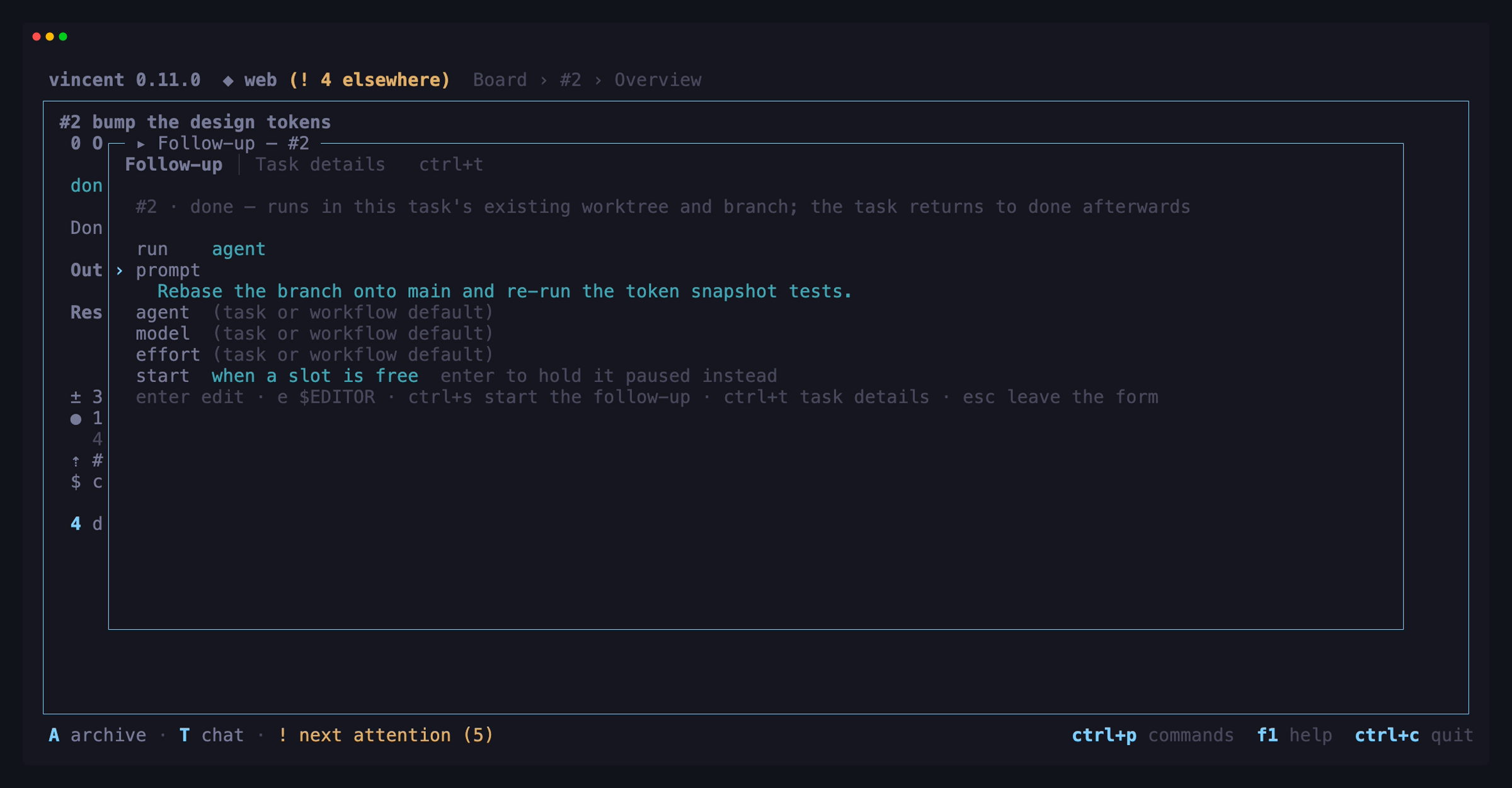
| Key | Does |
|---|---|
↑ / ↓ |
Move between the kind of follow-up, what to run, the agent / model / effort rows and the start row |
enter |
Open the row under the cursor — the run-form list, the text field, or that row’s picker; on the start row, toggle holding the task paused |
e |
Write the prompt or command in $EDITOR instead |
t |
In an open workflow / agent / model / effort list, type a value it does not offer |
ctrl+s |
Start the follow-up |
ctrl+t |
Switch between the form and this task’s details, without leaving the popup |
esc |
Close without running anything — the draft is discarded |
The top row picks what kind of run this is, and it decides what the row under it means:
| Run form | The row below it is |
|---|---|
agent |
a prompt — prose, not a template |
command |
a shell command, run under the daemon’s shell (/bin/sh, or pwsh on Windows) |
workflow |
a name picked from the registry, run against this task’s worktree instead of a new one |
Switching between the three keeps what you typed in each, so you can look at the command form and come back to your prompt.
The start row at the bottom works like the new-task form’s. Left alone, the
follow-up runs when a slot is free. Switched with enter, the follow-up is
recorded and the task waits paused on the board until you resume it.
When the run finishes, the task returns to the state it came from — done to
done, aborted to aborted — whatever it exited with. A follow-up never
changes a task’s verdict; if a successful one could promote an aborted task to
done, any command that exits 0 could undo an abort you made on purpose.
Follow-ups are repeatable, and each one is a round. The timeline heads them
↳ follow-up 1, ↳ follow-up 2 under the workflow’s own steps, with each step
of the round named beneath — they are not steps of the workflow, and the
workflow’s k/n does not move.
If a follow-up step fails the task blocks at that round, and the usual keys
mean the usual things there: r re-runs the follow-up where it stopped, R
repairs against that failure, s abandons the follow-up and puts the task
back where it came from, c aborts. E is refused — edit-and-retry rewrites a
step in the task’s snapshot, and a follow-up is deliberately not in it.
For more than one task at a time, use the command line:
vincent task follow-up <id> --run 'git rebase origin/main'
(CLI reference).
Talking to an agent about a task
R and F each run one thing and hand the task back. When what a stopped task
needs is a conversation — why did the check fail, is this gate’s diff right,
what would it take to finish — press T. It is offered on a blocked,
awaiting_gate, done or aborted task and opens a
chat workspace on a chat that works in this task’s own
worktree and branch. Its first message carries the task and what stopped it:
the failure and the transcript’s tail for a blocked task, the gate for one at a
gate, the last step’s summary for a finished one.
While that chat is open the task is locked. It stays exactly where it was,
and every action but c cancel is refused — the action bar offers c or
nothing, and names the chat holding the lock as T chat #N. T on a locked
task reopens that chat rather than starting a second. Cancelling a locked task
stops any running turn, closes the chat and aborts the task in one step.
The chat ends with ctrl+q in its workspace, which asks first. Closing unlocks
the task and touches nothing else: the worktree and the branch are the task’s,
and whatever the conversation changed in them is still there for r, a or
A. A closed chat takes no more messages, but it is not gone — the task’s
Task Details tab lists every chat opened on it under Chats, closed ones
included, and both chats boards show each one’s task ahead of its title —
closing is terminal, so a closed chat is listed on the
archived chats board rather than the live one. Pressing T again
later opens a new chat.
A task that never got a worktree — blocked on branch_exists, say — has nothing
to talk about in, and T says so on the action bar rather than making one.
Answering a question
When a claude step asks something mid-run, the task enters awaiting_input and
gets a badge on its row plus a footer hint. Press enter on the row to open the
answer form.
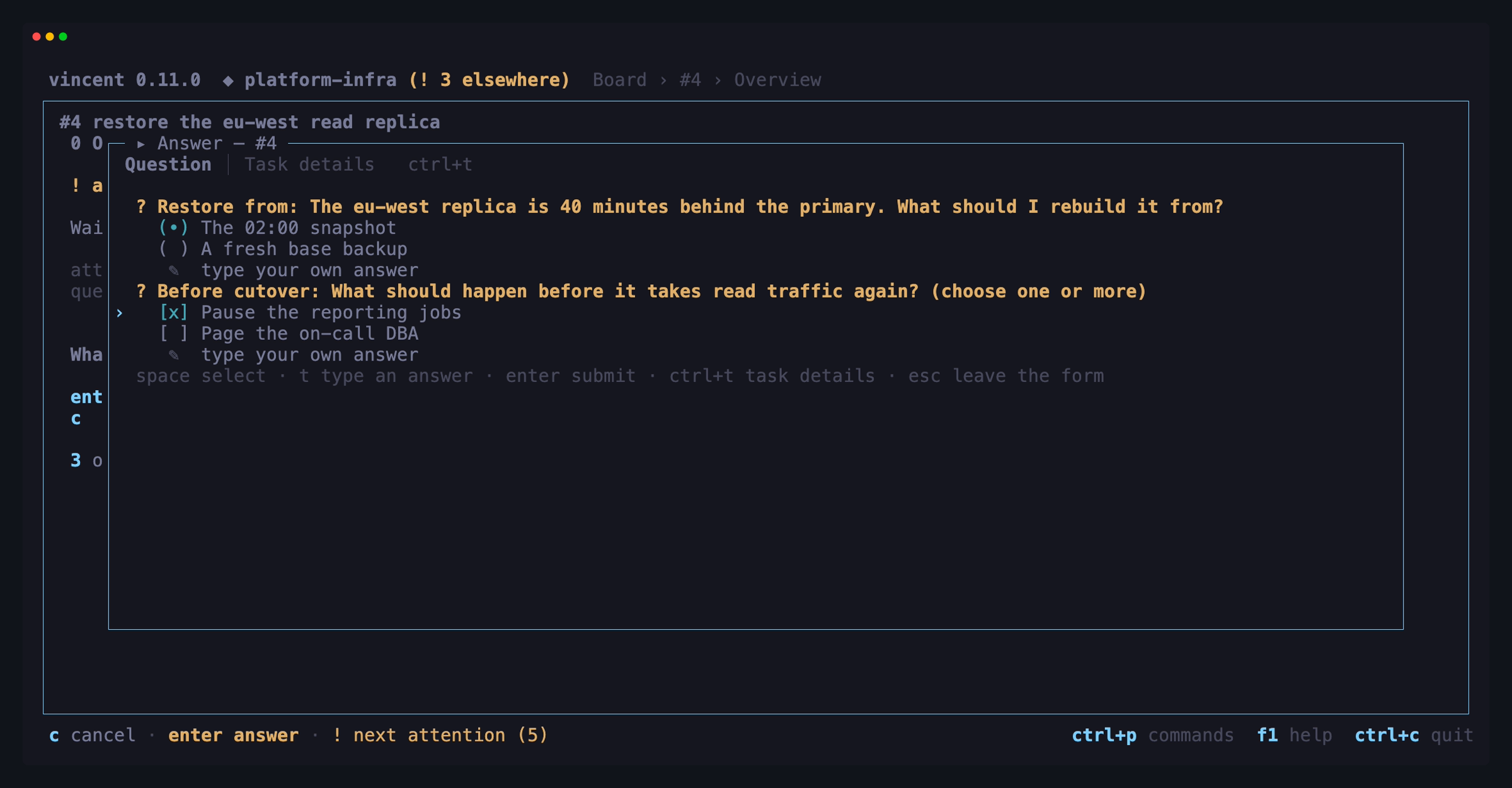
| Key | Does |
|---|---|
space |
Pick an option (toggles, for a multi-select question) |
t |
Type your own answer — options are suggestions, never a list |
enter |
Submit; the attempt resumes in the same session where it stopped |
ctrl+t |
Switch between the question and this task’s details, without leaving the popup |
esc |
Close without answering (what you picked is kept) |
While t has a field open, enter keeps what you typed and esc discards it —
the submit is the next enter, on the form itself. The field opens under the
question it answers and wraps as you type, so a long answer stays readable
before you commit it; the committed answer is shown back on its row, wrapped
the same way.
The form is a popup, and it never steals focus: auto-opening under a keystroke is how an answer gets lost. It announces itself and waits for you.
Reading the task without leaving the popup
All three popups — the answer form, the repair form and the follow-up form — have a two-tab strip of their own along the top: the form itself, named Question, Repair or Follow-up, and Task details.
ctrl+t switches between them and the popup stays open. Task details is
the same inspector the workspace’s Task Details tab shows, with the same
sidebar and the same ↑/↓ and pgup/pgdn keys: the original prompt, the
project, the workflow and the step that is asking, the agent, model and effort,
the timings and cost, and the linked GitHub issue or pull request.
Nothing about your draft changes while you read. Options you picked, an answer
you typed, a half-written repair or follow-up prompt and the agent/model/effort
you chose are all exactly where you left them when you press ctrl+t again.
That matters most on the repair and follow-up forms, where esc throws the
draft away — before this, looking something up meant retyping the prompt.
ctrl+t works while a text field or a picker is open, and types nothing into
it. On the Task details tab the pane is strictly read-only: no task action
fires from it, and it offers neither o nor P. esc there goes back to the
form rather than closing the popup — one layer per press — so closing a popup
from the details tab takes two.
The takeover screens
Reached from the command palette (:), except new task which keeps a direct
key.
New task — n
Opens for the project the header shows, from every screen — the project overview included, whatever row its cursor is on. The project row at the top is read-only: the cursor never stops on it, and switching project is the only way to change it — a form you have not touched follows the switch, and one you have asks first. A draft seeded from a pull request, an issue or a chat of another project switches to that project before the form opens. A guided form: project → workflow (with its description and step list, flagging steps whose agent is unavailable) → (pull request, when seeded from one) → title → description → fields → (worktree and merge back, when seeded from an issue that has a main branch) → base branch → branch → priority → start → optional agent/model/effort override.
The two branch rows are lists over the project’s own local branches, served
by GET /v1/projects/{id}/branches. enter opens one,
/ narrows it and t types a name it does not offer, exactly as the override
lists work. The base branch row names what a new branch is cut from. The
branch row is the task’s own, and which row of the list you commit decides
what vincent does with the name:
- a branch from the list is run on as it stands — the third
worktree creation mode,
existing_branchon the wire: vincent adds a worktree on the branch that is already there instead of cutting one, and archiving the task never deletes it; - the free-text row cuts a new branch under the name you typed, which is what this row has always done;
- empty leaves the name to the project and config templates.
Adoption is therefore something you choose, never something vincent infers from a name that happens to exist — typing a name the list already carries still cuts a branch, and still gets the ordinary “that branch exists” refusal. The row says which of the two it is holding, in the Review stage as well as on the form.
Rows the list marks are the ones worth reading. A branch checked out in the
project’s own directory says so, and choosing it puts a second line on the row
and in the Review stage: the task will run in that checkout rather than in a
worktree, so whatever is uncommitted there is part of the task’s diff and
archiving removes nothing. A branch another vincent worktree is holding says
“would block” — it is still selectable, because the worktree may be gone by the
time the task is admitted, and the daemon is the authority on that, not the
form. Filtering on checkout narrows the list to exactly these.
A draft seeded from a pull request offers nothing to adopt: the task already runs on the pull request’s head branch, and the two cannot be combined. A handoff from a chat shows both branch rows read-only — the worktree they name already exists.
The start row decides whether the task runs as soon as a slot is free — the
default — or is created paused: enter toggles between the two. A paused
task waits on the board, with no worktree and no agent started, until you resume
it, which is how you put a draft on the board. The Review stage shows which you
chose.
When the selected workflow declares fields:,
the Fields row is pre-rendered in declaration order. It shows labels,
descriptions, type/required badges, and regex help; boolean values toggle between
true and false. An enum row
opens a scrollable, filterable list of its declared values on enter — esc
cancels, enter commits, and a multiple field toggles membership with the
list open — while ←/→ step a single-choice row through the values in place
without opening it, the way a boolean cycles. A multiple row is not stepped:
“the next set” has no meaning, so the list is the only way to change one. An
optional single-choice row also steps to an empty stop, shown as
(choose a value), and its list starts with an (unset) row; those are the
only ways back to empty for a row the workflow owns and that therefore cannot
be deleted. A
declared default: seeds the row when the workflow is selected. A row left
blank — empty, or holding only spaces — counts as unset, the same way the
daemon counts it: a required one says so on the Fields row, and an optional one
is simply left off the task rather than stored as blank. Workflow-owned names are locked, but their values remain
editable. You can still add and delete custom key/value rows — additional,
undeclared fields remain valid and are recorded on the task. Values are kept
when you switch workflows, including fields that the new workflow does not
declare.
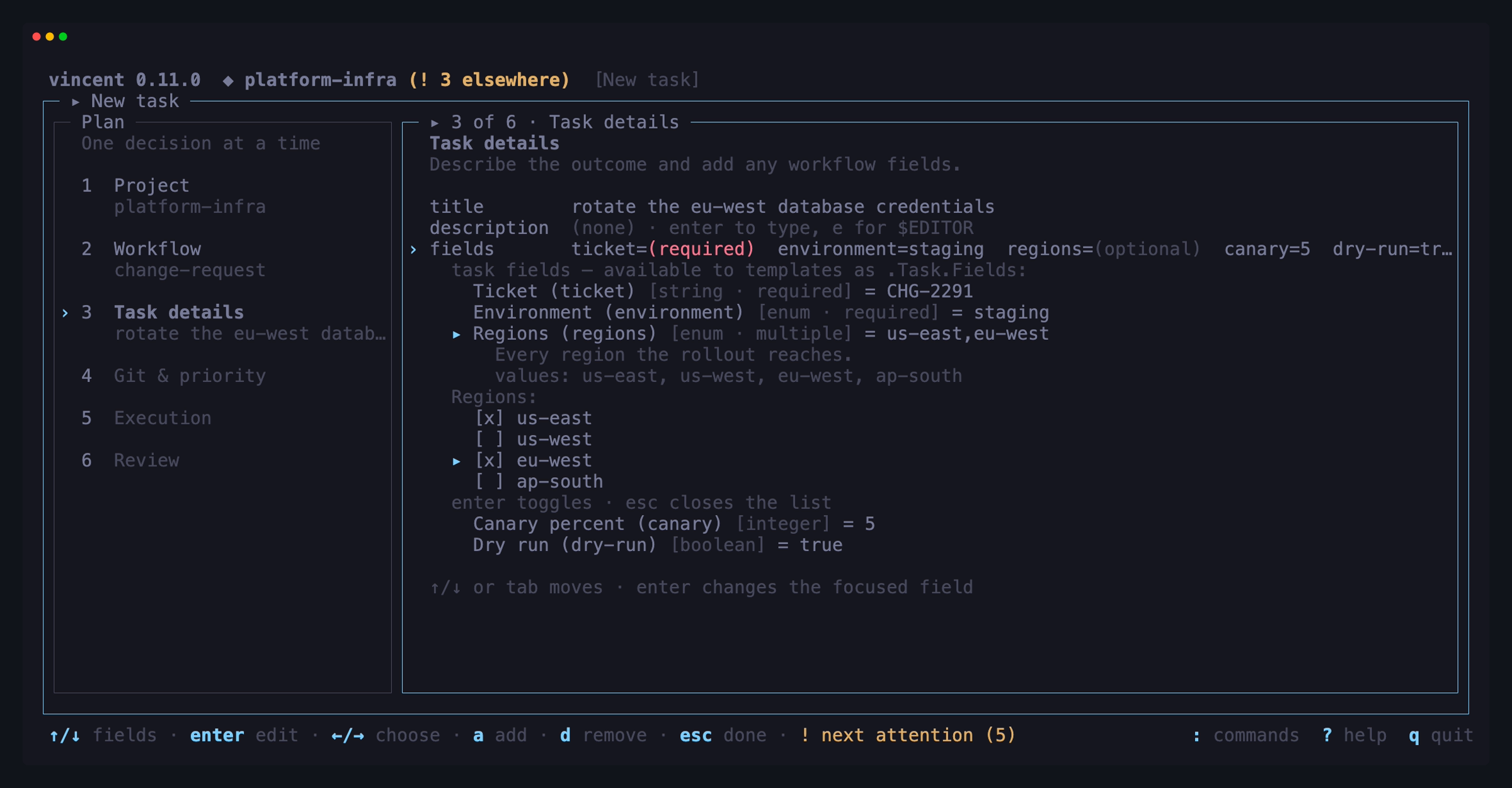
The source row appears only when the form was opened from something,
and it is read-only. The form has no issue picker: you start a task from an
issue where the issue is on screen, with a on the issues
screens, and from a pull request with a on the pull-requests
screen. To start a plain task instead, press esc and then
n. A plain n draft makes no GitHub call on any project. A GitHub issue
reaches a task once the project has imported it into its issues;
from a shell, vincent task add --issue ID creates the task from it.
For an issue, the row shows #id and the title, the issue’s state, and the
owner/repo#N reference when it was imported from GitHub. If the issue has
already started tasks, a second line says how many and how many are still
active — 2 tasks already started from this issue (1 active). Starting
another is allowed; the list itself is on the issue’s own screen. A closed
issue can be started from too: the row says closed, and the task shows the
daemon’s warning once it is created.
The issue fills the title and description — for an imported issue, the title
is prefixed #N and the description ends with a GitHub issue #N: <url> line
— and any of the workflow’s declared issue, github_issue, labels,
assignee, milestone or kind fields whose declared type accepts the
value. issue is the vincent issue id; github_issue is the GitHub number of
an imported one, the one to hand to gh. All of it lands in the ordinary
editable rows — rewrite or clear anything before creating, and what you
leave is what the task gets. Declared fields differ per workflow, so switching
the workflow re-applies the prefill — but only to rows you have not typed in.
A value you typed is never overwritten.
The issue is captured when you create the task and stored on it; the task
links to the issue from then on, and
.Issue renders from that
capture.
For a pull request, the row shows the number, the title, the head branch,
and, for a fork, that nothing can be pushed back to it. A task runs on the
pull request’s head branch, so that is a decision made where the pull request
is on screen. The prefill lands in the same editable rows — the title, the
description, and a declared pull field carrying the number. An issue and a
pull request are mutually exclusive on the create call: they would prefill the
same title and description from two sources, and the daemon refuses a request
naming both.
On a wide terminal those fields are grouped into six stages in the left rail: Project, Workflow, Task details, Git & priority, Execution, and Review. The main pane shows only the fields in the current stage, while Review gathers the complete request beside the Create action. The project is the selection, settled before the form opens, so the form opens on Workflow: the rail lists Project as already decided, and the read-only project row heads the Workflow stage. The rail follows the ordinary field cursor — there is no separate Next button or second set of navigation keys.
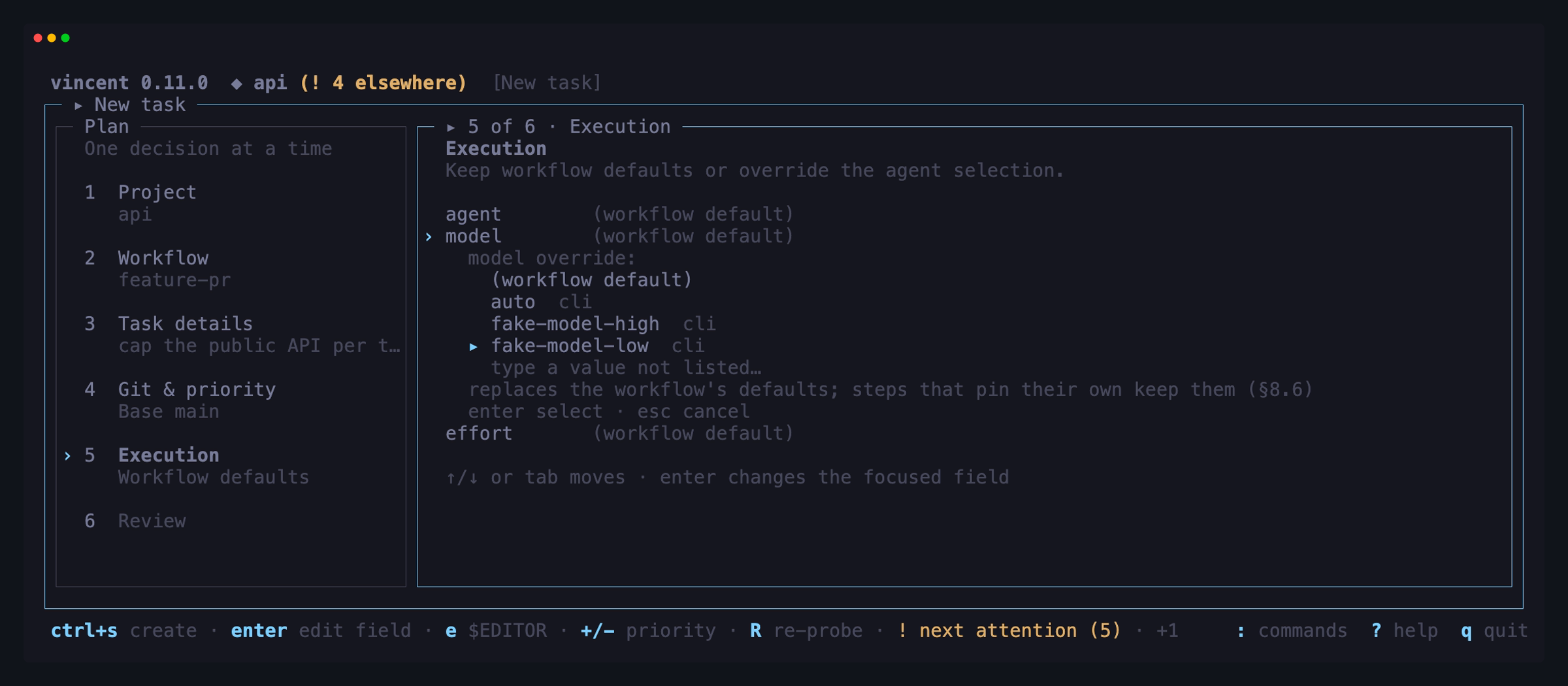
| Key | Does |
|---|---|
enter |
Open the focused field’s editor or picker; on the start row, toggle creating the task paused |
t |
In an open list, type a value it does not offer |
a / d |
In Fields, add or remove a custom row (declared rows cannot be removed) |
e |
Edit the description in $EDITOR |
+ / - |
Nudge the priority (higher runs first) |
R |
Re-probe the adapters (the list is otherwise cache-served) |
ctrl+s |
Create the task |
The agent row warns when the adapter the task would run on is out of quota —
· usage limit until 14:20, from the same quota the board header badges.
It warns and nothing else: the form submits, and the task meets the ordinary
usage_limit wait if
the window is still shut when it reaches its agent step — without starting the
agent, when it is a window vincent watched close. Where
usage_limit_auto_continue
says not to wait, it starts the agent and blocks on the stop instead.
The override pickers are fed by live adapter data, tagged with where each option
came from, and always accept free text: t inside an open list types a value
the catalog does not offer, which is how you name a model that shipped this
morning. They are windowed and filterable — / narrows the list, which is what
makes cursor’s ~180-model catalog usable. Each
resolved field shows which level won (step, task, workflow, adapter), so the
form tells you what will actually run rather than what you typed.
Projects
The project overview is the one screen that shows every registered project at
once; everything else shows the selected project. Open it from the palette’s
“project overview” row, or from the last row of the project picker (@),
“overview & manage…”.
Each project is one row of figures, all of them the daemon’s own counts:
| Column | Shows |
|---|---|
! |
Tasks that need you |
| running | Slots in use against the project’s own cap (2/3), or a bare count when it has none |
| queued, blocked, done | Tasks in each state; archived tasks are never counted |
| issues (gh) | Open issues, with the ones imported from GitHub in brackets |
| chats (wait) | Live chats, with the ones waiting on you in brackets |
| sync | Issue sync: ✓ healthy, ✗ failing, — off or no GitHub remote |
| github | ✓ owner/repo when the GitHub integration is usable, its reason when not, — with no GitHub remote |
| activity | How long ago the project’s tasks, issues or chats last changed |
A total row sums the columns. Its running figure is the installation-wide
slots in use against max_parallel_tasks, never a sum of the rows, because
that is the cap the scheduler applies across projects. A project the daemon
could not count shows — rather than zeros.
Below the table, Needs you, across projects lists every task the board’s
! filter would keep — awaiting input, awaiting approval, blocked, or a
fan-out parent one of whose lanes is — oldest wait first, each led by its
project. On a wide terminal the highlighted
project’s repository and execution defaults show beside the table; a narrower
one drops that pane first, then the columns from the right, keeping name, !
and running to the last.
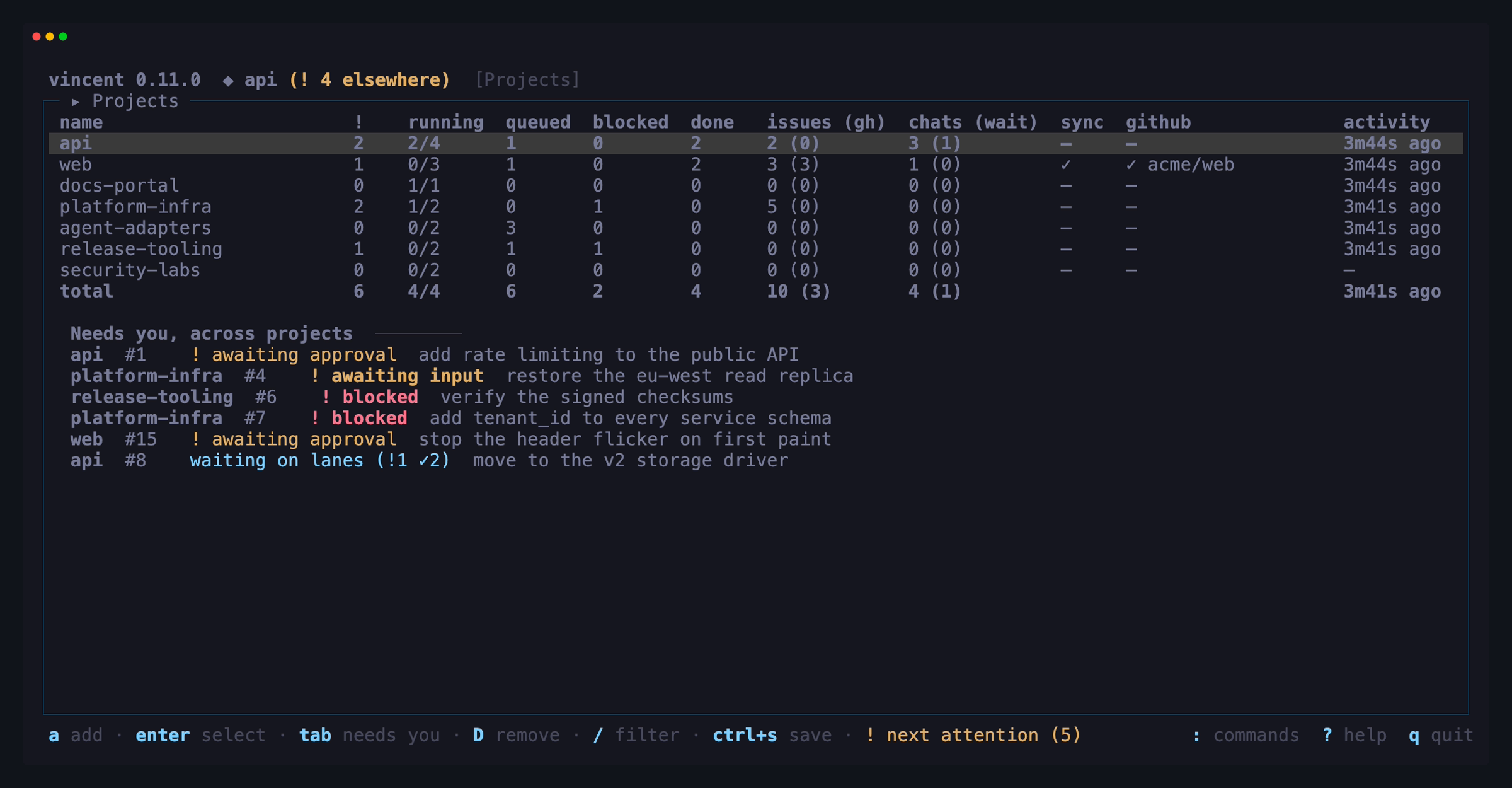
| Key | Does |
|---|---|
enter |
On a project: select it and go back to the view you came from (the board if none). On a needs-you task: select its project and open the task |
tab |
Move between the project table and the needs-you list |
e |
Edit the highlighted project |
a |
Register a repository |
D |
Remove it (asks first; its task rows go with it) |
/ |
Filter by name or path |
ctrl+s |
Save, in the form |
With no project registered, the overview says how to add one: a, or
vincent project add <path> from a shell.
Pull requests
The selected project’s pull requests, when its origin is a github.com
repository vincent can authenticate to. The
listing starts open-only and s cycles it through closed and all. Each row
carries the number, its state (open, draft, closed or merged), the
title, the head branch, and the task that claims it — with auto when the
daemon’s reconciler matched it by head branch and human when somebody linked
it by hand.
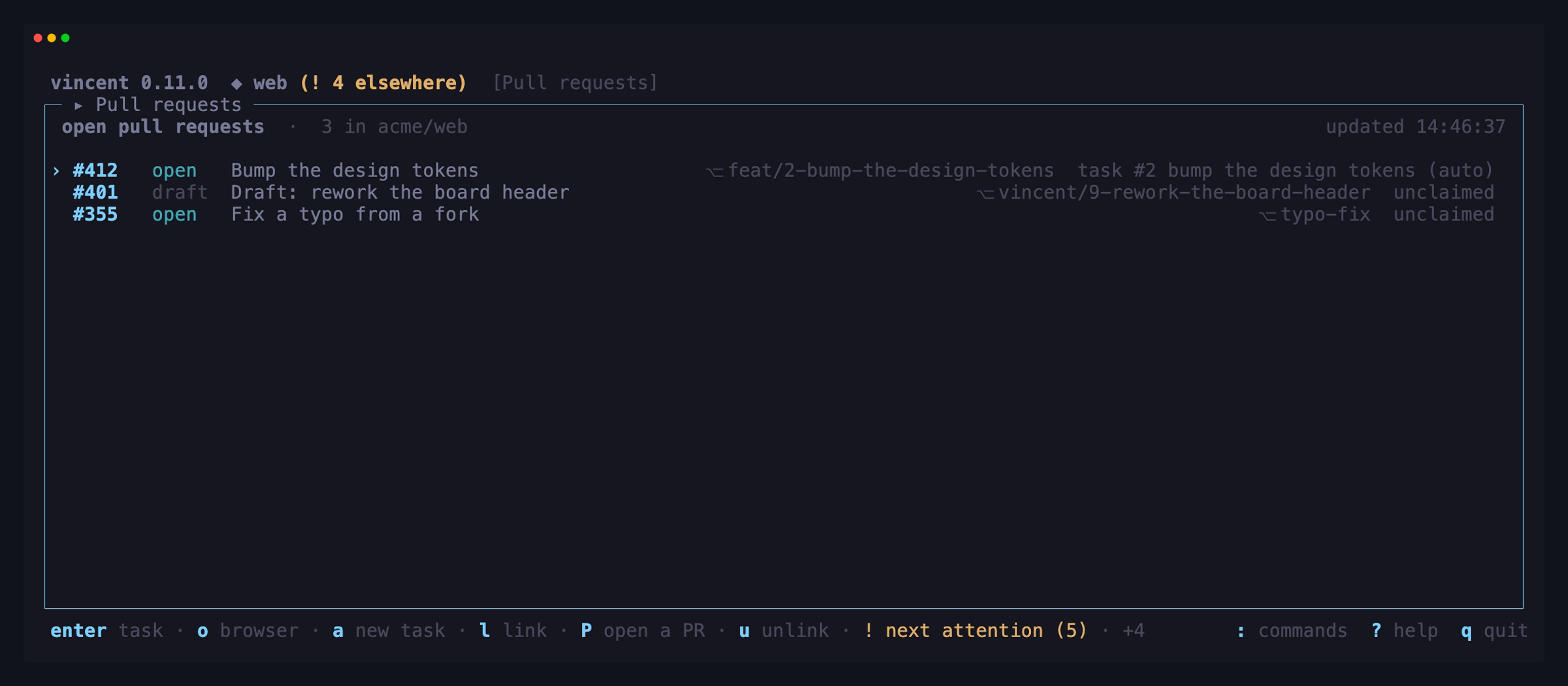
The entry appears in the palette, the ? overlay and the workspace’s
pull-request keys only when the selected project qualifies. Switching to a
project that does not while the screen is open keeps the screen, which then
says “this project has no usable GitHub integration” and why, and lists
nothing until you switch back. A listing that fails shows the daemon’s reason
on one line. A reconciler tick that links or unlinks a pull request re-renders
the screen with no keypress.
| Key | Does |
|---|---|
enter |
Open the workspace of the task that claims this pull request |
o |
Open the selected pull request in a browser |
a |
Create a task from this pull request — it runs on the pull request’s head branch, and the form is editable first |
l |
Link it to a task in the same project |
P |
Open a pull request for a task that has none — pick the task, then push its branch and create it |
u |
Unlink it (asks first) |
s |
Cycle the listing between open, closed and all |
R |
Re-list this project |
↑/↓ |
Move the selection |
/ |
Filter by number, title or branch |
P is the one key here that is not about the selected row. This screen has no
task rows — its question is “what is open in this project”, and a task with no
pull request is not an open pull request — so P offers a picker of this
project’s tasks with a branch and no pull request, and choosing one opens that task’s
workspace with the form already up. Eligibility is exactly that: a branch, and
no pull request. Anything else is reported by the push or the create failing
with a named reason rather than guessed at in advance.
u is a sticky refusal, not a reset: the daemon records that a human
removed this link, and the reconciler will not re-apply it on its next tick.
The confirmation says so.
a opens the New task form seeded with the row — the screen makes
no GitHub call of its own and computes no prefill; it hands the form a project
and a number, and the daemon fills in the rest. It is refused on a row a task
already claims, saying which task, because two tasks cannot hold one branch, and
on a row that names no head branch, because then there is nothing to run on.
s is why closed and merged rows are reachable at all: the listing defaults to
open, which is the question this screen usually asks, and pulling a repository’s
whole pull-request history to answer it would be paid for by everyone. Acting on
a merged pull request and redoing a reverted one are the cases the other two
states exist for.
Issues
The selected project’s issues — the ones filed in vincent and the ones imported from GitHub — as a board of four lanes. It is in the palette whether or not the project has a GitHub integration: issues are vincent’s own. Switching project swaps the list, and the header reads “loading ‹project›…” until the new one arrives.
The lanes are stacked sections, top to bottom:
- open — no task is working on the issue and none has finished: it has no task yet, or only cancelled ones;
- in progress — a task started from it is still working, waiting or blocked;
- hand-off — every task started from it has settled and at least one
finished
done, so it is back with you to review and close; - done — the issue is closed, whatever the reason.
vincent works out an issue’s lane from its state and its tasks, so the lanes
cannot be dragged and no key moves an issue between them: starting a task,
finishing one, or closing the issue does that. Each section’s header shows its
count and, with ! n, how many of its issues have a task waiting on you; an
empty section still shows its header, with 0 and “none”. A line above the
sections totals them.
done is hidden when the screen opens, and the totals line says so with
done hidden (s): s shows it as the fourth section, listing closed issues
too, and s again hides it. ← and → fold and unfold the section you are
in, and C and O fold and unfold all of them; a folded header keeps its
count and its ! n. The done setting and the folds last until you quit, and
survive a project switch. / filters within the sections and keeps their
headers, so an empty one reads “none match”.
Each row carries the issue’s id, its state (with the close reason once it is
closed, such as closed · not planned), the title, its labels and kind,
owner/repo#N when it was imported, and its tasks, worded for its lane:
- open —
no tasks, orN tasks · cancelled; - in progress —
● #T running(or whichever state) for the task holding the issue’s main worktree, then· +k sidewhile side tasks are running and· n mergingwhile merge-backs are waiting; with no task in the main worktree,● N tasks; - hand-off —
✓ N done; - done —
N tasks, with· ● livewhile one is still unsettled.
A row too narrow for all of it gives up the occupant’s state first, then
shortens the labels and kind, then the owner/repo#N badge, so the counts
stay.
Any change to an issue, or to a task of an issue on the screen, re-lists it with no keypress, and the selection follows the issue into whatever lane it moved to.
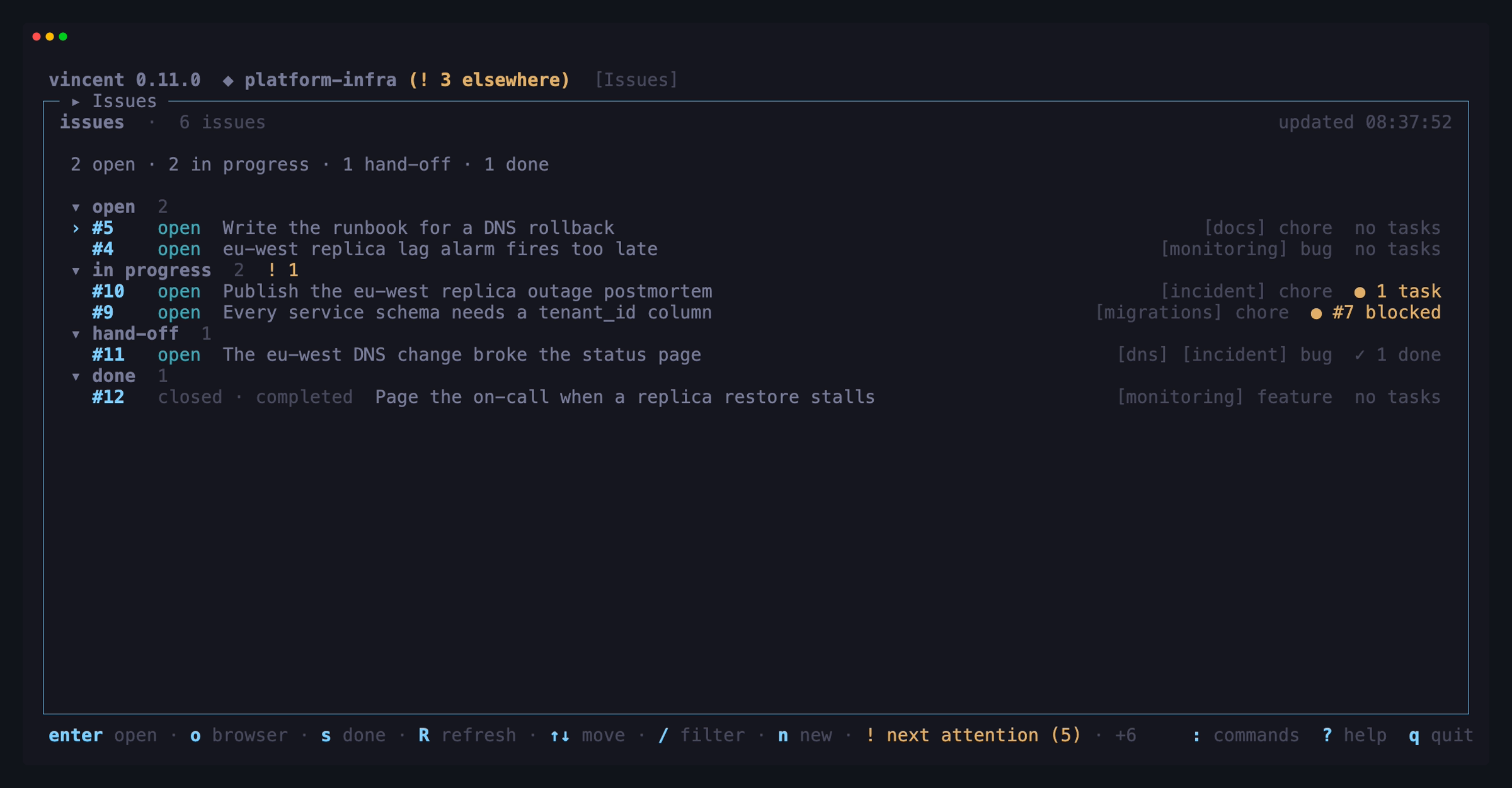
| Key | Does |
|---|---|
enter |
Open the selected issue |
o |
Open an imported issue’s page in a browser — a local issue has none, and says so |
s |
Show or hide the done lane |
R |
Re-read the issues |
↑/↓ |
Move the selection |
←/→ |
Fold or unfold the lane section you are in |
C/O |
Fold or unfold every lane section |
/ |
Filter by id, title, label or kind |
n |
File a new issue in this project |
a |
Create a task from the selected issue — the form is prefilled from it and editable first, and offers a separate worktree once the issue has a main branch |
i |
Edit the selected issue in the issue form |
X |
Close or reopen the selected issue — only what vincent offers for it |
D |
Delete the selected issue permanently (asks first) |
R only re-reads what vincent already holds. It never asks GitHub for
anything: imported issues are refreshed on the daemon’s reconciler tick.
enter opens the issue detail: the state, id, title and source badge; the
description, rendered as Markdown; the labels, kind, priority (urgent,
high, medium, low, or none) and author, and its lane (with ! when a task waits on you); a Main
worktree section, once the issue has a main branch, naming the branch and
the task holding it (enter on the section opens that task) or free; every
task the issue started, newest first and finished or archived ones included,
each with its state glyph and its role — main, side · merge manual or
side · merge agent, or merge-back of #S, folded under the side task it
merges; and, for an imported issue,
where it came from — the URL and the state GitHub last reported; and the
discussion thread under the description, described below.
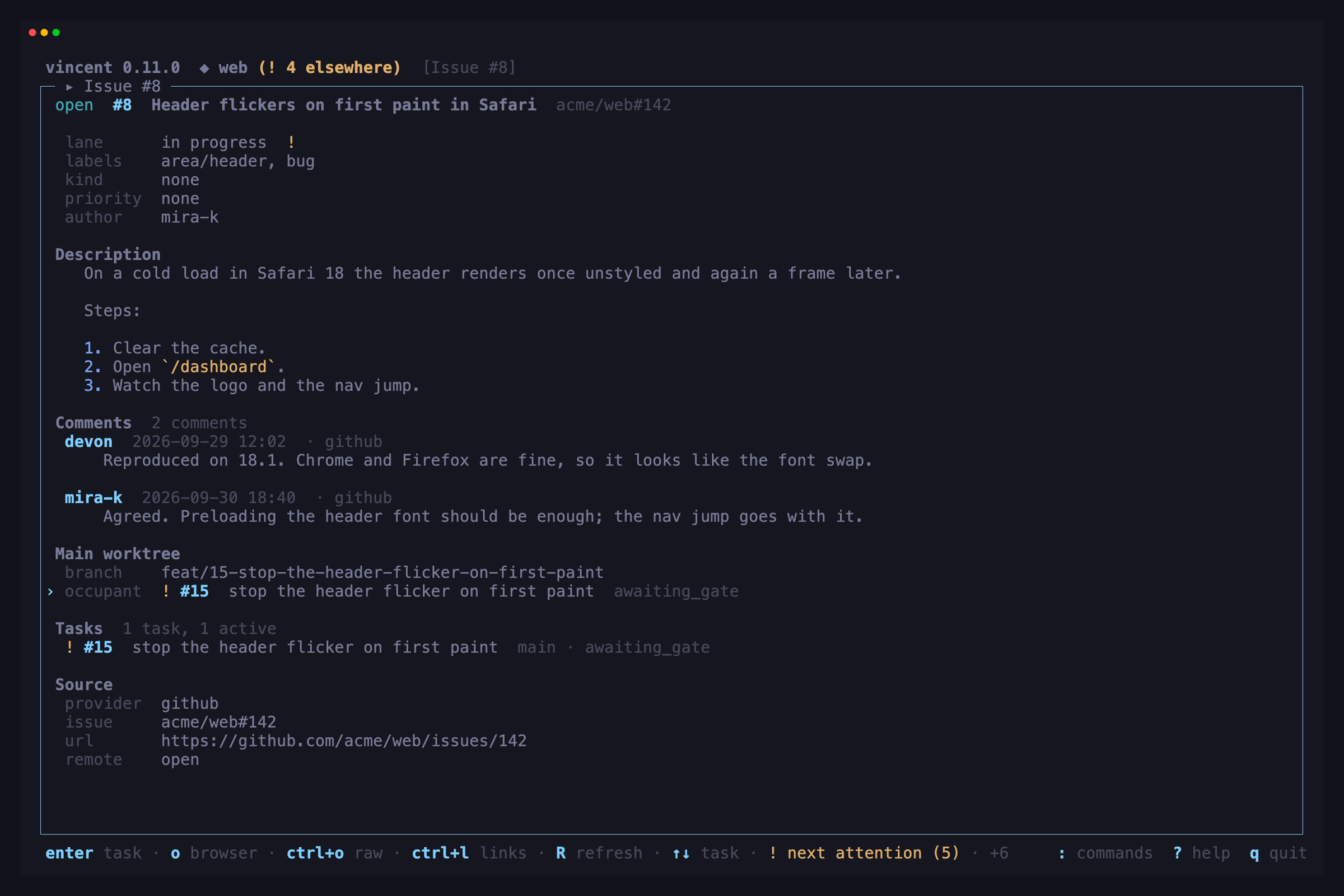
| Key | Does |
|---|---|
enter |
Open the selected linked task’s workspace, or on the Main worktree section the task holding it — esc there comes back to the issue |
o |
Open an imported issue’s page in a browser |
ctrl+o |
Show the description’s original Markdown instead of the rendered view |
ctrl+l |
List the links in the description — open one in a browser or copy it |
R |
Re-read the issue |
↑/↓ |
Move the selection between the Main worktree section and the linked tasks |
pgup/pgdown |
Scroll the page |
n |
File a new issue in this issue’s project |
a |
Create a task from this issue — the form is prefilled from it and editable first, and offers a separate worktree once the issue has a main branch |
i |
Edit the issue in the issue form |
W |
Write a comment in $EDITOR — saved empty, nothing is added. Not offered on an issue mirrored from GitHub, whose thread is GitHub’s |
X |
Close or reopen the issue — only what vincent offers for it |
D |
Delete the issue permanently (asks first) |
ctrl+o is the same rendered/raw switch the Output tab and the chat use, so
flipping it here flips it there too. esc goes back to the list, on the issue
you opened — or to the task workspace, when you came from one.
The discussion thread sits under the description, oldest first, each comment under its author and time and rendered like the description; a comment mirrored from GitHub is marked as GitHub’s. It refreshes as comments arrive.
Starting a task — a
a opens the new-task form seeded with the issue: a read-only
source row names it, and the title, description and any matching declared
fields are prefilled in rows you can edit before creating. Starting a second
task from the same issue is allowed; the form says how many came first. A
closed issue can be started from as well.
Once the issue has a main branch,
the Git stage adds a worktree row, toggled with enter: main runs the
task on the issue’s branch, queued behind whichever task holds it, and
separate makes it a side task in its own worktree, merged back when done.
It preselects separate while the main worktree is busy, and says which task
holds it. separate adds a merge back row — manual, where a conflict
blocks for you, or agent — and hides the two branch rows, since a side
task’s branch is cut by vincent off the issue’s. An issue with no main branch
yet shows neither row. If the main worktree was taken between opening the
form and creating, the workspace says the task is queued behind it.
A task started from an issue names it on its Overview tab and in the Issue
section of Task Details. From the task workspace, the command palette’s “open
this task’s issue” row opens the issue; esc there comes back to the task.
Filing and editing — n, i
n and i open the issue form over the screen you are on: the project
(only when filing a new one, and read-only — it is the selected project, and
switching project re-aims the form), title, description, labels, kind and
priority, then save. enter edits a field or opens its list; e on the description
hands it to $EDITOR. The labels list offers the project’s labels and ticks
the ones set; t in it types a new one, and t in the kind list types a kind
it does not suggest. Priority is none, urgent, high, medium or low.
ctrl+s saves and esc closes — asking first when something is unsaved.
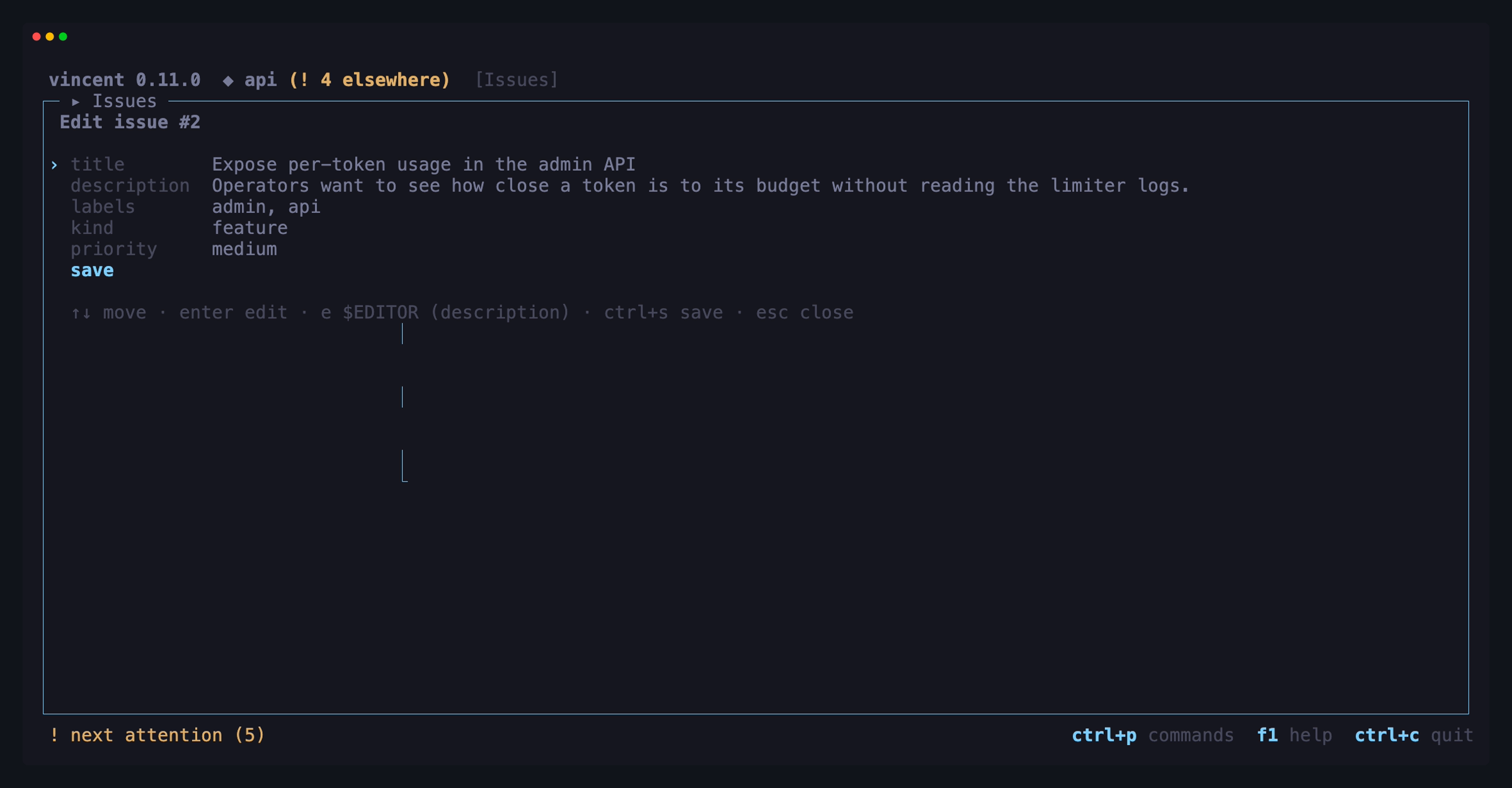
On an issue imported from GitHub the title, description and labels mirror GitHub, so the form shows them as “mirrored from GitHub” and will not edit them; kind and priority are vincent’s own and save as usual.
An edit sends only the fields you changed. If someone else changed the issue
while the form was open, the save is refused and says so: R takes the issue
as it is now and keeps your edits on top of it, and ctrl+s tries again.
Closing, reopening and deleting — X, D
X offers what the issue allows: close on an open issue, reopen on a closed
one. Closing asks why — completed, not planned, or a duplicate, which then
asks which issue in the same project it duplicates (or none). On an imported
issue vincent asks first, and says plainly that the change is written to
GitHub too — or, when the issue on GitHub has moved or is gone, that it
changes vincent’s copy only.
D deletes an issue in any state, always after asking — unless one of its
main or side tasks has not finished, which the daemon refuses. Deleting an imported
issue never deletes it on GitHub, and vincent remembers the deletion so a sync
does not import it again.
Workflows
The selected project’s workflows as that project resolves them: the built-in, global and project entries in one list sorted by name, each with its scope badge and validation status. Nothing from any other project is shown; switch projects to see another’s.
When the project has a workflow with the same name as a global or built-in
one, its own copy wins (shadowing). Both rows stay in the list: the project’s
says shadows global X (or shadows builtin X), and the global one beside it
is dimmed and says shadowed here by <project>. The dimmed row can still be
opened and edited. Every global row warns that editing it affects every
project, because the global file is shared by all of them. If the project’s
own workflows cannot be read, the global rows stay on screen with an error
line above them.
On a wide terminal the merged registry stays in the left rail. The focused
pane names the selected entry’s scope and source, availability and findings,
then reveals its resolved step list with enter. g uses that focused pane
for the graph while keeping the registry visible, so esc returns to the same
entry with its surrounding scopes still in view.
| Key | Does |
|---|---|
enter |
Show the entry’s steps |
g |
Draw the entry as a control-flow graph |
i |
Edit the entry in a structured form |
a |
Create a workflow, globally or in the selected project |
f |
Fork the entry into the selected project (or globally), where it shadows the original |
e |
Open the file in $EDITOR — the view updates when you save |
R |
Re-read the registry |
Authoring — i, a, f
The view authors the registry as well as reading it. i opens a structured
form on the entry under the cursor: rows, not YAML.
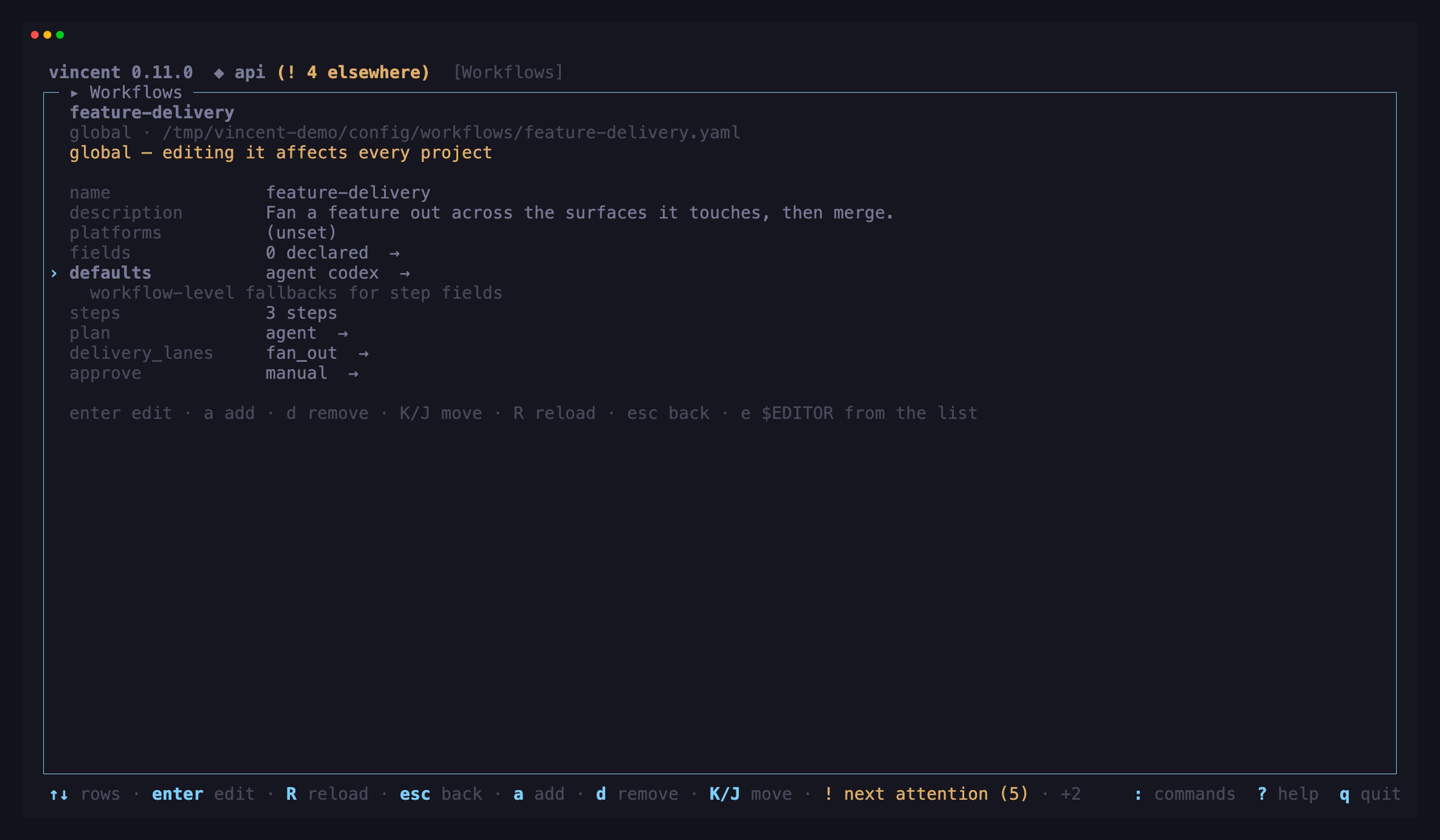
Every row comes from the schema the daemon serves, so a field that is not legal
on the step you are editing is one the form does not offer — an agent step has
no run: row, and the type row inside a parallel group lists only what may
go there. Every field the schema publishes has a row: a step’s timeout:,
max_retries:, retry_backoff:, env:, max_parallel:, count:,
for_each:, max_iterations: and schedule: are read from the file and shown
as it wrote them, and max_retries: 0 reads as 0 rather than as (unset) —
those two mean different things.
The rows that hold a nested body are entered with enter and left with esc,
one layer per press: a step’s steps: and a fan-out’s lanes:, lane: and
merge:, and the workflow’s own fields: and defaults: — the declared fields
your new-task form will ask for, and the agent, model, effort, permission mode,
retry and timeout every step inherits, including a container: block.
a creates a workflow: choose a scope (global, or the selected project) and a
file name, and the editor opens on what was written. f forks the entry under
the cursor — including a built-in, which is the only way to change one. A
fork keeps the source’s own name:, which is what makes the copy shadow the
original. A fork starts on the selected project, whose copy wins from then on.
There is no delete of a workflow: removing one means removing its file. A
step, a lane or a declared field inside a workflow can be removed, and d asks
before it does.
Saving preserves everything you did not edit — comments, key order, blank lines. The daemon owns the file and applies your change to its bytes, so the notes you left in it survive.
If two things write the same file — an agent running create-workflow, or your
own $EDITOR — the second save is refused rather than silently overwriting the
first. The form says the file changed on disk and R re-reads it.
Inside the form:
| Key | Does |
|---|---|
↑ / ↓ |
Move between rows |
enter |
Edit the row, cycle its values, or descend into a nested body |
t |
In an open list, type a value it does not offer |
a |
Add a step, lane or declared field after the one under the cursor |
d |
Remove the step, lane or declared field under the cursor — asks first |
K / J |
Move it up or down. Capitals: k and j still move the cursor |
ctrl+s |
Save, in the multi-line pane and the key/value sub-form below — the two places enter does something else |
R |
Re-read the file — the reload a refused save offers |
esc |
Leave the nested body, then the editor |
There is no save key for a row, because there is nothing to save: committing a
row with enter is the write, and so is answering a, d or K/J. Each
one becomes a single edit operation carrying the version the last read handed
back, and a value the daemon refuses stays on screen beside its error rather
than being reverted under you.
a on a list of steps asks which type first, offering only the types that are
legal where the cursor is, and writes a skeleton with that type’s required
fields filled in with placeholders — so the file is valid between edits and the
next change is not refused for a step the form itself just wrote.
Some rows open something bigger than a text field:
| Row | What enter opens |
|---|---|
prompt:, run:, instructions: |
A full-pane multi-line editor. enter inserts a newline, ctrl+s saves it back as a \| block scalar, esc abandons it. Opening one and closing it again writes nothing |
agent:, model:, effort: |
The same filterable picker the new-task form uses, listing the agents the daemon detected and the selected agent’s own catalog |
env:, a lane’s fields: |
A key/value sub-form: enter edits or adds a key, d drops one, ctrl+s writes the mapping |
| An enum, a boolean | Nothing — enter cycles it in place |
A whole-number row and a duration row are checked before the write, so
timeout: 2 minutes is refused on the row that typed it rather than after a
round trip. The daemon stays the authority for everything else, and for these
too.
And in the prompt a and f open:
| Key | Does |
|---|---|
tab |
Move between the scope and the file name |
← / → |
Choose the scope |
enter |
Write the file and open the editor on it |
esc |
Close the prompt |
For a fork the name row is the file name, not the workflow’s — the name:
inside stays the source’s, which is the point.
e still means $EDITOR, here and everywhere else. It is the escape hatch for
a file broken badly enough that the forms cannot load it.
The graph — g
A numbered list of top-level steps can name a parallel group or a fan_out
but cannot show where control goes. g draws it:
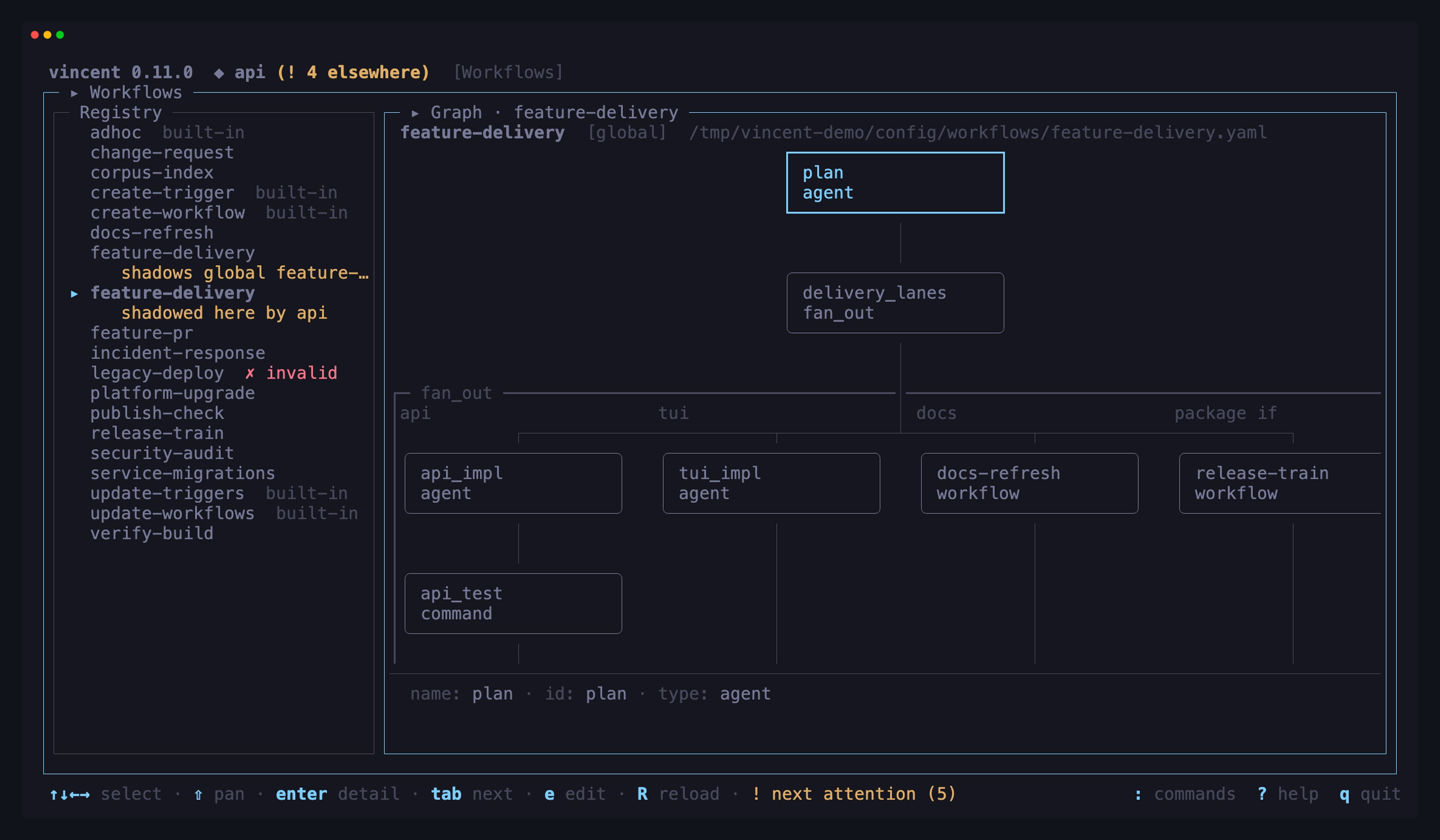
The graph opens over the list, not instead of it: enter’s step list, with
its findings and platform notes, is still there when you press esc.
How to read it. Every one of these works with color turned off:
| You see | It means |
|---|---|
| A box’s second line | The step’s type, and any badges |
if |
The step is guarded — the expression is in the strip at the bottom |
chk |
The step carries a check: |
×3, for_each |
A loop’s driver. max N is an explicit bound |
agent on a merge |
on_conflict: agent — an agent may resolve a conflict |
| A light frame | A parallel group |
| A heavy frame | A fan_out, with its lanes captioned by id and guard |
eager on a fan_out |
schedule: eager — a lane’s dependents start before its siblings finish. barrier is the default and is not badged |
derived from … on a heavy frame |
The lane list was derived at run time from a for_each:, not written out by hand |
templated from … on a heavy frame |
The workflow declares one lane lane: shape, not a list: the single column stands for the lanes for_each: will render at run time, and at most N is its max_lanes: ceiling |
w1, w2 on a lane caption |
Which wave the lane runs in. Lanes stack below the ones they needs: |
| A double frame | A loop body, with a back-edge to its header |
true / false |
A condition’s or break’s two ways out |
END |
Where the workflow finishes |
A fan_out has a merge node below its frame, because the join is a git
merge that runs and can block. A parallel group has none: its join is only its
members finishing. A guard on an ordinary step draws no second branch — false
there means skip and carry on, so the flow is unchanged. A lane naming another
workflow is one collapsed box; drawing that workflow’s own graph in its place is
not in this version.
| Key | Does |
|---|---|
↑ ↓ ← → or hjkl |
Move the selection — the view follows it |
shift + arrows |
Pan the canvas |
pgup pgdn u d f b |
Page it |
tab / shift+tab |
Walk the nodes in source order |
enter |
Open the selected node in full |
e |
Open the file in $EDITOR — the graph redraws when you save |
R |
Re-fetch this workflow’s definition |
esc |
Back to the registry |
enter opens the step in full. The strip is a glance; the popup enter
opens is the reading. It shows every field the node carries, wrapped and never
truncated — the prompt, the run: body, env, instructions,
permission_mode, the input and check timeouts, a group’s max_parallel, a
loop’s count/for_each and max_iterations — above a header naming the
workflow it sits in. A value the step leaves empty that the file’s defaults
block supplies is shown as the effective value and marked (inherited from
defaults), so the graph can answer “what will actually run here” without
folding the two together. A field neither the step nor defaults sets is
simply absent.
Every node opens something. A merge shows its conflict policy and, when it has
one, the resolver agent in full; a lane’s collapsed workflow reference names
the workflow and says it becomes a child task, while an include says its
steps are spliced into this one; a parallel, fan_out or loop header shows
its bounds; END says the workflow ends there.
While it is open the popup has the keyboard: ↑/↓ and the pager keys scroll
it, e and R still work, and esc closes it back to the graph with the same
node selected. A second esc closes the graph, as it always did.
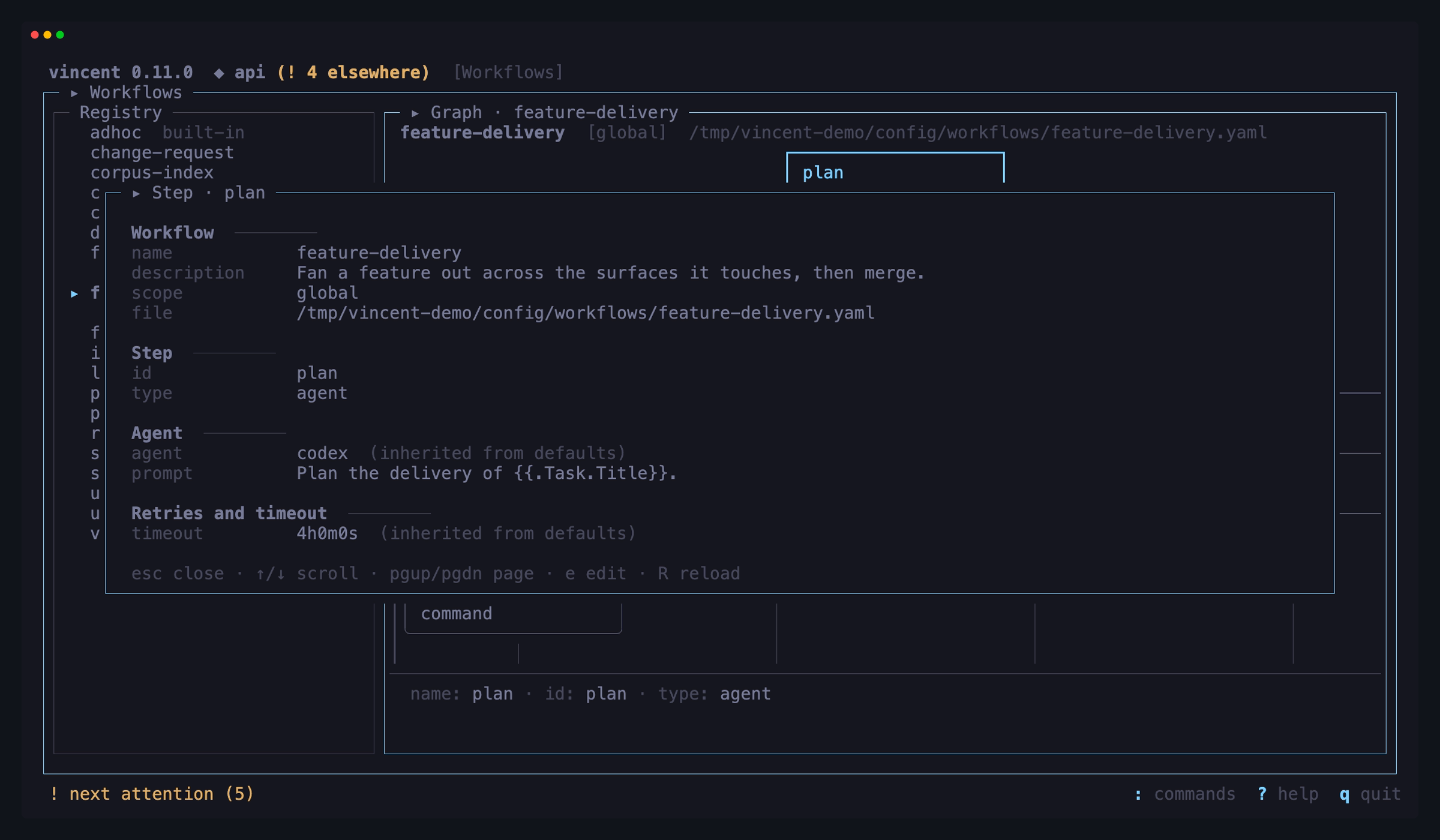
Editing is the point of e here: save the file and the graph redraws in place,
with your selected node still selected. A terminal too narrow to draw a node
says so rather than showing you a flattened shape that is not the workflow; a
graph bigger than the terminal is panned, never reflowed.
A workflow that does not parse has no graph — g says so, and the errors are
already under enter.
The same picture for a running task — the Workflow tab
The workflows screen shows what a workflow is. The task workspace’s fifth
tab — 5, or tab round to it — shows what one task is doing with it.
A list of steps can name a fan_out; it cannot show that two lanes are running
side by side, which branch of a condition was taken, or that a task is on the
second pass of a loop. That is the gap this tab closes, and it bites hardest on
a task that has been parked for hours: the board says it is blocked, and this
says where.
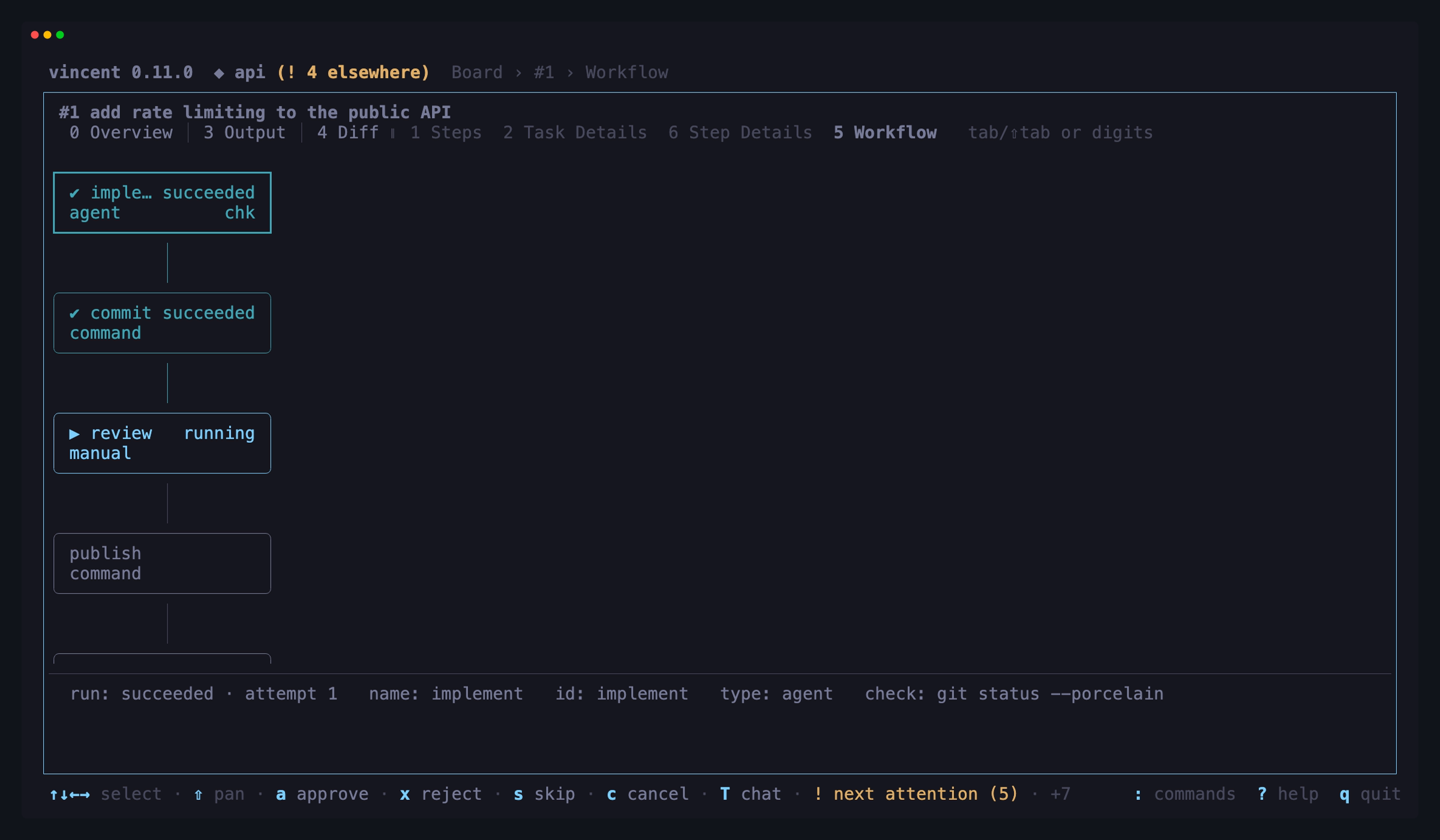
It draws this task’s own workflow, not the registry’s copy — includes
already spliced flat, and any edit + retry rewrite reflected. If someone edits
the workflow file while the task runs, this tab keeps showing what actually ran.
The overlay reads with color off, like the rest of the picture:
| You see | It means |
|---|---|
▶ running |
The step is running now |
✔ succeeded, ✖ failed |
How its newest attempt ended |
⊘ skipped if |
A false if: guard skipped it |
⊘ skipped |
You skipped it by hand |
| Nothing on the node | The task never reached that step |
blocked, awaiting_input, paused |
Where the task is parked, with the reason |
it 2, try 3 |
Which loop pass, and which attempt |
api #42 running on a lane caption |
That fan-out lane’s child task and its state |
A frame below END |
Attempts that ran outside the workflow — a follow-up round, a repair — each with its state, like any other node |
With color on, the same states are colored — the Steps tab’s colors for a step, the board’s for a parked task or a lane:
| Color | On a node |
|---|---|
| Green | succeeded, approved |
| Cyan | running |
| Red | failed, rejected |
| Yellow | interrupted |
| Faint | skipped, stopped |
| Bold red | The task is blocked here |
| Bold yellow | The task is awaiting_input here |
| Magenta | The task is paused here |
| No color | Never reached |
A lane caption takes its child task’s board color. A colored node that is selected keeps its color and shows the selection by its heavier border.
The edges light up along the path the run actually took, so a condition’s
untaken branch stays uncolored even after the task finishes. A loop’s back-edge
lights only once the loop has gone round a second time. The edge into END
lights only when the task is done.
A loop still draws once, with its back-edge: nothing unrolls as it runs, so the picture never moves under you while you are reading it.
| Key | Does |
|---|---|
↑ ↓ ← → or hjkl |
Move the selection — the view follows it |
shift + arrows |
Pan the canvas |
pgup pgdn |
Page it |
l |
Open the workspace of the fan-out lane the cursor is in |
esc |
Back to the task you came from, or the board |
tab here is the workspace’s tab cycle, not the graph’s node walk — the arrows
select nodes. There is no e or R: a snapshot has no file to open and no
registry entry to re-read.
Lanes are drawn as the engine schedules them. A lane with needs: sits below
the lanes it needs with an edge from each, one row per round, so the picture has
the waves the run has; a lane that needs nothing hangs off the step’s own header
and a fan-out whose lanes need nothing is one wave, laid out exactly as before.
A lane’s caption carries the child task, its state and — the one fact the parent
cannot otherwise tell you — that lane’s own block reason, because a lane’s
steps run in the child and never appear on this graph.
Chats
A second board, for chats — conversations with an agent, each in its own worktree. Chats are not tasks and never appear on the task board, so they get a board of their own: one row per conversation, with its id, state, agent, last activity and title. The board lists the selected project’s chats only, in one flat list.
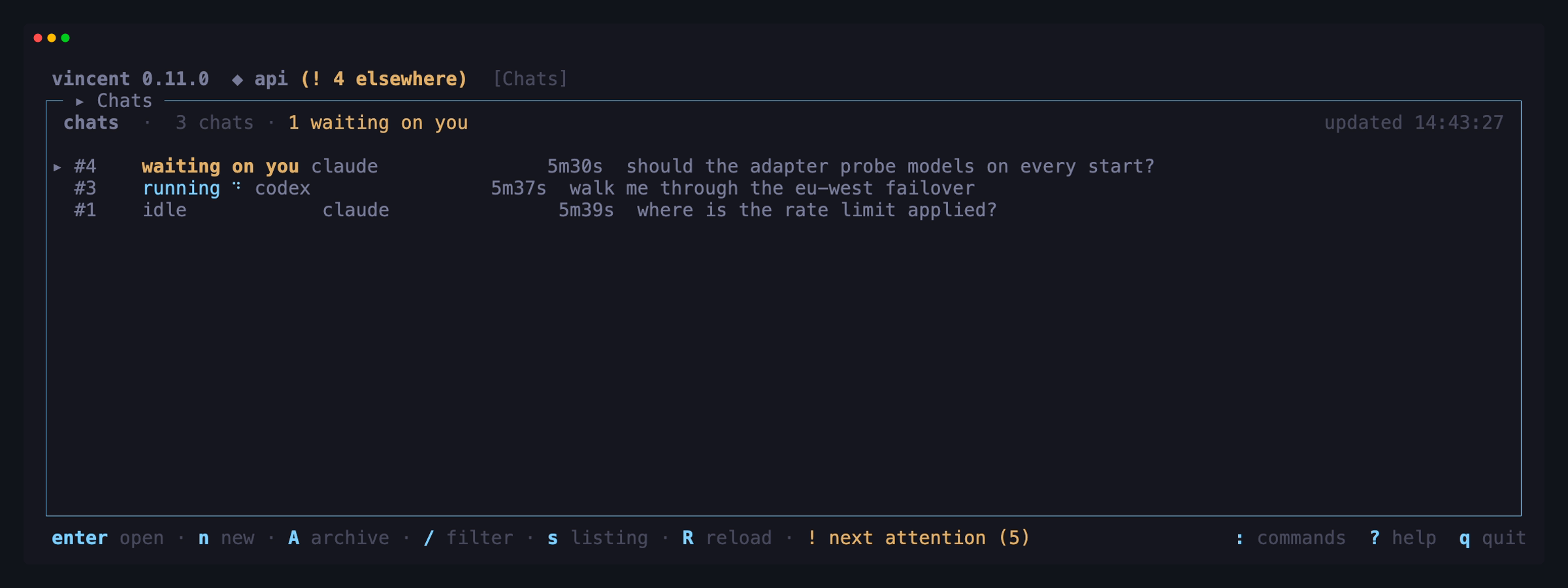
There are no group headings and nothing to fold: every row is in the same
project, and a chat runs no workflow, so g is not offered here either.
Switching project empties the board and the header reads “loading ‹project›…”
until that project’s chats arrive; your / filter stays. With no project
registered the board says so instead of listing anything.
A chat waiting on you is sorted to the top and counted in this header’s badge —
and nowhere else. ! and the task board’s needs-attention count stay
task-only.
| Key | Does |
|---|---|
enter |
Open the chat’s workspace |
n |
Start a chat in the selected project |
A |
Archive the chat — asks first, and re-offers with the force when the worktree is dirty; declines on a chat opened on a task |
/ |
Filter by title, agent or branch |
s |
Cycle the listing between live, ended (archived, handed-off or closed), and all |
R |
Reload the board |
The mouse wheel moves the cursor one chat per tick, as it does on the task board. It stands still while the new-chat form or the archive confirmation is up, since those ask about the chat under the cursor.
s is a peek at history from the live board; the Archived screen
is where history is paged, windowed and deleted.
Archived, handed-off and closed chats are off this board by default, the way
archived tasks are off the task board. s cycles the listing — live, then the
terminal ones, then both — and the header names the listing whenever it is not
the default, so an empty board is never mistaken for no chats. A terminal chat’s
last-activity cell shows when the chat ended rather than a duration that keeps
counting; and A on such a row declines with a note instead of asking to remove
a worktree that is already gone, or that a handoff gave to a task.
A chat opened on a task reads task #N ·
ahead of its title. It works in that task’s worktree, so it is never archived:
A is not offered on its row and declines if pressed, and the chat ends by
being closed from its workspace, landing in closed with the other ended chats.
A running row moves. Its state cell carries a turning glyph beside the
running label rather than instead of it — the cell is a fixed-width column in
the same state vocabulary every other row uses — and its last-activity cell
counts up while the turn runs instead of standing still. Nothing else animates:
an awaiting_input chat is waiting on you rather than working, and the header
already badges it. A board with no running chat repaints no more often than it
did before.
n is the one key whose meaning depends on where you are: on this board it
starts a chat, everywhere else it opens the new-task form. The create form takes
project, title, agent, model, effort, base branch and branch; ctrl+s creates
and drops you straight into the workspace. With no project registered, n says
so on the board instead of opening a form you could not submit — add a
repository in the project overview first.
The project row shows the selected project and cannot be changed here: tab
passes over it, and switching project re-aims the form.
Four of the other six rows are lists — agent, model, effort and branch — and
they are
the same list the new-task and follow-up forms use: enter opens one, /
filters it as you type, ↑/↓ walk it and enter picks. The model and effort
lists are the selected agent’s own catalog, tagged cli where the CLI itself
reported the value and curated where it comes from vincent’s built-in list and
may be stale; both lead with an (agent default) row naming what that agent
would use, and both end with a row for typing a value the catalog has never
heard of — a model shipped this morning is not in it. Changing the agent
re-scopes both lists and clears anything chosen under the previous one.
←/→ still step the agent row one at a time without opening its list,
which is quicker when you have two agents. They are not
offered on the model and effort rows, where stepping through a hundred values
answers nothing.
Title and base branch are typed. The base row’s placeholder names the selected project’s actual default branch; leave it empty and the daemon resolves that default at creation.
The branch row is a list of the project’s local branches, and it has exactly
one meaning: run this chat on a branch that already exists. Leave it empty — the
ordinary case — and vincent cuts vincent/{id}-{slug} from the base as it
always has; a chat cannot cut a branch under a name you chose, so there is no
third shape here the way there is on the new-task form. The rows carry the same
notes: a branch the project’s own checkout has out says so, because the chat
will then work in that directory rather than in a worktree, and one another
worktree holds says “would block”. If the branch’s working directory already has
an owner the daemon refuses with a 409 — a chat is created there and then and
has nowhere to wait — and the reason lands on this row, where you can pick
another.
Only an agent that can resume its own session can hold a chat, so the agent picker offers only those — which today is all three of them. The daemon refuses anything else at creation with that reason rather than a generic failure, and the form still renders it — it is the backstop for the next adapter, not something you are expected to walk into.
The draft owns the keyboard while it is open: every row, and every open list, so
no keystroke leaks out to the global keys. esc closes an open list and leaves
the draft alone; a second press discards the draft and returns you to the board.
| Key | Does, in the create form |
|---|---|
tab / shift+tab |
Next / previous field |
enter |
Open the focused field’s list, or move on from a text field |
t |
In an open list, type a value it does not offer |
← / → |
Step the agent field in place |
ctrl+s |
Create the chat and open it |
esc |
Close an open list, else discard the draft |
Chat workspace
One conversation: the finished turns above, the running turn’s live output below them, and a composer at the bottom.
Your own messages are easy to find in it. A prompt is drawn as a right-aligned
bubble — as wide as it needs to be, up to about two thirds of the pane, wrapping
inside itself and marked with › on every line, not just the first. The
agent’s half of a turn is untouched: flush left, full width. The distinction is
alignment and the marker as much as it is the colour, so it survives a
monochrome terminal, NO_COLOR and an SSH session that lost the palette. Line
breaks you typed are line breaks in the bubble, and a long prompt is not cut
short — the tail of what you asked stays readable.
The composer sits inside a titled message box, so the field you type into does
not read as one more row of the conversation. The border comes out of the pane’s
height rather than being added on top of it: the screen is the same height it
always was, and the hint line is still the last row of it.
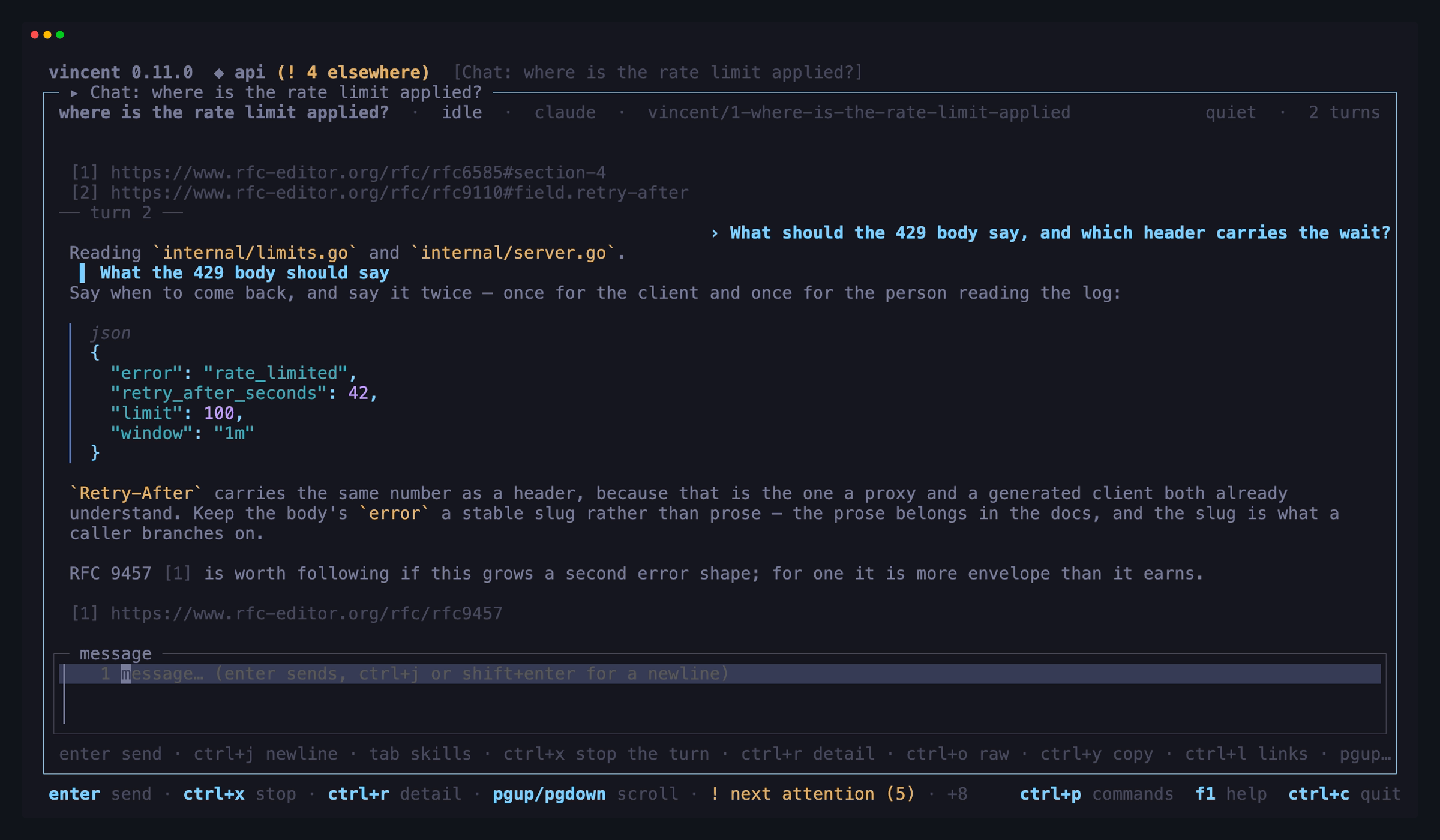
While a turn runs, an in-progress indicator sits just above that box — a
turning glyph and an elapsed clock, ⠋ working… 14s — for the whole time the
turn is in running, not only until its first chunk arrives. That is the point
of it: at quiet a turn that spends minutes running tools renders no new line
in the conversation at all, and this is the only thing on the screen that moves.
It is above the composer rather than inline at the end of the turn, because the
conversation scrolls and a reader who has scrolled up — follow paused, ⏸ in
the header — is exactly the reader who needs telling that waiting is still the
right thing to do. It is gone the moment the turn reaches done, failed,
interrupted or awaiting_input; a turn waiting on you is not working, and the
header already says waiting on you. A chat with no running turn causes no
periodic repaint.
| Key | Does |
|---|---|
enter |
Send the message |
ctrl+j |
Insert a newline in the draft. shift+enter and alt+enter do too where the terminal sends them; ctrl+j works in every terminal, and alt+enter on macOS needs the terminal’s “Option as Meta” setting |
tab |
The skills this chat’s agent can run — type to filter, enter or tab inserts one. f2 does the same, where the terminal swallows tab. The same list opens by itself when you type the agent’s invocation sigil |
ctrl+x |
Stop the running turn — its process tree is killed |
ctrl+r |
How much of the conversation to show: quiet → compact → normal → verbose |
ctrl+t |
Hand the worktree and branch to a new task — the chat ends; not on a chat opened on a task |
ctrl+q |
Close a chat opened on a task — asks first; the task unlocks, its worktree and branch stay |
ctrl+o |
Show the assistant’s original Markdown instead of the rendered view |
ctrl+y |
Copy an assistant message, its plain text, or one of its code blocks |
ctrl+l |
List the links in the assistant’s messages — open one in a browser or copy it |
pgup / pgdown |
Scroll the conversation (the mouse wheel scrolls it a line at a time) |
ctrl+g |
Jump to the live end and follow it again |
ctrl+p |
Command palette — : is a character here |
f1 |
Help — ? is a character here |
esc |
Back to the chats board |
tab lists the skills this chat’s agent can run. The list is drawn just
above the composer — one line per skill: how to invoke it, its argument hint,
its description, and its scope and plugin where the CLI named them. The
highlighted row’s description is wrapped in full underneath. The rows are the
agent’s own answer about this chat’s directory, asked of the CLI itself, so
a skill you added to the worktree an hour ago is in it and one vincent
invented is not.
Nothing is typed into your message while you browse. Type to filter — the
letters go into the list, not the draft, and the ranking is a name prefix
first, then a plugin’s bare name or an alias (so deploy finds
myplugin:deploy-app), then a description match. ↑/↓ move the highlight,
backspace shortens the filter and closes the list once it is empty, and
esc closes it with your draft exactly as you left it. With nothing
highlighted enter still sends the message as typed; tab takes the top
match.
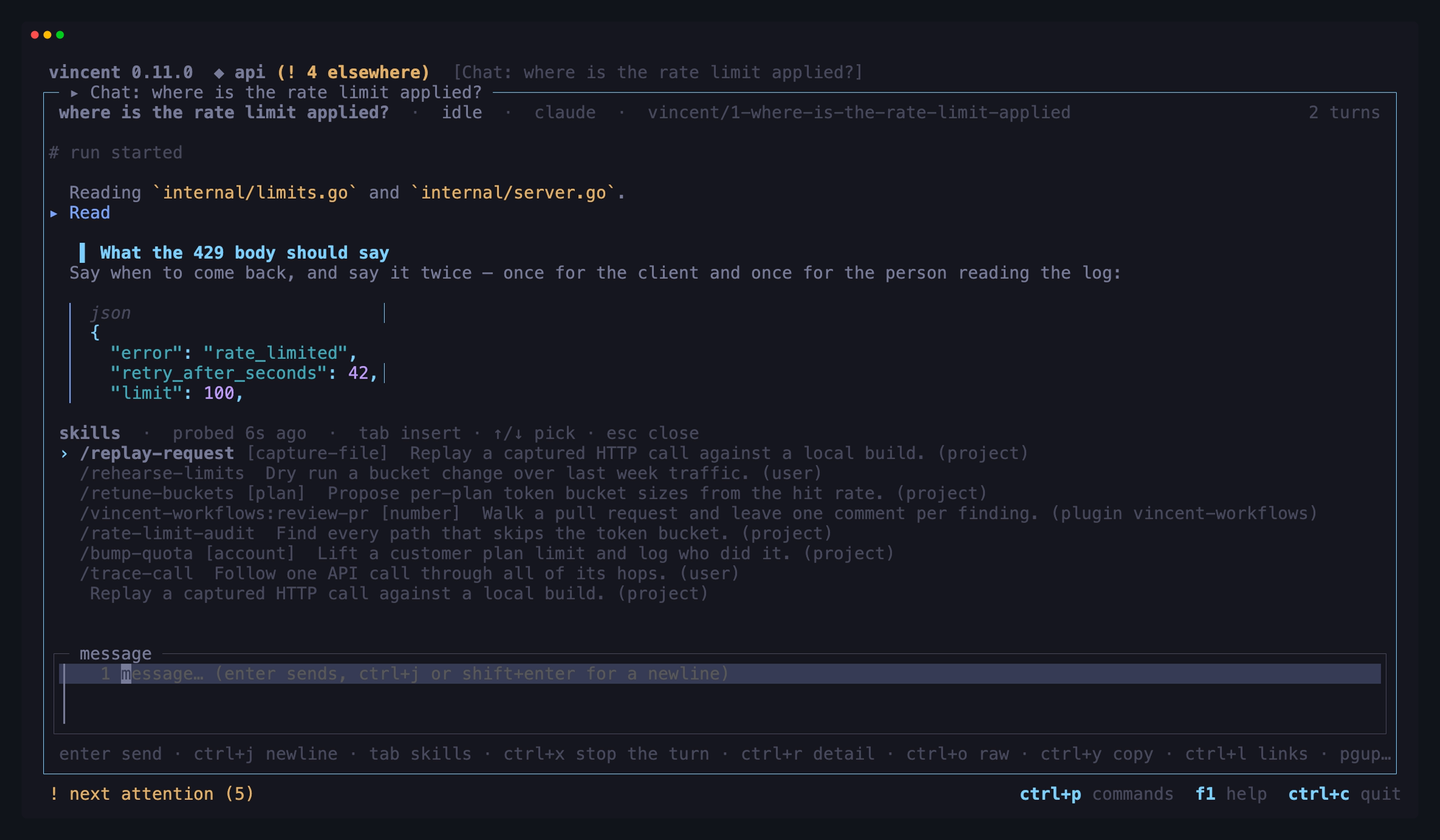
Accepting writes the invocation and one space — at the start of the message for an agent that wants its skills there, at the cursor for one that takes them anywhere — and leaves the cursor after the space, so whatever you had already typed becomes the skill’s arguments.
Not every agent answers. cursor does not report its skills, and the note line
says so rather than guessing them; a probe that failed says that instead, and
neither blocks typing or sending. An agent that can list but cannot be told
to run a skill opens the list read-only. There is no refresh key here: the
daemon re-asks when a turn ends, and vincent chat skills --refresh forces
it. A chat that has ended refuses locally and asks the daemon nothing.
The same list also opens by itself, as you type the agent’s own syntax.
Start a message with / under claude, or write $name anywhere in one under
codex, and the matches appear above the composer filtered by what you have
typed — the sigil and where it counts are the agent’s, not vincent’s. Nothing
is highlighted, so enter still sends the message exactly as you wrote it.
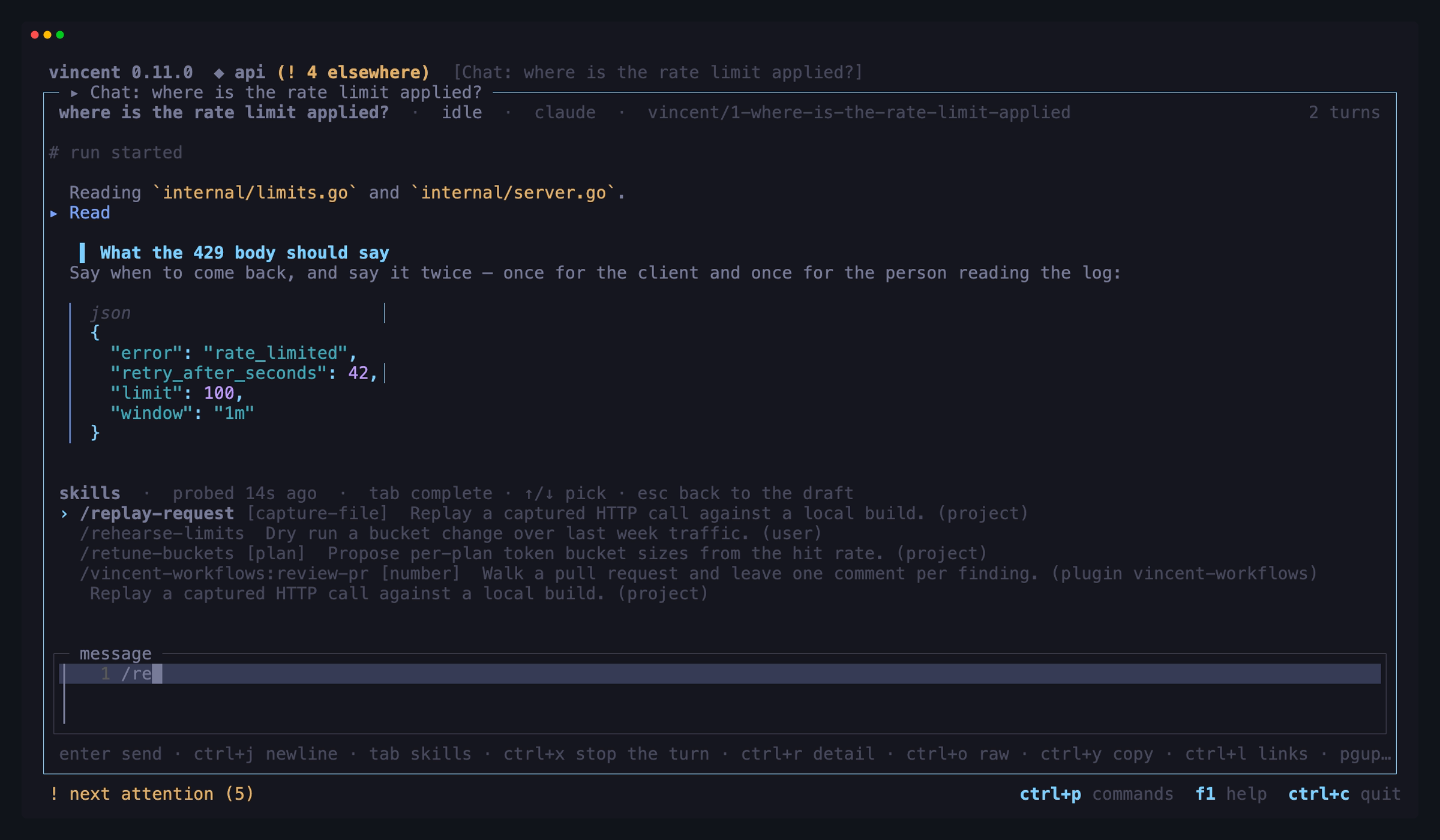
This list is an aid to typing rather than a layer over it, so the composer
keeps the keyboard: every printable key, backspace and ctrl+j go into the
draft and the list re-ranks from it. Five keys are the list’s while it is up.
↑ and ↓ walk the matches — that is the one place they stop moving around
a multi-line draft, and esc gives them straight back. tab completes the
token you are typing with the highlighted match, or the top one; enter
takes the highlighted match, and sends as typed when there is none. esc
closes the list and keeps it closed for that token until you change it.
It gets out of the way on its own. Nothing matching hides it, so
/tmp/notes.md never keeps a list open. Typing an invocation out in full and
then a space hides it, because what follows is the skill’s arguments. A bare
/ at the start of a message shows everything, which is almost always what
it means; a bare $ in the middle of one shows nothing, because it is much
more often a shell variable.
A sigil you type may make vincent ask the agent for its skills, but it never
says so and never complains: no spinner, and nothing on the note line if the
agent cannot answer — you did not ask for that, and the question costs a run
of the agent CLI. Press tab if you want to be told. That question is never
spent on a lone / or $, which says nothing about whose sigil it is, so in
a chat you have not opened the list in yet it is the first letter after the
sigil that brings it up; once the agent has answered, a bare sigil shows
everything as above. The one thing a typed
sigil does say is when a leading name matches nothing the agent reported:
/foo is not a skill claude reported for this chat — it is sent as typed.
That is a note, not a refusal — vincent sends your message verbatim either
way — and a path under the sigil is never nagged about. After you take a
match, the note line shows what that skill takes until you edit it away.
Typing @ and at least one more character lists the files this chat’s next
turn could be pointed at. They are drawn above the composer, in the skills
list’s place — the two lists are never up together. A bare @ opens nothing,
which is what keeps cc @someone quiet, and user@host is not a mention
either: the token has to start with the sigil. @ is never a key here; the
draft is read after every composer update.
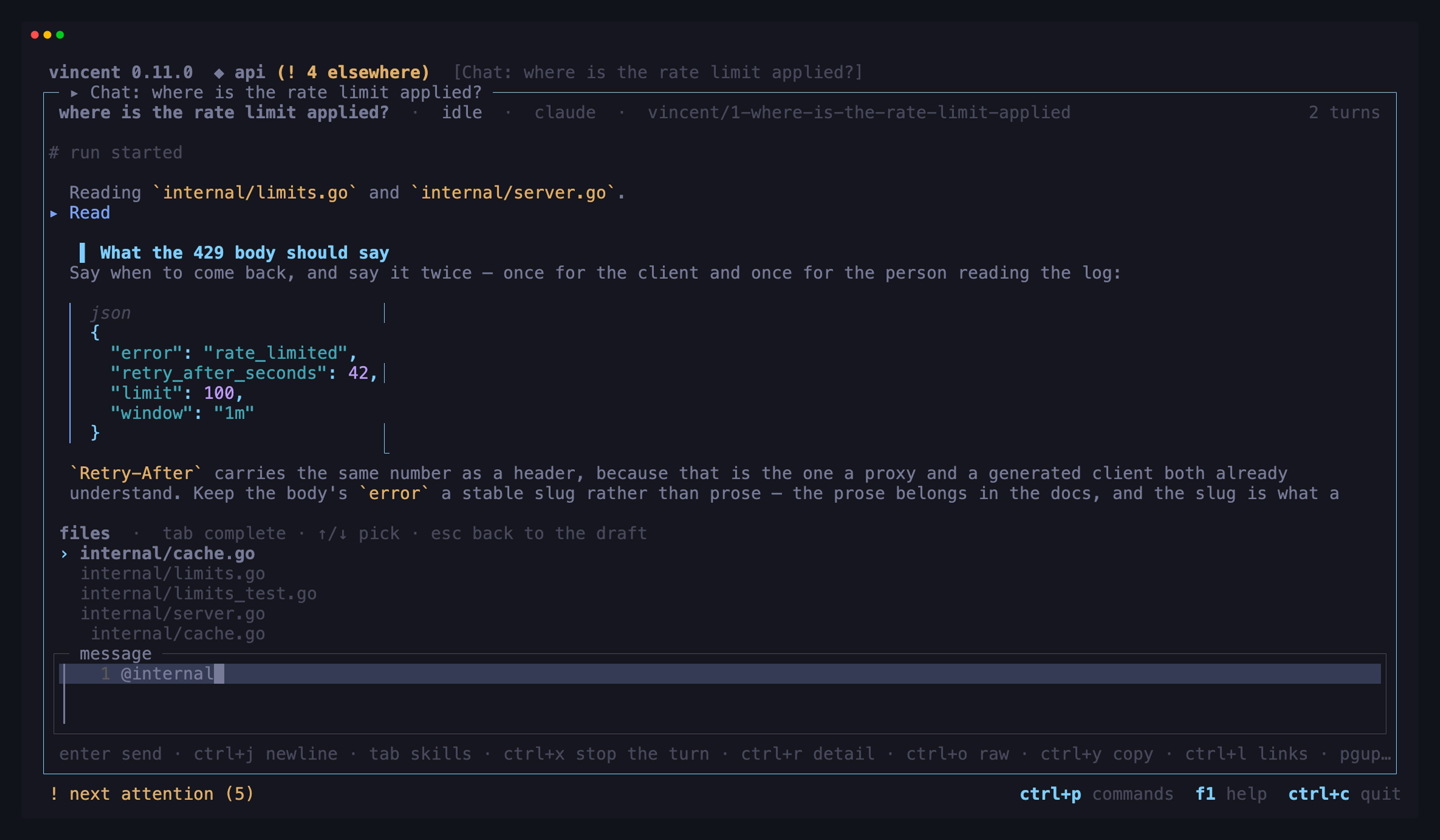
Five presses are the list’s while it is up. ↑ and ↓ move the highlight
through the matching files, and nothing is highlighted until the first press.
tab completes the @ token with the highlighted file, or the top match
(f2 too). enter inserts the highlighted file’s mention — with none
highlighted it sends the message as typed. esc closes the file list and
gives ↑/↓ back to editing the draft.
Accepting replaces the token with the mention the daemon reported for that
file, byte for byte, plus one space — claude’s @"path with spaces" quoting
included, because no client rebuilds that text.
The rows are ranked: the basename begins with what you typed, then a path
segment or the whole path does, then the path contains it anywhere. A query
carrying a separator is matched against the whole path instead of the
basename, so @internal/lim behaves, and both / and \ separate on every
platform. Matching is not fuzzy.
Nothing is drawn when nothing matches — no note, no complaint — and the
message is sent exactly as typed: this is an aid to typing, never a rewrite.
The title line carries what the rows cannot: showing the first N when the
daemon cut the listing, and 50 of 1615 when the build was capped at 50
after the ranking, so “your file is not listed” never reads as “your file does
not match”. One line is reserved under the rows, carrying the highlighted
row’s whole path where the row itself had to truncate it. The note line above
the list carries the other fact: a chat whose CLI does not expand a mention
says so there — the negative only — and it is drawn beside the reserve rather
than in place of it.
ctrl+t opens the new-task form in handoff mode: the project, the base
branch and the branch are the chat’s, shown but marked (from the chat) and
not editable, because they name a worktree that already exists. Fill in the
title, the workflow and whatever else the task needs — the description is where
the conversation’s context goes, since nothing about the chat reaches the
workflow’s prompts by itself — and the form lands you on the created task. The
task adopts the worktree exactly as it stands, uncommitted changes included.
The chat is then terminal: its header carries a permanent link to the task, it
sorts into the board’s done band, and it cannot be sent to, archived or handed
off again. Only an idle chat can be handed off, and a worktree in the middle of
a merge or rebase is refused with the operation named.
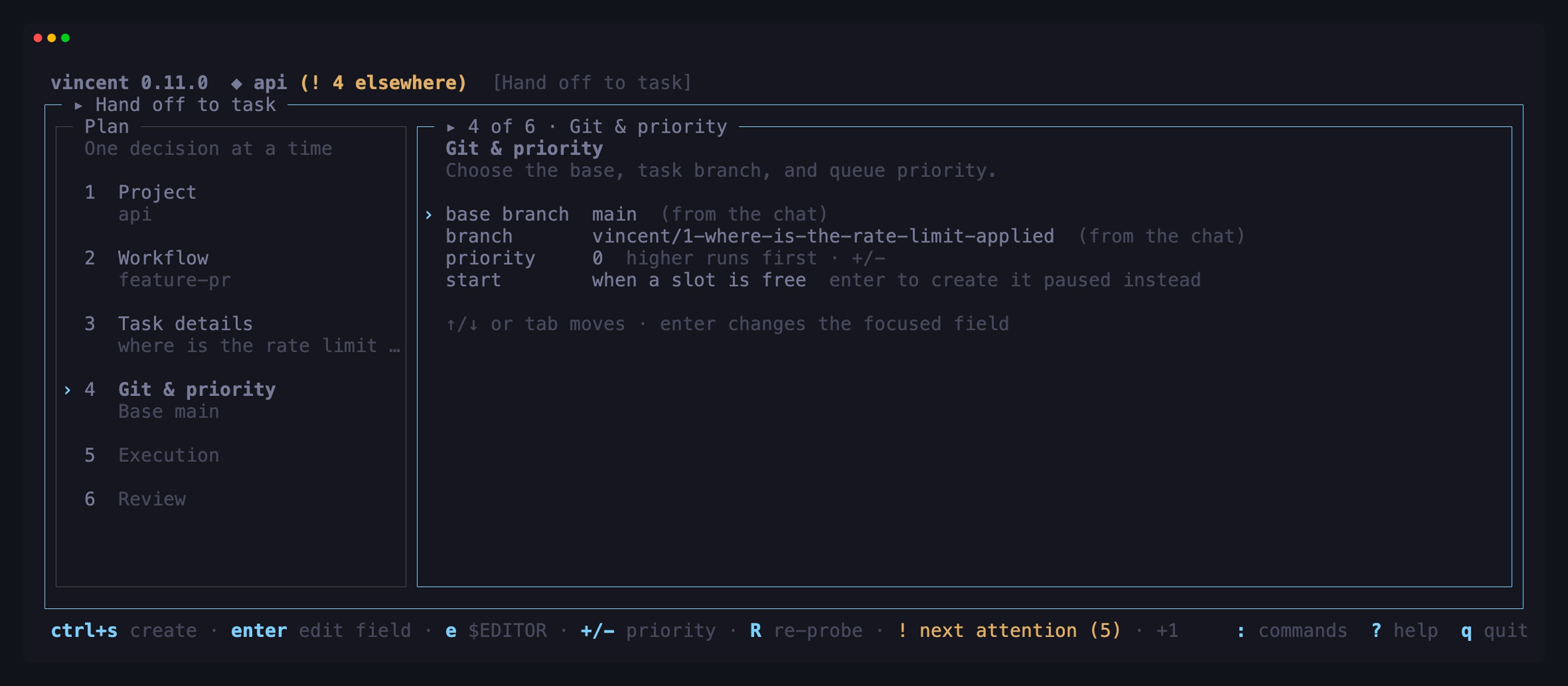
A chat opened on a task is the other way
round: its header reads on task #N, the worktree is already that task’s, and
so ctrl+t is not offered and declines if pressed. ctrl+q ends it instead —
the only chat it works on — after a y to confirm, stopping a running turn
first.
The body is the task workspace’s output pane, same records
and same marks: ▸ a tool call, the outcome indented under it, · reasoning,
# the run header, ✓/✗ the result, and ┊ a
subagent’s work, with its ↳ label and
completion line. ctrl+r cycles the same four levels
v cycles there, and it is the same level — set it in either place and the
other is on it too, and both open at tui.output.level. ctrl+r rather than v because the composer owns every
printable key: a letter would be typed into your draft.
At quiet you get the agent’s prose, anything that went wrong, and what you
did — an answered question, a skill your message invoked as
▸ skill <name> <args>, and a /clear that reached the CLI as
# conversation reset · the agent no longer sees the turns above — with the
tool calls, the closing outcome line and the
unrecognized-line count all gone. At compact you get what the agent said and
did and nothing else, including a skill it loaded itself, drawn on its Skill
call’s line as in the task pane. At normal
reasoning is truncated to its first lines and the run header appears. At
verbose you get everything, including the dialect lines vincent does not
model — which sit behind a … N unrecognized line(s) (ctrl+r) count at
compact and normal, and leave no trace at all at quiet, rather than
filling the screen.
ctrl+y and ctrl+l are the task pane’s
reader actions on this prose — the same
popups, over the conversation’s assistant messages rather than one task’s.
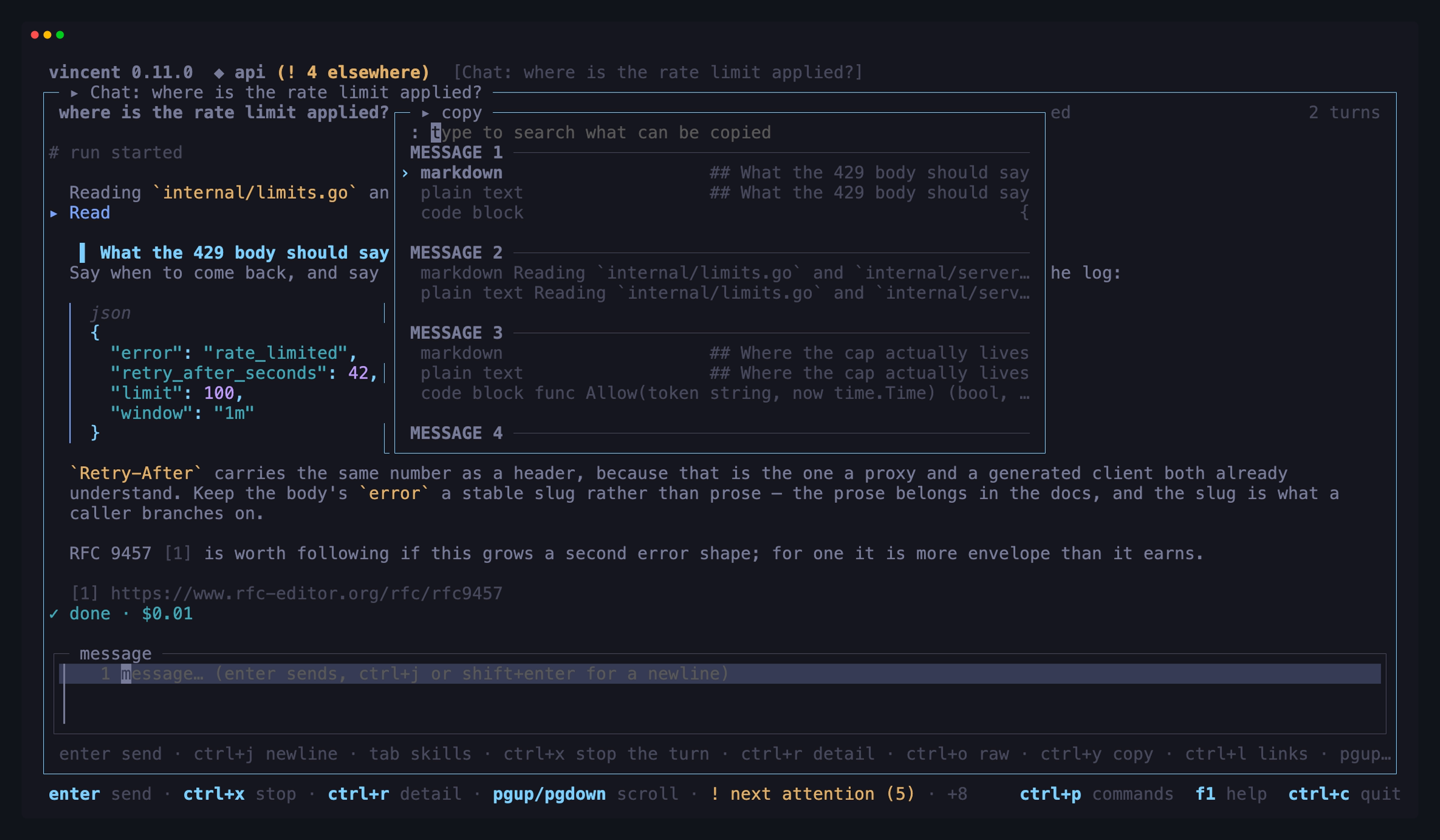
Scrolling away from the end pauses follow; ctrl+g jumps back and re-arms it.
The mouse wheel does this too — a line per tick, from anywhere in the view,
because the conversation is the only thing here that scrolls. Finished turns are
drawn from their transcripts, so raising the level shows more of what already
happened and not only of what happens next, and turns you wheel back to are
fetched as you reach them. A turn whose transcript has aged out of retention
still shows its answer.
When the agent asks something mid-turn, the chat enters awaiting_input and
the same popup a task’s question opens appears here — same options, same
multi-select, same allow/deny for a permission request. Answering it from
vincent chat answer or over the API closes it here too: the popup follows the
chat’s state rather than its own.
A send refused because max_parallel_chats chats are already running says so
and creates nothing. It is a refusal, not a queue: finish or stop another
conversation and send again.
A turn that runs past agent_timeout, or sits unanswered past input_timeout,
fails and returns the chat to idle — the slot comes back rather than being
held by a conversation nobody came back to.
Archived
Two screens, one for tasks and one for chats, reached from the command palette
(:). They are the boards you already know, in a second mode: the same
/ filter and the same space/V selection — and, for tasks, the same
grouping and folding — listing what is archived instead of what is live. The
archived tasks board lists the selected project only, and asks the daemon for
just that project: switching project goes back to the first page and reads
loading <project>… until the new page arrives. Like
the live chats board, the archived chats board is a flat list of the
selected project’s chats; switching project returns it to the first page and
keeps its window and filter. There is no key of
its own for either — the palette is how you get there, which is the pattern
every takeover but new task follows.
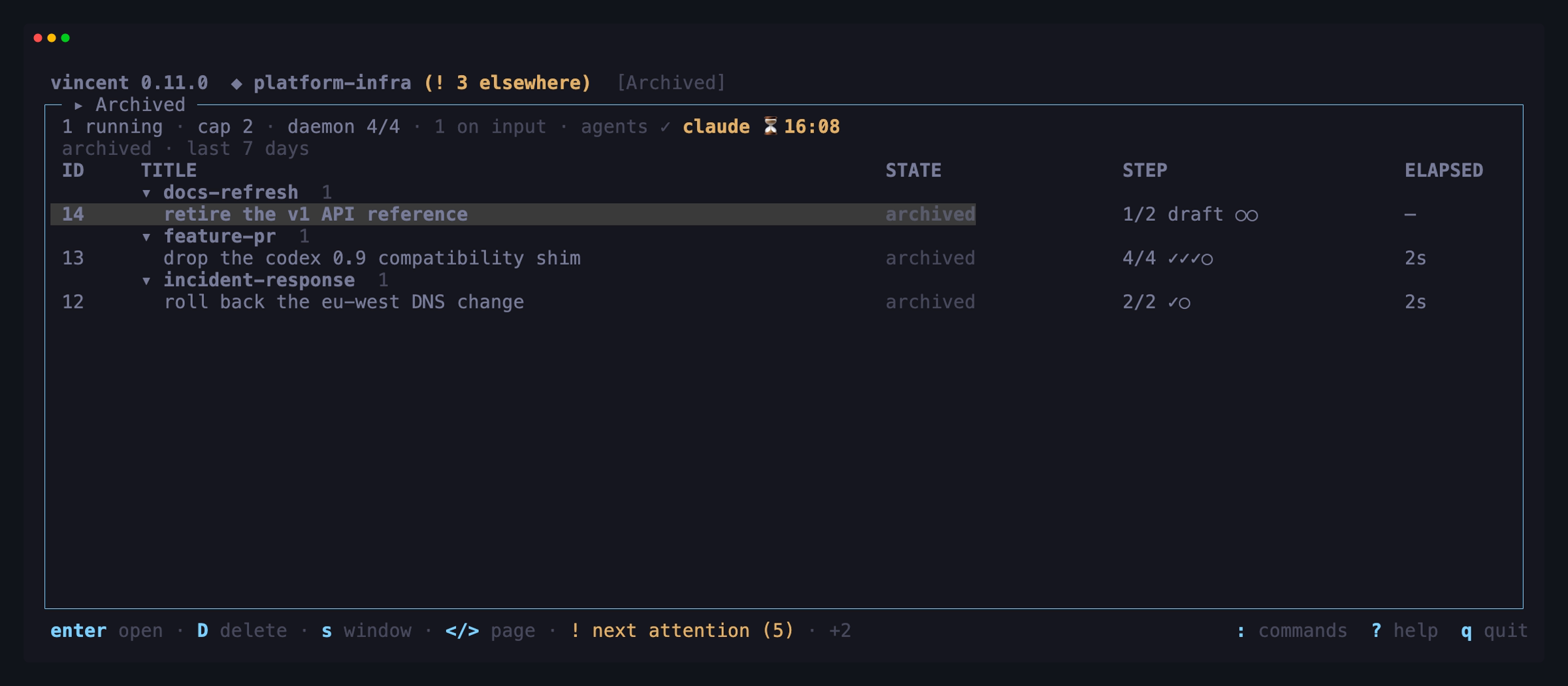
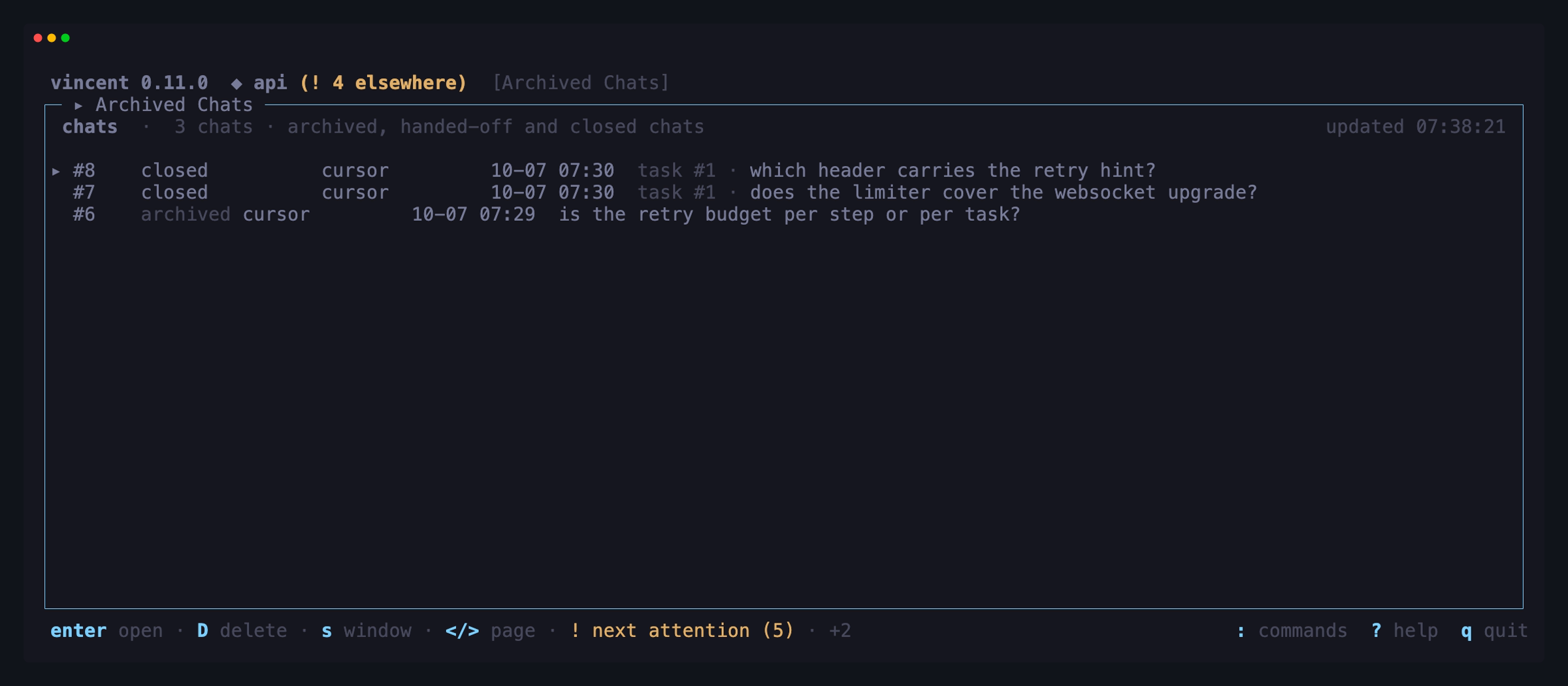
enter opens the row’s workspace. It is read-only for free: an archived
task offers no available_actions, and every action key is gated on those, so
there is nothing to withhold and no flag saying so.
| Key | Does |
|---|---|
D |
Delete permanently — asks first |
s |
Cycle the window: last 7 days → last 30 days → all time |
< / > |
Turn the page (a hundred rows at a time) |
enter |
Open the row’s workspace, read-only |
/ |
Filter, exactly as on the live board |
space / V |
Select rows for the delete |
The mouse wheel moves the cursor one row per tick on both lists. It never turns
the page — that is a fetch, and stays on < and > — and it stands still while
the delete confirmation is up, which names the rows it would delete.
The confirmation takes three answers: y deletes the row, its step attempts (or
its turns) and its transcripts; b does that and deletes its branch; n —
or esc, which closes a layer everywhere — does nothing. No other key answers
it: a permanent delete is not something a stray press should be able to confirm
or cancel. And the extra answer cannot destroy anything y would have kept: a
branch carrying commits past its base is reported and kept whichever you
pressed.
Rows are listed newest-archived first, which is the only order an archive
has. A selection deletes one row at a time and reports what happened — how many
went, how many branches with them, and how many the daemon refused. A refusal
names what is holding on: a fan-out parent still has its lanes, or a handed-off
chat still points at the task. Delete those first and try again. On a closed
chat opened on a task, b is refused
because the branch is the task’s; y deletes it.
Triggers
What starts work on its own, and what each event became. The screen shows the
selected project’s triggers and what the daemon learned running each one.
Trigger files are still global — they all live under {config_dir}/triggers/
— but each valid one targets exactly one project, and only the selected
project’s are listed. Below them, an unassigned band lists the invalid
files whose project could not be read, and the triggers whose project has
since been removed. Every project shows that band, so such a file is always
reachable from here to repair. Like
the other takeovers it has no key and is reached from the command palette (:).
The global switch is triggers; read
what a trigger lets someone else do
before turning one on.
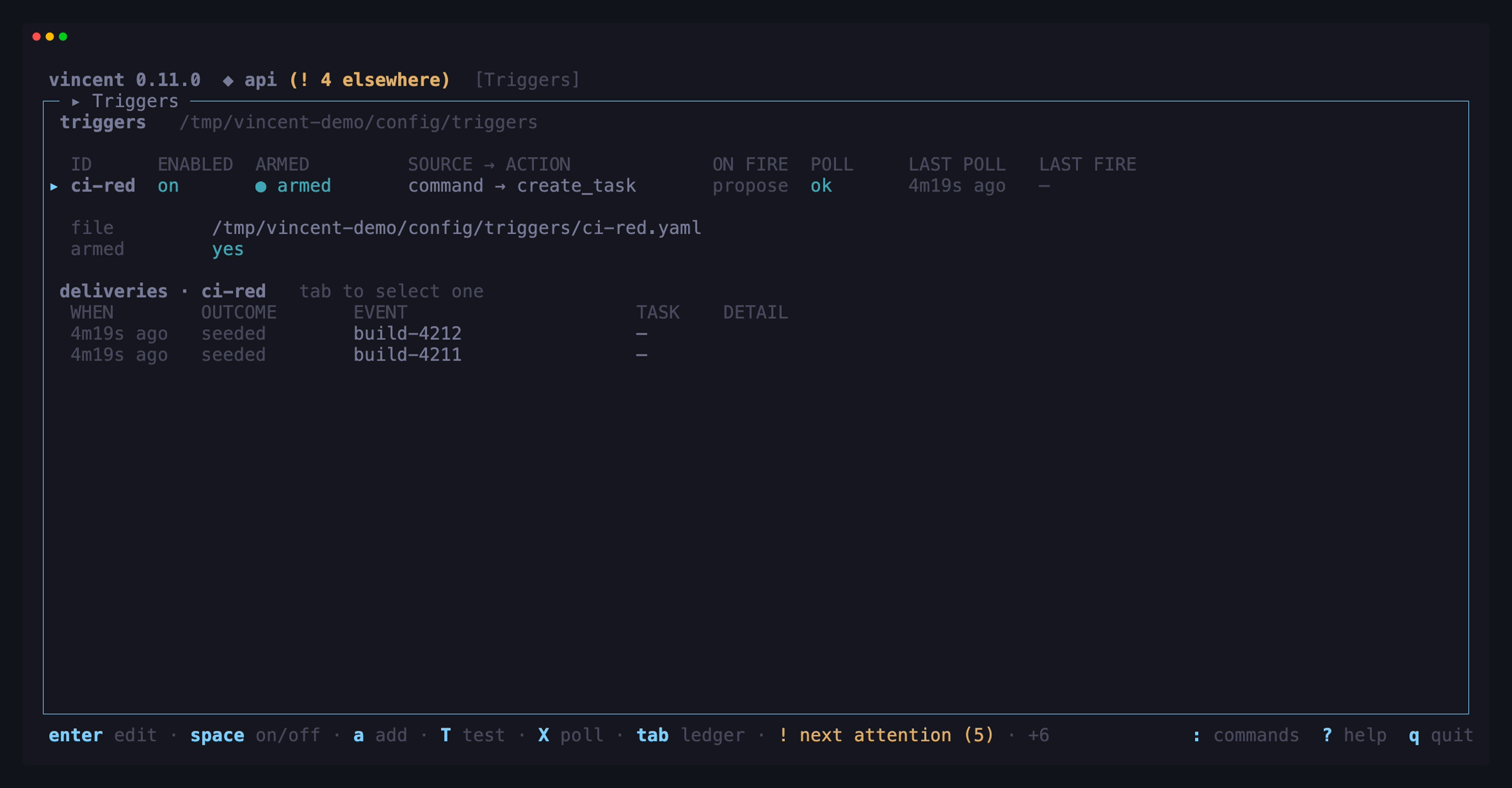
The list has one row per trigger, broken ones included. Each row shows the id,
whether the file is enabled, whether it is armed, the source and action
types, on_fire, poll health, and when it last polled and last
fired. The armed column reads ● armed, or says why not: disabled, ✗ invalid,
global off, or the daemon’s own reason. Poll health is ok, failing or
not yet, and reports what the source has instead where it has no poll:
push for an http source, clock for a schedule. Below the table are the
facts for the selected trigger that the table has no room for: its file,
whether it is armed (and, for an armed trigger that has not polled yet, that
its next poll only seeds and fires nothing — for a schedule, that its next
tick anchors its clock and fires nothing), the last poll error, and any
findings that keep the file from validating. The screen re-reads every five
seconds while it is open, and also whenever an event for one of the selected
project’s triggers, a poll change, or a project change arrives.
While triggers.enabled is off, a banner above the list says so. Every
trigger is then inert whatever its own enabled: says, so every row reads
disarmed for a reason no row can fix. The view does not flip that switch itself.
B opens triggers.enabled in the daemon view’s config editor,
which asks before it applies a value. The form repeats the warning at its top.
| Key | Does |
|---|---|
↑ / ↓ |
Move the selection |
enter or i |
Open the selected trigger in the form |
space |
Enable or disable the selected trigger — enabling asks first |
a |
Create a trigger from a starter |
e |
Open the trigger’s file in $EDITOR |
D |
Delete the trigger’s file — its ledger is kept (asks first) |
T |
Dry-run a sample event through the trigger’s filter; fires nothing |
X |
Poll the source once and judge what it returns; fires nothing. Refused on http and schedule, which have no source to run |
tab |
Move between the trigger list and its delivery ledger |
B |
Open triggers.enabled, the global switch, in the daemon view’s editor |
R |
Re-read the triggers and the ledger |
/ |
Filter by id, source or action |
Switching a trigger on asks; switching it off does not. The question shows
the warning the daemon serves for enabled: true, then what it means for this
trigger. With on_fire: propose, each task is created paused for you to resume.
With on_fire: create, each task starts running as soon as a slot is free. If
triggers.enabled is off, the question also says nothing polls until it is
turned on. Only y (or Y) answers yes, and n or esc leaves the trigger as it is.
Any other key leaves the question open, so a stray keypress cannot answer it.
A file that does not validate cannot be switched at all; fix it with e first.
D deletes the file and keeps the ledger. The question says so. The poll
cursor is dropped, but the delivery history stays, so a trigger re-created with
the same id cannot fire an event that already fired.
Toggling and deleting both carry the version of the file the screen last read.
If the file changed on disk since then, for example because you saved it in
$EDITOR, the write is refused. The screen says so and re-reads, and you try
again against what is actually there.
The delivery ledger — tab
tab moves the arrows to the selected trigger’s ledger: its newest
deliveries, one row for every event the trigger judged, whether it fired or not.
Each row shows when the event was judged, the outcome (fired, seeded,
deduped, filtered, rate_limited, refused, error, superseded or
queued), the event id, the task, and the detail — which carries
superseded #N when an overrun: cancel_previous fire replaced a task. This is
the daemon view’s list and log split: tab decides which list the arrows move.
| Key | Does |
|---|---|
↑ / ↓ |
Move through the deliveries |
enter |
Open the task the delivery created or acted on |
tab |
Back to the trigger list (esc too) |
R |
Re-read the triggers and the ledger |
A delivery that touched no task, such as a filtered or deduped one, says
so when you press enter rather than opening nothing.
Creating and editing — a, enter
a opens a short prompt asking for what a new file needs: an id, which
becomes the file name {id}.yaml. Its project is the selected one, shown
read-only; to make a trigger for another project, switch to it first. It also offers the two
things a starter is usually edited for first: the poll command, an argv
separated by spaces that is run directly and never through a shell, and how
often to poll, with a default of 5m. The daemon writes a type: command
trigger. It is disabled and has no on_fire line, so it means propose
until someone writes otherwise. The form then opens on the new file. An id that
is already in use is refused on the prompt, and with no project selected there
is nothing to create a trigger in.
| Key | Does, in the create prompt |
|---|---|
tab |
Move between the starter’s inputs (shift+tab goes back) |
enter |
Write the new trigger — it is created disabled |
esc |
Close the prompt |
enter or i opens the form: the workflow editor’s form, drawn from the
schema the daemon serves rather than from a copy of the rules kept in the client.
Its rows are the top-level keys. source, action and limits hold nested
blocks, and so does a source’s signature. enter goes into a block and esc
comes back out. A source or an action shows only the fields of the variant its
type names. For a GitHub source, the type row also lists the events the source
produces and which of them are trusted without allowed_actors. A key the file
leaves out shows what leaving it out means, and the project row names the
project its id refers to. That row is read-only for a trigger that has a
project, which is the selected one. The id cannot be edited: it is the file name, so
renaming a trigger means creating a new one.
| Key | Does, in the form |
|---|---|
↑ / ↓ |
Move between the trigger’s fields |
enter |
Edit the field; the daemon validates and writes the file |
R |
Re-read the trigger from disk |
esc |
Close the form |
An enum or a boolean cycles in place. if:, dedupe_key and the other
templates open the full-pane multi-line editor, match: opens the key/value
sub-form, with one key=value per entry and a|b meaning any of those values,
and, for an unassigned trigger only, the project row opens a picker of registered
projects, because assigning the trigger a project is how it is repaired. The
form opens only a file that validates — that is, a trigger whose project was
removed; an unassigned file that does not validate is repaired in $EDITOR. These are the same
overlays the workflow editor opens, with the same keys.
As in the workflow editor, committing a row is the write. Each change is a single edit operation carrying the version the form last read. The daemon owns the file and applies the change to its bytes, so comments, key order and blank lines survive. Booleans, numbers and project ids are checked before the write. Everything else is checked by the daemon. A value it refuses is not reverted: it stays on its row with the daemon’s message beside it, and nothing is written. If another writer got there first, the form says the file changed on disk since it read it, re-reads it, and asks you to make the change again.
Four values ask before they are written, because each one takes a keypress out
of starting agents or destroys work in flight: enabled: true, on_fire:
create, permission: workflow and overrun: cancel_previous. The question
shows the warning the schema serves. For enabled, it also says what enabling
means given the trigger’s on_fire, just as space does. y writes the value, and n or esc keeps the file as it is.
A file that does not validate cannot be loaded into the form. The form says so
and quotes the first finding; esc, then e, opens the file in $EDITOR.
After you save there, the screen re-reads it.
Dry runs — T, X
Neither dry run fires anything, and both work on a trigger that is not armed.
T judges a sample event you write. Its pane opens on a minimal event,
{"id": "sample-1"}, and ctrl+s runs it through the trigger’s real match:,
if:, dedupe key, action rendering and overrun: check. The result shows
whether the event matched and which key missed, what if: rendered, the dedupe
key and whether that event was already delivered, the request the action would
replay, and, for a trigger that sets overrun:, the group it was judged in and
which tasks it found unfinished there. The sample has to be a single JSON
object. Each trigger keeps its own sample for this session only: reopening T on the same trigger brings the sample back,
but it is never written to disk, not even to {data_dir}/tui.json, because an
event copied from a vendor can carry text nobody meant to store.
X runs the source once, for real, and judges each event it returns in the
same way. It changes nothing: no task is created, the cursor does not advance,
no ledger row is written, and poll health is untouched. The result also shows
how many events came back, how many were over the catch-up cap, how many output
lines were refused, the cursor the source reported, and, for a trigger with no
cursor yet, that a real poll now would record these events as seeded and fire
nothing.
| Key | Does, in a dry run |
|---|---|
ctrl+s |
Run the dry run — judge the sample, or poll the source again |
esc |
Close the dry run |
Daemon
Version, uptime, the config in effect, the adapters detected, and a live tail of
the daemon log. The view reports, it does not act — vincent daemon stop owns
stopping the daemon, and a TUI that auto-started one has no business killing it.
The configuration block is the exception, and only it. tab moves ↑/↓
off the log pane and onto the config list, which then shows every key
config.yaml carries rather than the digest; enter opens a typed editor on
the selected key, and applying it writes the file through the daemon. Stopping
the daemon and vincent gc act on the process supervising this TUI, which is
what that sentence is about; a configuration edit changes a file the daemon owns
and already reloads, and which you can edit by hand at any moment anyway.
Each row shows the value in force and, where they differ, the built-in default. The daemon serves the values it has loaded and not where they came from, so a row says “differs from the default” rather than “set in the file”. A refusal renders against the field, with the value that caused it still there to fix, and nothing is written.
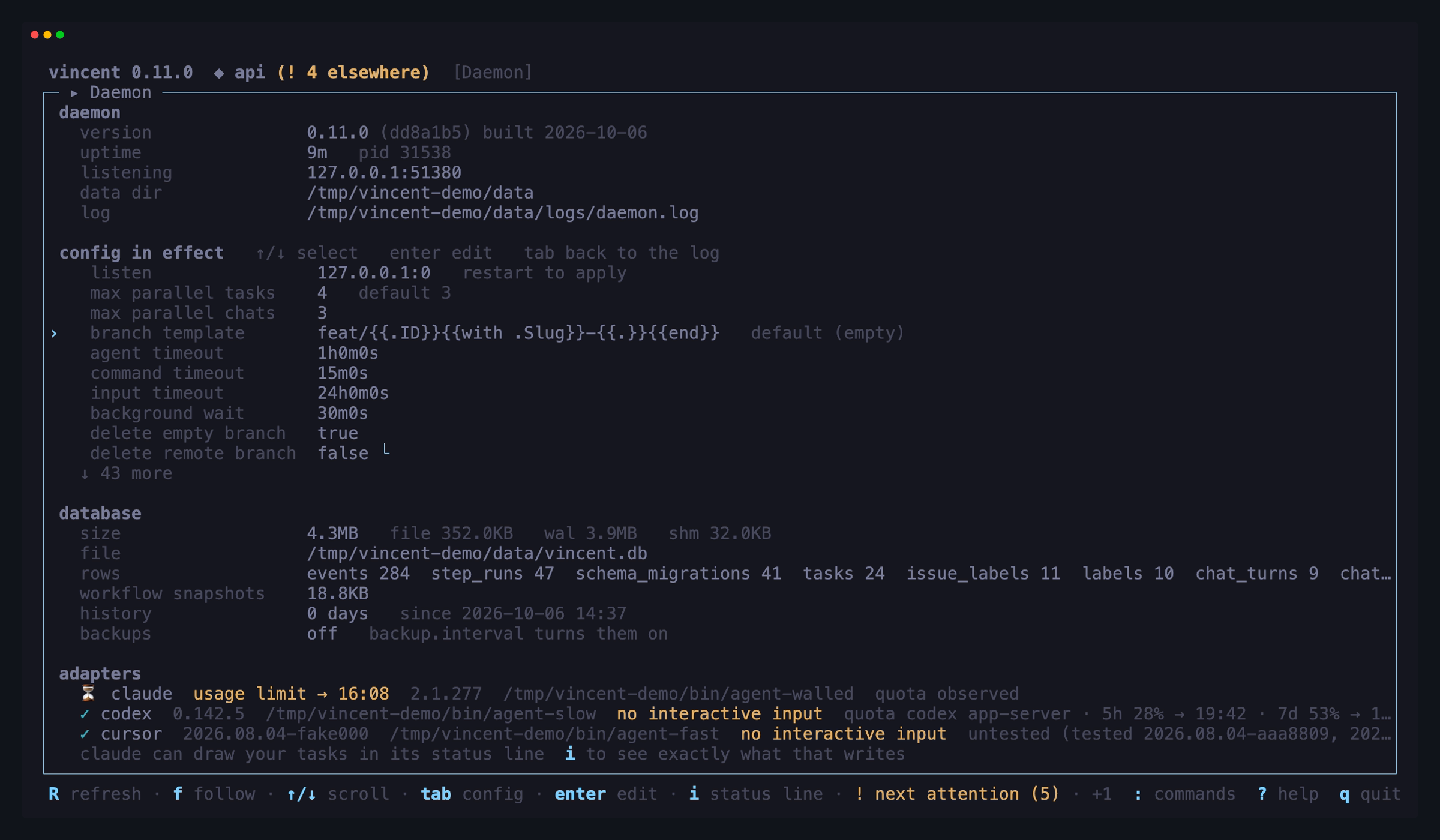
Six keys ask before they apply: notify.command, environment.*,
agents.*.path, listen, triggers.enabled and backup.dir. They decide what
the daemon executes or exposes, and agents run full-auto by default
— a stray keystroke must not change the argv the daemon spawns as you, let a
trigger file start agents as you, or send archives of config.yaml and every
transcript to a folder someone else can read. listen is written to the
file and the running daemon keeps the address it bound until it is restarted;
the editor says so before you apply it.
| Key | Does |
|---|---|
tab |
Move ↑/↓ between the config list and the log pane |
↑ / ↓ |
Select a configuration key, once the list has the arrows |
enter / e |
Open the editor on the selected key |
R |
Re-read the daemon info, the config and the log |
f / G |
Follow the end of the log again |
i |
Make vincent claude’s status line, or remove it — the exact JSON is shown first |
S |
Install the agent skills vincent publishes — the exact command is shown first |
And inside the editor:
| Key | Does |
|---|---|
← / → |
Choose a value, for a key with a fixed vocabulary |
enter |
Apply the change — the daemon validates and writes config.yaml |
y |
Confirm one of the five keys that decide what the daemon executes or exposes |
esc |
Close without saving; on the confirmation it returns to the field |
Everything here is also
vincent config get|set.
Each adapter row carries what vincent knows about its usage window. Where the
adapter reports one, the reading is spelled out window by window —
quota codex app-server · 5h 28% → 13:00 · 7d 53% → 11:00 · read 09:14 —
with the time it was taken, because a percentage with no timestamp invites
reading a stale figure as a live one. Where vincent has only watched a wall go
up, it says usage limit → 14:20 when the CLI stated that reset and
usage limit ≈ 14:20 when vincent estimated it from
usage_limit_recheck_interval.
An adapter with neither trails quota unknown. This is the one view that says
“unknown” out loud; its job is to list every fact about an adapter, including
the ones nobody has.
Two adapters can report: codex answers on request, with nothing to install,
and claude reports through its status line, which is what i offers to set
up. cursor has no usage surface at all, so it is observation-only and
nothing about it changes. i writes statusLine.command in
~/.claude/settings.json — the one file outside its own data dir vincent
touches besides cursor’s model setting — and it never does so without showing
you the exact JSON first. Whatever status line you had is run by vincent and
printed unchanged, pressing i again puts the file back the way it was, and
declining is remembered so the offer does not come back. See
vincent statusline.
A line under the adapters says how many of the
skills vincent publishes are not installed
for your agents, and S opens the offer: what is on this machine, and the exact
npx skills add command each install runs, spelled out before anything happens.
enter runs it, n is a “not now” that is remembered in {data_dir}/tui.json
so the line stops advertising itself, and esc closes without installing
anything. Once everything is current the line still says so — that is where S
stays discoverable, the same way the status-line line works.
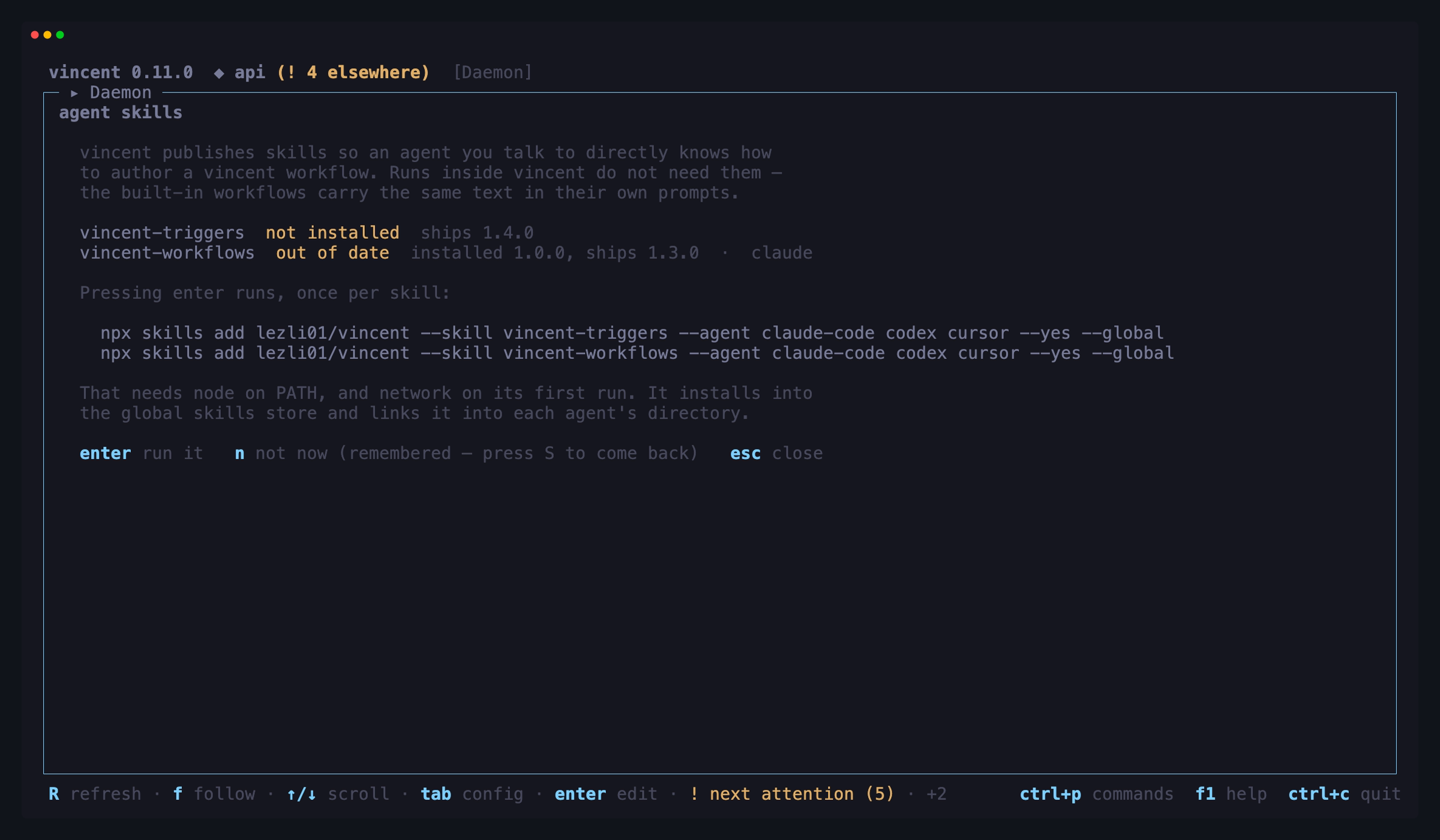
Two things differ from i. vincent does not write these files itself: it runs
npx skills add, which needs node on PATH and, on its first run, the network
to download the package — so the install happens off the event loop and the
screen says what is running rather than freezing. And the state the line reports
comes off the same vincent doctor report this view already fetches, so the TUI
still holds no state the daemon does not; only the “not now” is local.
The row also trails with what vincent knows about the build itself: untested
and the builds the adapter was judged against, incompatible version for a
build known to break, and no restricted mode here where the adapter cannot
honour permission_mode: restricted on this OS (see
Agent CLIs). None of them refuses anything from here — a
restricted step on an adapter that cannot restrict is refused when the task is
created — and a tested build says nothing at all, because one green word per
adapter is what makes the one warning invisible.
An orphans line appears in the identity block when the daemon has found
directories under its data dir that no task claims, naming the count and
vincent gc. It is a pointer, not a button: for the same reason this view does
not stop the daemon, it does not delete anything either. Nothing shows when the
count is zero.
A database block sits between the config and the adapters: how big the
database is on disk — including the WAL, which the file size alone leaves out —
what each table holds, how many bytes of workflow snapshots the tasks are
carrying, and how far back the event history goes. Vincent keeps database rows
forever, so this is the block that tells you what that has cost so far. Like
everything else here it reports and offers nothing to press; vincent doctor
prints the same figures in pasteable form, and vincent doctor --fix is what
compacts the file. R re-reads it along with the rest of the view.
The database block ends with a backups row for
scheduled backups. With
backup.interval at 0 it reads off. Once they are on it shows the
interval, keep and the directory, then a last backup line with when the
newest scheduled archive was written, its size, how many are kept and when the
next is due. A failed attempt adds a red last backup failed line carrying the
error, which stays until an attempt succeeds; it is the same failure that makes
vincent doctor exit 1. A retention pass that could not delete an old
archive is a yellow line instead, because the backup it followed succeeded.
Like the rest of the block it offers nothing to press.
| Key | Does |
|---|---|
R |
Re-read the daemon info, the config, the database and backup figures and the log |
f or G |
Follow the end of the log again |
↑/↓ |
Scroll the log |
The log tail is read straight from {data_dir}/logs/daemon.log — the one place
the TUI is not a pure API client, because an endpoint cannot serve the log when
the daemon is the thing that died, which is exactly when the log is worth
reading.
The command palette
: opens it — or ctrl+p, which works everywhere : does and while a text
field has the keyboard. In a chat the composer takes every printable key, so
there : types a colon into your draft and ctrl+p is the way in. Help has
the same pair: ? everywhere it is not a character, and f1 everywhere,
including a chat’s composer, a filter and every form.
Everything reachable in the TUI is in there by name — navigation to every
screen, and every task action the daemon currently offers. Type to filter,
enter to run, esc to close. Every row carries its key beside it — the key
in force, so a tui.keys override shows as the key you set — and a row whose
key a lenient load took reads unbound. Actions the task does not offer are
left out rather than greyed: the palette runs things, and it never lists
something that cannot run.
In a task’s workspace the palette has a tabs group: one row per tab on
the strip, in the order the strip draws them, such as go to the Diff tab
beside 4. Typing diff finds it. Running a row presses that digit, so it
does exactly what the digit does. Pull Request is listed only while the tab
is on the strip. The Overview’s jump links, such as 3 for the failed
attempt’s output, stay on the Overview, where the attempt they point at is on
screen.
Its global group carries switch project, which opens the
project picker — the way to it from a chat, where @
types into the draft.
The takeover screens have their own screens group. The palette exists so
the takeover screens do not need memorized number keys. If you cannot remember a binding, : and ? are the two keys worth
knowing.
Glossary
The TUI uses one word for each thing, and never prints a snake_case identifier
as prose. A state reads as its words; a reason reads as its title, with the
code the CLI, the API and MCP use dim beside it — check failed · check_failed
— so either spelling finds the other. An unknown reason, from a daemon newer
than the TUI, prints once as its code. Task Details is the one place that
keeps the raw identifiers, undimmed, for copying into a command.
| Word | Means | Identifier |
|---|---|---|
| awaiting input | A step asked a question and waits for your answer | awaiting_input |
| awaiting approval | A manual gate waits for approve or reject | awaiting_gate |
| waiting on lanes | A fan-out parent waits for its lanes | awaiting_children |
| needs you | The three states above that wait on a human: awaiting input, awaiting approval and blocked | ! badge |
| attempt | One execution of a step; a retry is a new attempt | step_run |
| iteration | One pass of a loop’s body | iteration |
| round | One wave of a fan-out’s lanes | iteration on a fan_out step |
| lane | One child task of a fan-out | a child task with a lane_id |
| tab | A pane of a task’s workspace — Overview, Steps, Output, Diff… | |
| screen | A takeover routed over the board — New task, Projects, Workflows… |
Every key
? toggles a help overlay listing every binding for the surface you are on —
or f1, which also works while a text field has the keyboard. While the
overlay is open it owns the keyboard: ?, esc and f1 close it, ↑/↓,
pgup/pgdown, home and end scroll it, ctrl+c still quits, and every
other key is ignored rather than acting on the screen behind it. When the
sheet is taller than the screen its last row says where you are and which way
there is more. The overlay, the palette and the footer all render from one
registry in the source, so a key that exists is a key that is documented.
On the board and in a task’s workspace the sheet opens with This screen,
an orientation header. On the board it lists three moves: enter opens the
task, ! jumps to the next task that needs you, and : finds everything. In a
workspace it lists the tabs on the strip, in drawn order, each with its digit
and what it is for — 4 Diff — what the task's branch changed. The keys
shown are the ones in force after tui.keys.
On those two surfaces the task actions are split in two. Actions now lists what the selected task — or the open one, or the marked set — offers at this moment. Not available now lists every other action, dimmed, so the sheet teaches the whole vocabulary. With no task selected, or with the daemon unreachable, every action is under Not available now. The palette is different on purpose: it runs what you pick, so it lists only the actions that can run.
The footer shows as many of the focused surface’s keys as the terminal is wide
enough for, in priority order, and then tells you what is left: a dim +N
after the action keys counts the keys this surface has that the line is not
showing — the ones that did not fit, the ones with no short form, and, on a
narrow terminal, the task actions that did not fit. When a task offers more
actions than the line holds, the ones listed first stay — on a blocked task
that is r retry, E edit+retry and R repair — and the rest give their place
up from the end: the ! attention count, then T chat, then archive, cancel
and skip. Click it, or press :, and
the palette lists them. No +N means nothing is left over. The popups and
forms never carry one at all — the palette does not list their keys, so it has
nothing to point them at, and ? is what shows those — or f1, on the ones
that have the keyboard.
The right-hand end of the footer never truncates: : commands ? help q quit.
While a text field has the keyboard — a chat’s composer, a filter, a form —
those three keys would be typed, so it reads ctrl+p commands f1 help ctrl+c
quit instead. Clicking either version, or running a global row from the
palette, does what the row says even in a text field; nothing is typed into
it.
Global bindings — active whenever the focused surface is not capturing text:
| Key | Does |
|---|---|
: |
Command palette |
ctrl+p |
Command palette, also while a text field has the keyboard |
? |
Toggle help |
f1 |
Toggle help, also while a text field has the keyboard |
tab / shift+tab |
Move between task tabs; on the board filter, commit it |
! |
Jump to the next task that needs you — awaiting input, awaiting approval or blocked; then the next project’s |
n |
New task |
@ |
Switch project |
M |
Toggle the mouse |
esc |
Close one layer: popup tab → popup → screen → selection → filter — never quits |
q |
Quit the TUI (the daemon keeps running) |
ctrl+c |
Quit |
Every screen’s own keys are tabulated in its section above — the
issues list and issue detail included — and ? lists them for the
screen you are on.
Rebinding keys
Every key in this guide is a default. To move one, set
tui.keys in config.yaml: a map from
an operation to the one key you want for it.
tui:
  keys:
    refresh: ctrl+e
    quit: f10
The same map can be set with vincent config set tui.keys "refresh=ctrl+e
quit=f10", or from the daemon view’s config editor. An empty map,
the default, is the keymap this guide describes.
A key is written the way the terminal reports it: one character (R, /,
!), or one of the names enter, tab, esc, space, backspace,
delete, insert, home, end, pgup, pgdown, up, down, left,
right and f1 to f20 — optionally after ctrl+, alt+ and shift+, in
that order. A shifted letter is written as itself: R, not shift+r.
An override moves the operation everywhere it appears. With refresh:
ctrl+e, every screen that re-reads does so on ctrl+e — the chats board, the
workflows list, the daemon view and the rest — and ?, the footer and the
palette say ctrl+e there. It replaces the default instead of adding a
second key, so R no longer refreshes anything; in the task workspace it is
still repair, which is an operation of its own. The key you vacate is free, so
two operations can swap in one edit:
tui:
  keys:
    pause: x
    reject: p
Setting an operation to its own default changes nothing.
The operations
The first sixteen are the operations screens share, the next ten are the task actions, and the last nine are the global keys.
| Operation | Default | Does |
|---|---|---|
refresh |
R |
Refresh, or re-read |
archive |
A |
Archive a task or a chat |
delete |
D |
Delete a persisted record: an archived task or chat, a project, a trigger, an issue |
draft_remove |
d |
Remove a row from an open draft |
add |
a |
Add or create |
editor |
e |
Edit in $EDITOR |
free_text |
t |
Type free text instead of picking from a list |
browser |
o |
Open in a browser |
open_row |
enter |
Open or expand the row under the cursor |
scope |
s |
Cycle what a listing shows |
filter |
/ |
Filter |
lane |
l |
Open a fan-out lane |
result |
w |
Open the output the Overview’s outcome card took its result from |
next_failure |
N |
Jump to the task’s next failure |
attention_filter |
H |
Show only the tasks that need a human |
comment |
W |
Write a comment on an issue in $EDITOR |
pause |
p |
Pause or resume the task |
approve |
a |
Approve the gate |
reject |
x |
Reject the gate |
retry |
r |
Retry the blocked step |
edit_retry |
E |
Edit the step in $EDITOR, then retry |
repair |
R |
Repair with an agent |
skip |
s |
Skip the current step |
cancel |
c |
Cancel the task |
follow_up |
F |
Follow up on a finished task |
chat |
T |
Chat in the task’s worktree, or reopen the chat open on it |
palette |
: |
Open the command palette |
palette_alt |
ctrl+p |
Open the command palette, also while a text field has the keyboard |
help |
? |
Toggle help |
help_alt |
f1 |
Toggle help, also while a text field has the keyboard |
next_attention |
! |
Jump to the next task that needs you — awaiting input, awaiting approval or blocked; past the selected project’s last, switch to the next project that has one |
mouse |
M |
Toggle the mouse |
quit |
q |
Quit the TUI |
new |
n |
New task — or new chat, on the chats board, or new issue, on the issue screens |
project |
@ |
Switch project |
new is one operation everywhere because it is one gesture, “make a new one
here”, so moving it moves all three.
What stays where it is
Some keys are not operations, and tui.keys cannot move them or give their key
to anything else:
- Keys that belong to one screen and mean nothing shared —
ggroups the board,Lshows a fan-out’s lanes,mmerges a pull request, andX,i,u,P,U,Sand the like. - Keys that work as a set — folding (
←/→,C/O,space), paging (</>), moving (↑/↓,K/J) and the task tabs ([/]). esc, because it closes one layer at a time on every screen;ctrl+c, because it must always be able to quit;ctrl+v, the paste fallback; andtab/shift+tab, which move focus everywhere — and, in the chat workspace only,tabalso opens the skill list, which is a fixed surface key like the rest of that screen’s and is not nameable intui.keyseither.- A popup’s
yandn, which answer the question the popup is asking. - The aliases: the vim-style
h j k l f b u G, the output tab’sd, andrfor retrying the connection while the daemon is unreachable.
Naming one of these in tui.keys — group, fold, page, esc, tab,
yes, resume and so on — is refused with the reason it is fixed.
What is refused
The daemon checks the whole map before it accepts any of it. It checks the names and the key strings first and reports every problem among them at once; only a map whose names and keys are all valid is checked for the last two refusals below, which are again reported all at once:
- An operation that does not exist, with the list of those that do.
- Something that is not a key, such as
reloadorshift+r. - A key that already means something else, anywhere in the TUI: another
operation, or one of the fixed keys above — even on a screen that is never
open at the same time. A handful of defaults share a key by a recorded
decision (
Ris refresh and repair,ais add and approve,sis scope and skip), and those decisions cover the defaults only. Movingrefreshtoris refused, becauseris retry. - A key a text field would type, for
palette_altandhelp_alt. A printable key is one character, orspace, with noctrloralt. Those two exist to work while a chat’s composer, a filter or a form has the keyboard, where a letter would be typed instead, so bind them to actrl,altor function key. The same holds for any operation answered in the chat workspace or the new-chat form, whose text fields take every printable key — with one exception,free_texton the new-chat form, which is offered only inside a list drawn over those rows, where nothing is being typed into.
Each message names the operation, the key and what the key already means — for
example refresh: "q" already means quit (quit the TUI). A refused
vincent config set or editor save leaves config.yaml untouched, and a hand
edit that fails is rejected on reload with the last good keymap still in force.
After an upgrade
A release may give a new operation or a new fixed key a default you had already
bound, or retire an operation you named. Neither stops the daemon: on load your
binding wins, the operation whose default it was is unbound, a fixed key it
was is shadowed on its screen and does nothing there, and a retired name is
ignored. ? and the palette list what lost its key as unbound, the footer
drops it, and the TUI shows one line under the header saying what happened.
vincent doctor lists the same warnings, and the daemon log carries them as
keymap warning. Give the unbound operation a free key, or move your binding,
to clear them. Saving through vincent config set or the config editor stays
strict, so while such a clash is in the file every save is refused with its
name.
When a change takes effect
Saved in the daemon view’s config editor, a keymap applies at once. Set any
other way — vincent config set, or an edit to the file — it reaches a running
TUI the next time the TUI reads the configuration: when you open the daemon view
or refresh it, or when the TUI reconnects.
This guide cannot know your keymap, so it always shows the defaults. ?, the
footer and the palette show the keys in force.
Mouse, selection and paste
The mouse is on by default: click to select, scroll to scroll, and click the
header’s ◆ segment to switch project. That takes mouse
events away from your terminal, so native text selection needs the mouse
off — press M, or hold shift while dragging, which most terminals treat as
“bypass the application”.
Paste normally arrives as a bracketed paste from your terminal’s own binding
(Cmd+V, Ctrl+Shift+V, middle click) and lands in the focused field with no
key involved. ctrl+v is the fallback for terminals that pass the key through
instead.
When the daemon is unreachable
The TUI does not pretend. It shows the disconnected state in the header, keeps the last data it fetched visible rather than blanking the screen, and reconnects on its own when the daemon comes back — SSE reconnection resumes durable events from where it left off, so nothing is missed.
The daemon view stays useful throughout: its log tail is read from disk, which is the one thing still true to show when the daemon has died.
See also
- Scripting vincent — everything here, without a terminal.
- Task lifecycle — what the actions do.
- Troubleshooting.