Using the TUI
vincent with no arguments opens the terminal UI, starting a daemon if none is
running. It is a pure API client: it holds no state the daemon does not have,
and quitting it never affects work.
vincent # opens the TUI
- The first run
- Layout
- The board
- Acting on several tasks at once
- Task detail
- Answering a question
- The takeover screens
- The command palette
- Every key
- Mouse, selection and paste
- When the daemon is unreachable
The first run
The very first launch shows a one-time notice: agents run full-auto by
default and can execute arbitrary commands as you. Acknowledge it once and it
does not return. The acknowledgment is stored in {data_dir}/tui.json.
It is worth reading rather than dismissing — Security model is the longer version.
Layout
Two of the six views — the board and task detail, the daily loop — share one persistent screen of three panels:
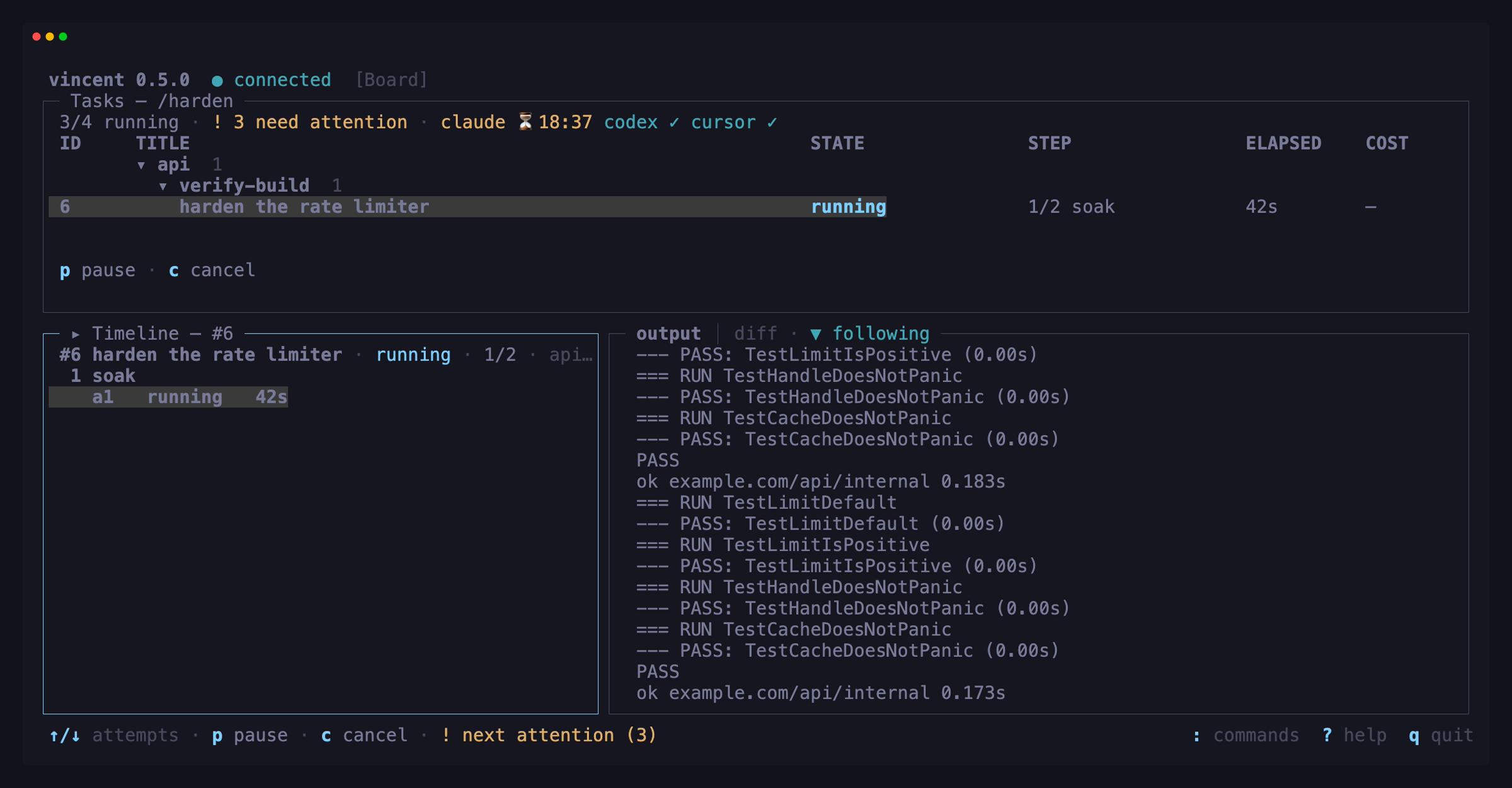
The task table is always full width, and it drives everything below it: moving
the selection moves the timeline and the output pane with it. tab moves focus
between panels; shift+tab goes back.
The other four views — new task, projects, workflows, daemon — are full-screen
takeovers. esc closes one layer at a time (popup → screen → selection →
filter) and never quits.
At 128×24 and above, New task, Projects, and Workflows use that room as a guided two-pane surface: progress or resources stay in a narrow rail, and the current decision gets the rest of the screen. Below that size they fall back to the compact form, table, or registry. Resizing does not move the cursor or close the picker, editor, project form, workflow expansion, or graph you were using.
The board
One row per task: id, project, title, state, current step k/n with its name,
elapsed, and cost so far. The header shows daemon status, agent availability,
running-versus-cap counts, and how many tasks need a human.
Three behaviors matter:
- Tasks waiting on a human are pinned to the top with a distinct badge —
awaiting_input,awaiting_gateandblocked.!jumps to the next one from anywhere. - The terminal bell rings when a task enters
awaiting_input, so most terminals flash or badge the window even when it is not focused. - A task waiting on a clock says when it resumes. A task whose agent hit a
usage limit — or whose failed step is pacing its next attempt with
retry_backoff— isqueuedlike any other, but its state cell readsqueued → 14:20, the time vincent will try it again, on its own. It holds no slot and needs nothing from you; the detail header names the reason in full (queued · usage limit → 14:20,queued · retry backoff → 14:20). See Troubleshooting andretry_backoff. - The header badges the agent, not just the task. An adapter vincent has
watched run out reads
claude ⏳14:20in place ofclaude ✓, and stays that way until a step on that adapter succeeds — so a board full ofqueuedrows says which window they are all waiting on. The badge is a statement, not a brake: admission is unchanged and nothing is withheld.
/ filters by id, title, project or state; tab commits the filter, esc
clears it.
A wide terminal also gets a STATUS column: what the task’s newest step run
said about itself, if it said anything —
compiling internal/store, 3 tests red. It is set by the step, not by
vincent, through vincent status, so it
is empty until a workflow asks for it; see
Reporting status from a step.
It is the first column dropped when the terminal narrows, and it needs a
comfortably wide title to be admitted at all — so a board that has never seen it
is a board that has the width for everything else instead.
Elapsed on the board is wall clock from the task’s start. That is deliberate: a task idle on a human for 35 of its 40 minutes must not read as “5m” on the board whose job is to flag it. The per-attempt figures in the timeline are the other measure — active time, with the excluded wait shown beside it rather than silently subtracted.
Grouping
The rows are grouped by project, and by workflow within a project, out of the box:
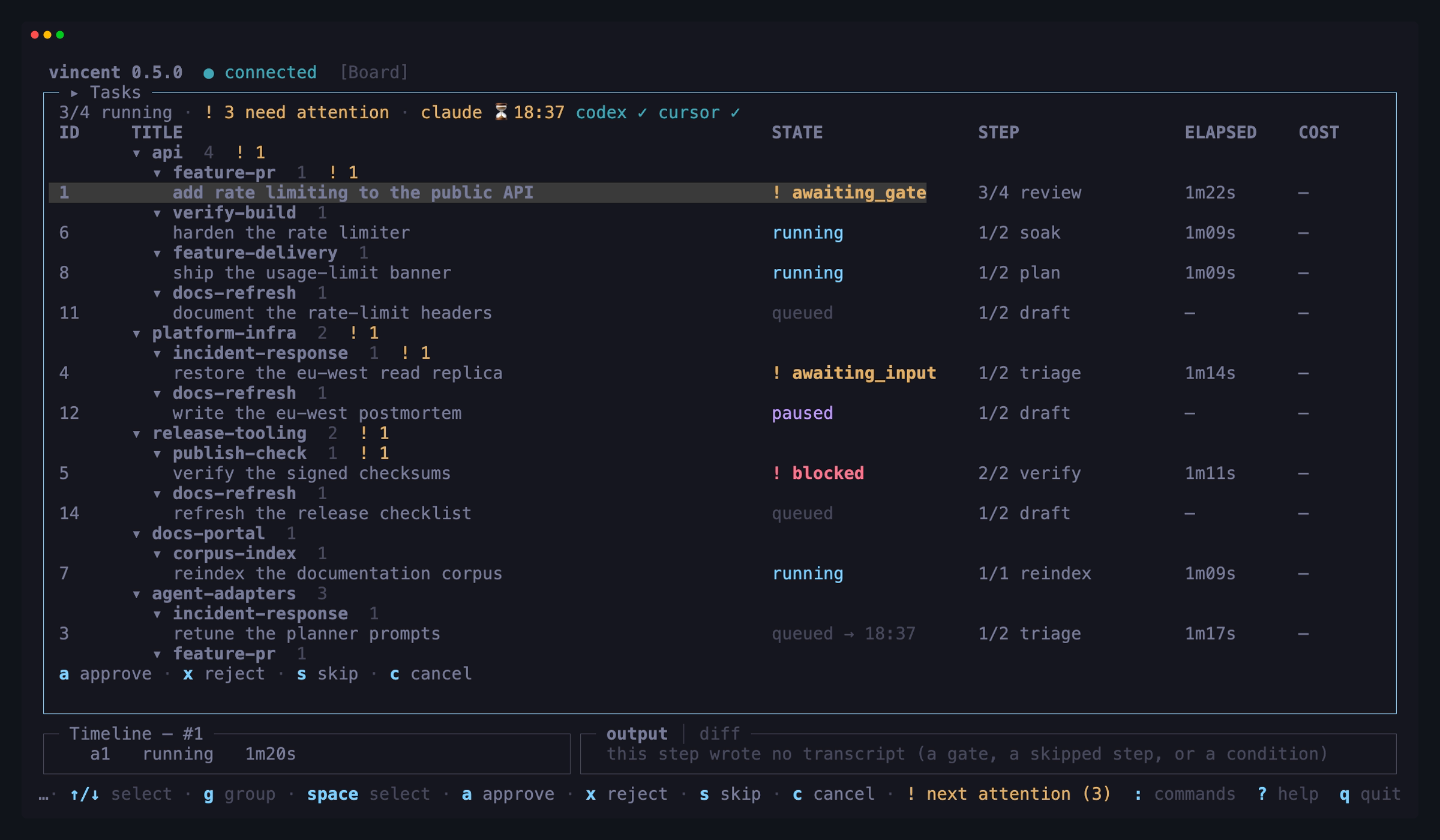
- The header shows the group’s task count, and the needs-attention badge when it holds any — a group can never be the reason you missed something waiting.
- Grouping does not reorder anything. The sort is what it always was, and a group sits where its first task does, so the group holding the oldest thing waiting on a human is the top group.
- A grouped level loses its column — the header already names it — and the width goes to the title.
- Headers are labels: the cursor steps over them, and nothing collapses.
g cycles project›workflow → project → workflow → flat for the session. The
panel title names the grouping whenever it is not the configured one.
Set the grouping you start with in config.yaml
(tui.board.group_by); []
gives you one flat list.
Acting on several tasks at once
Archiving yesterday’s finished work one row at a time is the same keypress ten times with a confirmation between each. Select the tasks instead:
| Key | Does |
|---|---|
space |
Select the task under the cursor (again deselects) |
V |
Select every task the filter is showing — or clear that selection |
L |
Drill into the selected fan-out’s lanes, or back out. Lanes are hidden from the board otherwise |
esc |
Clear the selection |
While anything is selected, a ✓ appears beside those rows, the panel title
counts them (Tasks — 5 selected), and the action keys act on the whole
selection:
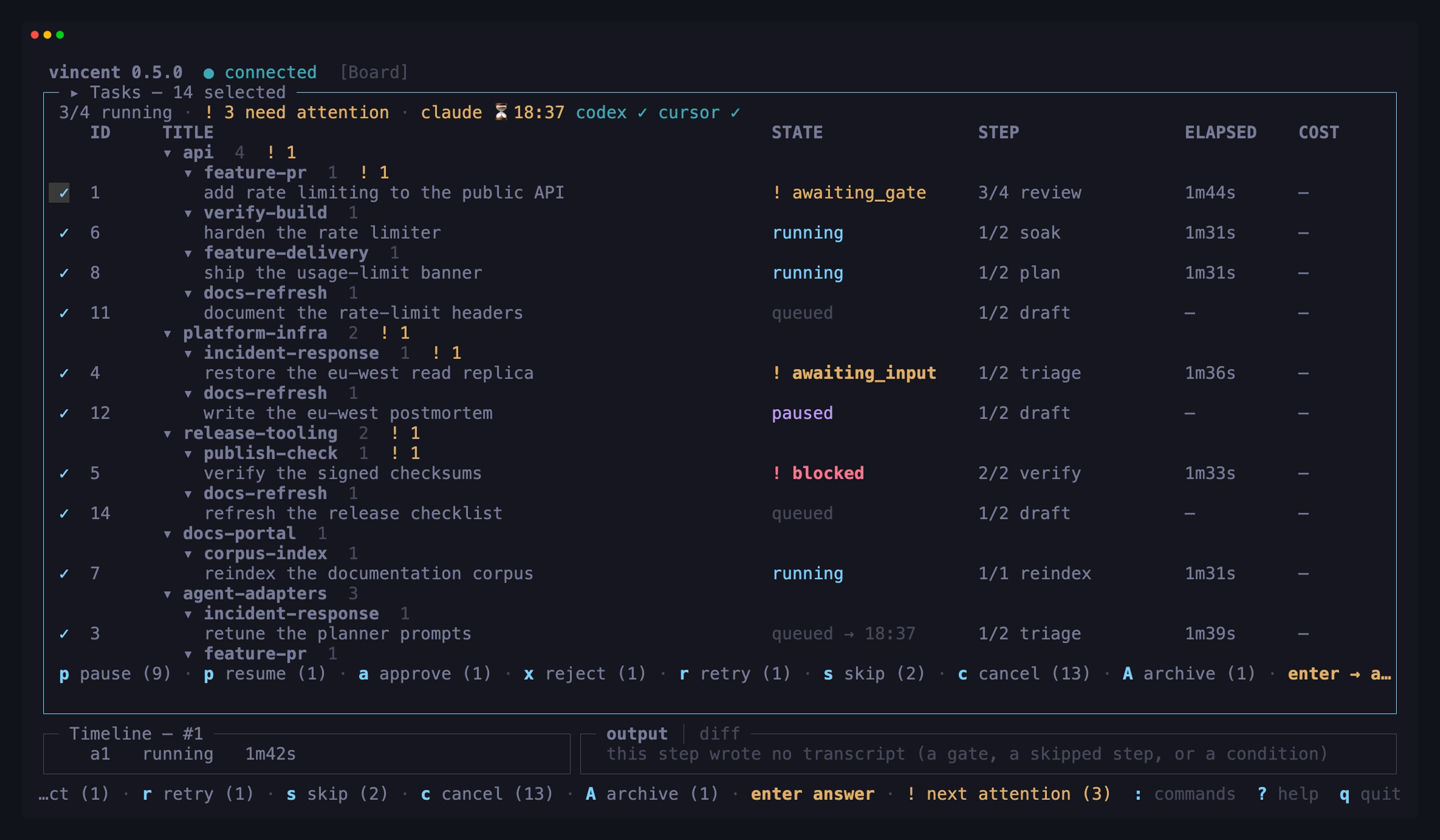
The count beside each key is how many of the selected tasks that action can
actually move — an action shows up when some selected task accepts it, and the
ones that do not are left alone. So a selection holding four finished tasks and
one still running offers A archive (4), and the running one stays where it is.
The rest of the behavior follows from what a selection is:
- It is a set of tasks, not of rows. Filtering, regrouping and refreshing do not change it — that is why the count is in the title, so a selected task the filter is hiding still says it is coming along.
- One confirmation for the batch.
Aasks once, about all of them. Behind the scenes vincent sends one ordinary action per task, so the daemon sees nothing special; you get one line back: how many moved, and the first refusal named if any refused. - Uncommitted changes still re-prompt. A bulk archive archives the clean
worktrees and asks again about only the dirty ones —
2 of 5 selected tasks have uncommitted changes. - What succeeded leaves the selection; what failed stays in it, so a retry needs no re-selecting.
- The keys work from any panel. Whatever has focus, the footer is counting
the selection, so that is what
Aacts on.
Task detail
enter opens the selected task. The timeline on the left lists every
attempt of every step with its duration, tokens and cost; the output pane on
the right shows the live tail of the running step.
Selecting an attempt in the timeline is how you read scrollback — that is why the two panels are side by side and both always visible.
A structure step gets a tier of its own. A parallel group’s sub-steps share
the group’s index, so the group is one header and each sub-step sits beneath
it. A loop (§7.8) goes one further: its body’s rows are grouped by
iteration, folded shut with the latest one open, and a for_each iteration’s
header names the item it ran on. Ten passes of a four-step body is forty rows,
and the one you arrived to read is almost always the pass it stopped on.
The board’s and the header’s step column say the same thing more briefly: a
task inside a loop reads 3/7 green · loop 4/10.
Two things on an attempt line are worth telling apart. A red word like
check_failed is vincent’s failure reason — a fixed set of constants, and
vincent’s own verdict. A cyan » 3 tests red in internal/store is the step’s
own status message, free text it set while it was running and the last thing
it said before it ended. It is never a cause: a step killed on a timeout may be
carrying a line it wrote half an hour earlier.
An attempt that did not succeed also gets a dim line beneath it with its result summary — the agent’s final message, or the tail of a command’s output. It is the sentence that decides whether to open the transcript.
| Key | Does |
|---|---|
] |
Switch the output pane tab: Output ⇄ Diff ([, ] and d all work) |
f or G |
Follow the live output again |
v |
More or less detail: compact → normal → verbose (reasoning, then unrecognized lines) |
e |
Open this attempt’s whole transcript in $EDITOR |
↑/↓ |
Scroll the output; scrolling up pauses follow (on the Diff tab they move between files — see The Diff tab) |
Reading the whole transcript
The output pane holds the end of a transcript — the last 256 KB, capped at 5000 records — because a single attempt is allowed to produce gigabytes. When a step fails, the part you want is often the beginning, which is exactly the part not on screen. When it has dropped something, the first line in the pane says so: … earlier output truncated — press e for the whole transcript.
e hands the complete file to your $EDITOR, the same way e opens a
workflow file in the workflows view. What opens is the raw JSONL on disk —
the lossless record, including lines vincent’s parsers do not recognize —
rather than the pane’s rendering. It is the same file
vincent task show <id> prints the path of.
Two cases answer instead of opening: a step that never wrote a transcript (a manual gate), and a transcript that retention has already pruned. Neither opens an empty buffer, because an empty buffer reads as “the step produced nothing”.
Follow mode belongs to the live attempt. It is unavailable on a finished one, and a step advance moves your selection only if the cursor was already on the live attempt — so reading an old step is never interrupted by a new one starting.
The Diff tab
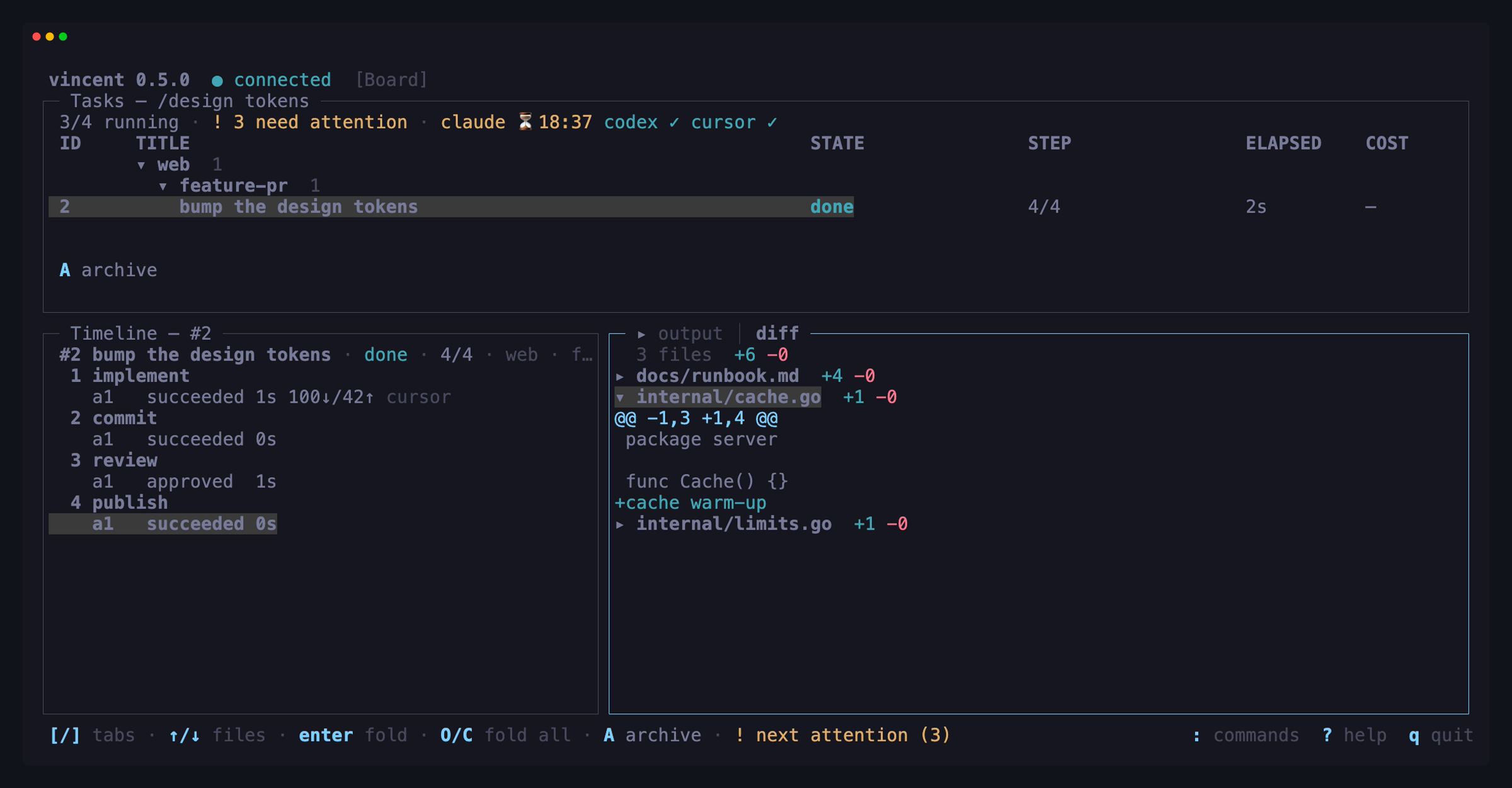
The Diff tab is git diff against the merge-base with the base branch,
including uncommitted changes, syntax-highlighted. It is fetched when you
activate the tab and on an explicit refresh, never on every output chunk.
It is grouped by file, and every file starts collapsed — so the first thing you see is what the task touched, not the first eighty lines of whichever file git wrote first:
| Key | Does |
|---|---|
↑/↓ |
Move between files (the pane scrolls to keep the cursor in view) |
enter or space |
Expand or collapse the file under the cursor (→/← too) |
O |
Expand every file |
C |
Collapse every file — which is how the tab opens |
pgup/pgdn, f/b, u |
Scroll by lines inside what is expanded |
] |
Back to the Output tab ([, ] and d all work) |
Clicking a file’s row folds it; clicking a line of code selects its file and leaves it open. The mouse wheel scrolls whichever tab is on screen.
The counts beside each path are the added and removed lines inside that file’s
hunks, and the line above the list totals them. A binary file says so
instead of showing +0 -0, and a rename reads old → new.
Folds are remembered per file path, so leaving and re-entering the tab — a refresh — keeps what you had open, even if the agent has since touched other files. Moving to another task starts collapsed again, and nothing is written to disk: a fold is how you are reading one diff, not a setting.
The action bar
Below the panes, the action bar shows exactly the actions valid in the current state — the daemon computes that list, the TUI renders it. With tasks selected on the board it acts on all of them; see Acting on several tasks at once.
| Key | Action | Valid from |
|---|---|---|
a |
Approve the gate | awaiting_gate |
x |
Reject the gate | awaiting_gate |
r |
Retry the blocked step | blocked |
R |
Repair with an agent — a one-off run in this task’s worktree | blocked |
E |
Edit the step’s prompt or command in $EDITOR, then retry |
blocked |
s |
Skip the current step | blocked, awaiting_gate |
p |
Pause / resume | queued, running / paused |
c |
Cancel the task (asks first — a running step is killed) | most states |
A |
Archive (asks first — the worktree is removed) | done, aborted |
F |
Follow up — run more work in this finished task’s worktree | done, aborted |
E opens the failing step’s prompt or command in your editor, and the override
applies to this task’s snapshot only — the workflow file is untouched.
R and F open a form instead of acting straight away; they are the two task
actions that need something written, which is also why neither is offered for a
bulk selection.
What each action means in full is in Task lifecycle.
Repairing a blocked task
r, E and s all leave the worktree exactly as the failed step left it —
they re-run a step, rewrite its text, or walk past it. When what is wrong is a
file, press R on a blocked task and a one-off agent goes and fixes it, in
this task’s worktree, on this task’s branch.
| Key | Does |
|---|---|
↑ / ↓ |
Move between the prompt and the agent / model / effort rows |
enter |
Open the row under the cursor — the prompt field, or that row’s picker |
e |
Write the prompt in $EDITOR instead |
ctrl+s |
Start the repair |
esc |
Close without repairing — the draft is discarded |
The prompt is the only required row, and it is prose: write what you want done, not a template. The daemon puts the context around it — the task, the blocked step’s rendered prompt or command, the failure reason and exit codes, the last 200 lines of the failed attempt’s transcript and the path to the whole file, so the agent can read further itself.
Inside the prompt field enter is a newline (a repair prompt usually wants
more than one line), ctrl+s keeps the text, and esc discards it. Agent,
model and effort are optional; set they apply to this run only and win over the
task’s overrides and the workflow’s defaults.
When the repair agent finishes the task returns to blocked — same step, same
reason — whatever it exited with. That is the point: you look at the diff and
then decide whether to r. The repair appears in the timeline as its own
entry under the blocked step, labelled repair (ad-hoc agent), with its own
transcript, tokens and cost; it is not an attempt of that step and does not use
up its retries.
Following up on a finished task
A done or aborted task still owns everything it made — its worktree, its
branch, its commits — until you archive it. F is how you do one more thing in
there without leaving vincent: rebase the branch onto a main that moved, add
the commit a reviewer asked for, drop the stray file the agent left.
| Key | Does |
|---|---|
↑ / ↓ |
Move between the run form, what to run, and the agent / model / effort rows |
enter |
Open the row under the cursor — the run-form list, the text field, or that row’s picker |
e |
Write the prompt or command in $EDITOR instead |
ctrl+s |
Start the follow-up |
esc |
Close without running anything — the draft is discarded |
The top row picks what kind of run this is, and it decides what the row under it means:
| Run form | The row below it is |
|---|---|
agent |
a prompt — prose, not a template |
command |
a shell command, run under the daemon’s shell (/bin/sh, or pwsh on Windows) |
workflow |
a name picked from the registry, run against this task’s worktree instead of a new one |
Switching between the three keeps what you typed in each, so you can look at the command form and come back to your prompt.
When the run finishes, the task returns to the state it came from — done to
done, aborted to aborted — whatever it exited with. A follow-up never
changes a task’s verdict; if a successful one could promote an aborted task to
done, any command that exits 0 could undo an abort you made on purpose.
Follow-ups are repeatable, and each one is a round. The timeline heads them
↳ follow-up 1, ↳ follow-up 2 under the workflow’s own steps, with each step
of the round named beneath — they are not steps of the workflow, and the
workflow’s k/n does not move.
If a follow-up step fails the task blocks at that round, and the usual keys
mean the usual things there: r re-runs the follow-up where it stopped, R
repairs against that failure, s abandons the follow-up and puts the task
back where it came from, c aborts. E is refused — edit-and-retry rewrites a
step in the task’s snapshot, and a follow-up is deliberately not in it.
For more than one task at a time, use the command line:
vincent task follow-up <id> --run 'git rebase origin/main'
(CLI reference).
Answering a question
When a claude step asks something mid-run, the task enters awaiting_input and
gets a badge on its row plus a footer hint. Press enter on the row to open the
answer form.
| Key | Does |
|---|---|
space |
Pick an option (toggles, for a multi-select question) |
e |
Type your own answer — options are suggestions, never a list |
enter |
Submit; the run resumes in the same session where it stopped |
esc |
Close without answering (what you picked is kept) |
While e has a field open, enter keeps what you typed and esc discards it —
the submit is the next enter, on the form itself. The field opens under the
question it answers and wraps as you type, so a long answer stays readable
before you commit it; the committed answer is shown back on its row, wrapped
the same way.
The form is a popup, and it never steals focus: auto-opening under a keystroke is how an answer gets lost. It announces itself and waits for you.
The takeover screens
Reached from the command palette (:), except new task which keeps a direct
key.
New task — n
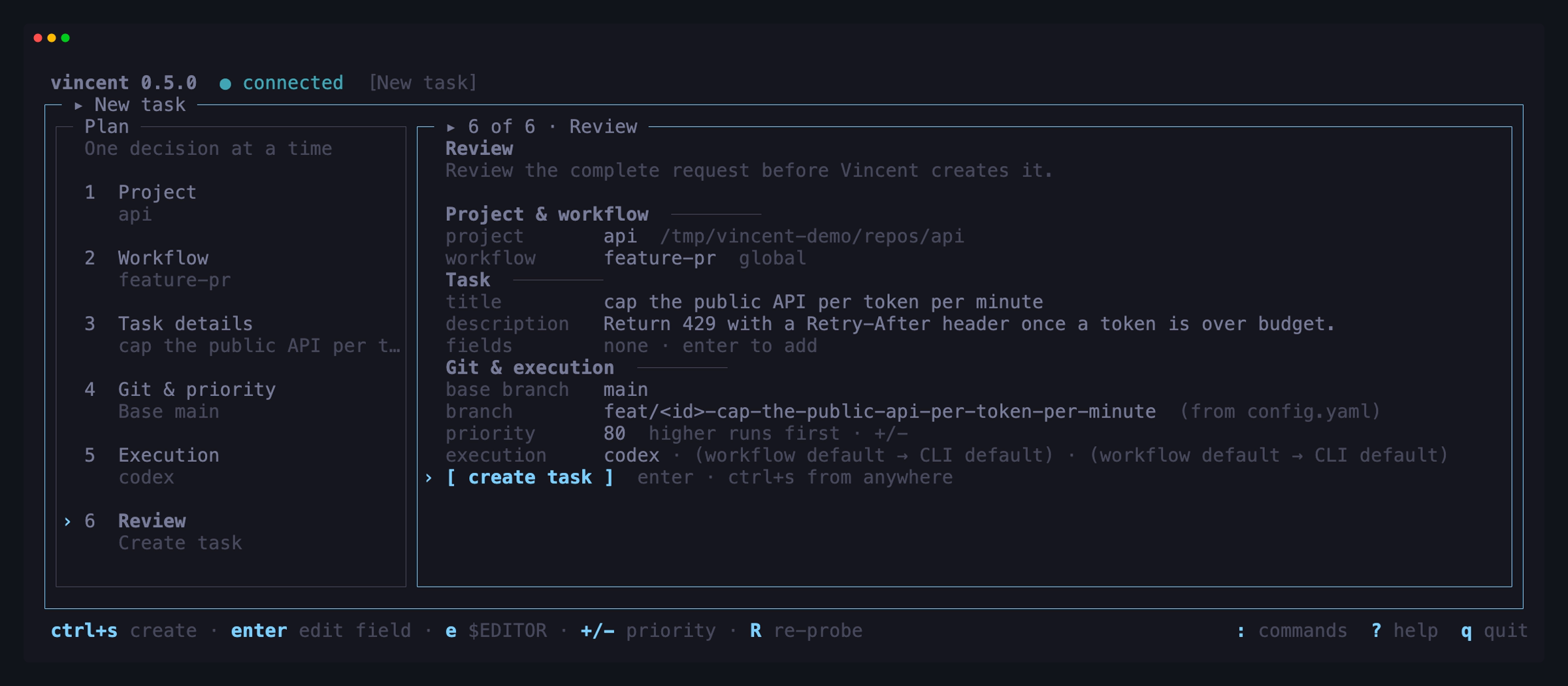
Opens for the project you are looking at. A guided form: project → workflow (with its description and step list, flagging steps whose agent is unavailable) → (GitHub issue) → title → description → fields → base branch → priority → optional agent/model/effort override.
When the selected workflow declares fields:,
the Fields row is pre-rendered in declaration order. It shows labels,
descriptions, type/required badges, and regex help; boolean values toggle between
true and false. Workflow-owned names are locked, but their values remain
editable. You can still add and delete custom key/value rows — additional,
undeclared fields remain valid and are recorded on the task. Values are kept
when you switch workflows, including fields that the new workflow does not
declare.
The GitHub issue row appears only when this project’s issues can be read:
the github integration is on, the
project’s origin remote is a github.com repository, and vincent has a
credential — gh logged in, or GITHUB_TOKEN/GH_TOKEN in the environment the
daemon inherited. Otherwise the row is simply not there, and no GitHub call is
made. vincent doctor says which of those is missing.
Its picker lists the repository’s open issues, newest first, and narrows as you
type, like every other picker here. Choosing one fills the title, fills the
description with the issue body plus a trailing GitHub issue #N: <url> line,
and fills any of the workflow’s declared labels, assignee or milestone
fields whose declared type accepts the value. All of it lands in the ordinary
editable rows — rewrite or clear anything before creating, and what you leave
is what the task gets. A (none) row at the top of the picker removes the link.
The issue is read once, when you create the task, and stored on it. Editing
the issue on GitHub afterwards does not change what a later step sees; the
snapshot is what .Issue
renders from.
On a wide terminal those fields are grouped into six stages in the left rail: Project, Workflow, Task details, Git & priority, Execution, and Review. The main pane shows only the fields in the current stage, while Review gathers the complete request beside the Create action. The rail follows the ordinary field cursor — there is no separate Next button or second set of navigation keys.
| Key | Does |
|---|---|
enter |
Open the focused field’s editor or picker |
a / d |
In Fields, add or delete a custom row (declared rows cannot be deleted) |
e |
Edit the description in $EDITOR |
+ / - |
Nudge the priority (higher runs first) |
R |
Re-probe the adapters (the list is otherwise cache-served) |
ctrl+s |
Create the task |
The agent row warns when the adapter the task would run on is out of quota —
· usage limit until 14:20, from the same observation the board header badges.
It warns and nothing else: the form submits, and the task waits its turn on
the ordinary usage_limit hold if
the window is still shut when it is admitted.
The override pickers are fed by live adapter data, tagged with where each option came from, and always accept free text. They are windowed and filterable — you type to narrow, which is what makes cursor’s ~180-model catalog usable. Each resolved field shows which level won (step, task, workflow, adapter), so the form tells you what will actually run rather than what you typed.
Projects
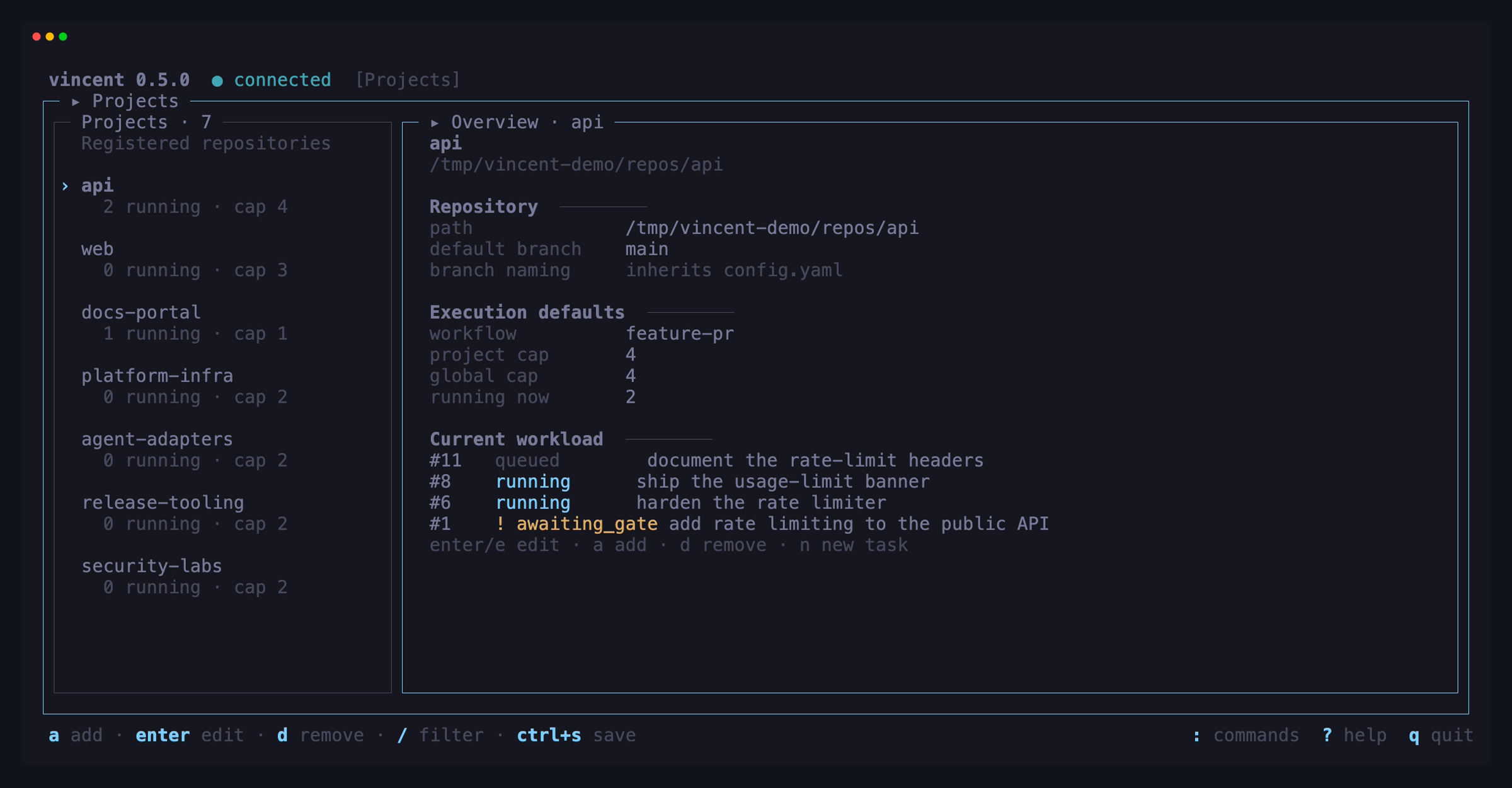
On a wide terminal the repository list stays in the left rail. The selected
project’s path, branch convention, workflow and concurrency defaults, and
current tasks fill the main pane; a or enter puts the existing add/edit form
in that same pane. This keeps the project you were looking at visible while you
change its configuration.
| Key | Does |
|---|---|
a |
Register a repository |
enter or e |
Edit the selected project |
d |
Remove it (asks first; its task rows go with it) |
/ |
Filter by name or path |
ctrl+s |
Save, in the form |
Workflows
The merged registry with scope badges and validation status.
On a wide terminal the merged registry stays in the left rail. The focused
pane names the selected entry’s scope and source, availability and findings,
then reveals its resolved step list with enter. g uses that focused pane
for the graph while keeping the registry visible, so esc returns to the same
entry with its surrounding scopes still in view.
| Key | Does |
|---|---|
enter |
Show the entry’s steps |
g |
Draw the entry as a control-flow graph |
e |
Open the file in $EDITOR — the view updates when you save |
R |
Re-read the registry |
The view reads the registry; it does not author it. New workflow files are written in your editor and appear on the next reload.
The graph — g
A numbered list of top-level steps can name a parallel group or a fan_out
but cannot show where control goes. g draws it:
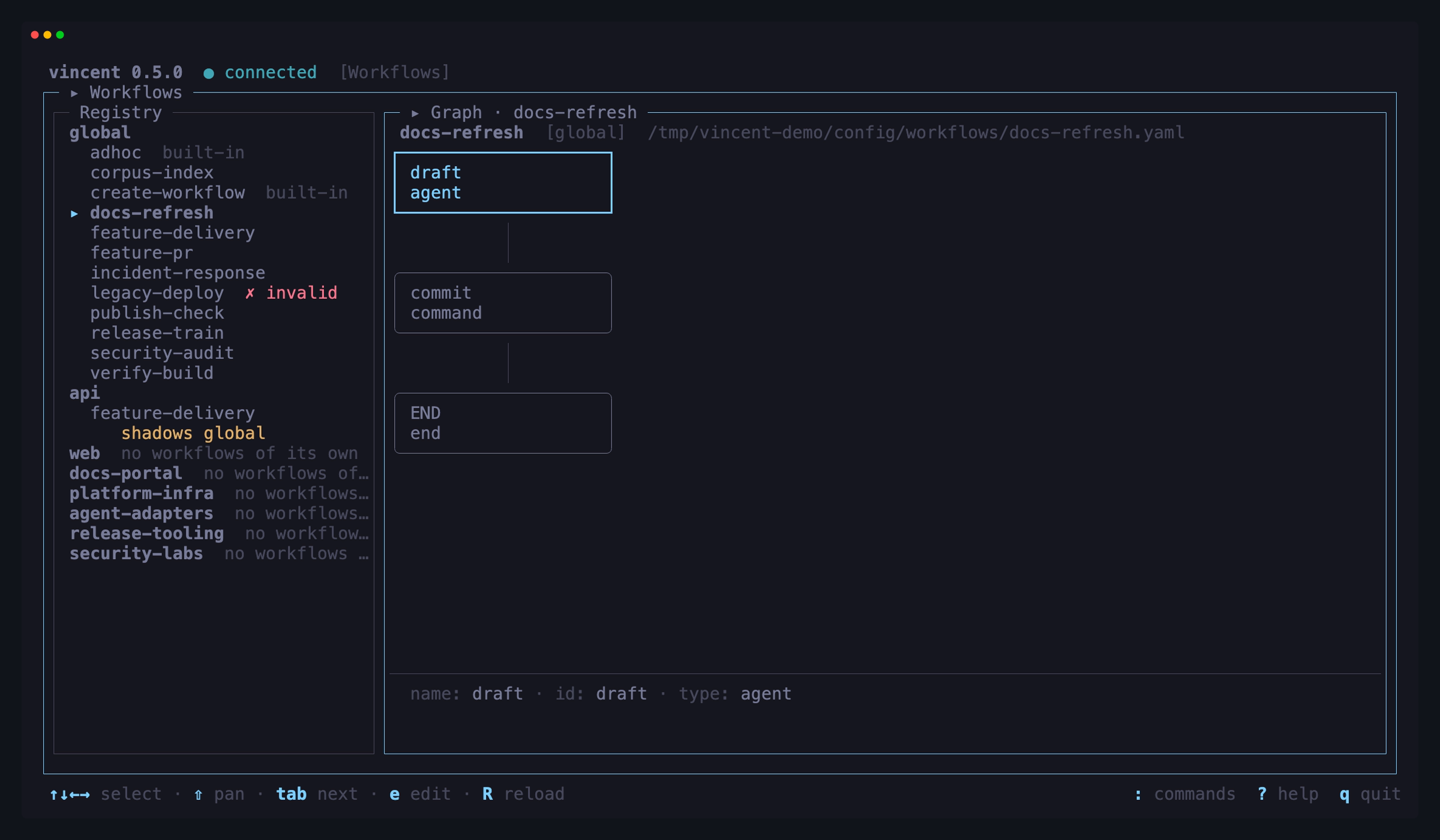
The graph opens over the list, not instead of it: enter’s step list, with
its findings and platform notes, is still there when you press esc.
How to read it. Every one of these works with color turned off:
| You see | It means |
|---|---|
| A box’s second line | The step’s type, and any badges |
if |
The step is guarded — the expression is in the strip at the bottom |
chk |
The step carries a check: |
×3, for_each |
A loop’s driver. max N is an explicit bound |
agent on a merge |
on_conflict: agent — an agent may resolve a conflict |
| A light frame | A parallel group |
| A heavy frame | A fan_out, with its lanes captioned by id and guard |
| A double frame | A loop body, with a back-edge to its header |
true / false |
A condition’s or break’s two ways out |
END |
Where the workflow finishes |
A fan_out has a merge node below its frame, because the join is a git
merge that runs and can block. A parallel group has none: its join is only its
members finishing. A guard on an ordinary step draws no second branch — false
there means skip and carry on, so the flow is unchanged. A lane naming another
workflow is one collapsed box; opening it is not in this version.
| Key | Does |
|---|---|
↑ ↓ ← → or hjkl |
Move the selection — the view follows it |
shift + arrows |
Pan the canvas |
pgup pgdn u d f b |
Page it |
tab / shift+tab |
Walk the nodes in source order |
e |
Open the file in $EDITOR — the graph redraws when you save |
R |
Re-fetch this workflow’s definition |
esc |
Back to the registry |
Editing is the point of e here: save the file and the graph redraws in place,
with your selected node still selected. A terminal too narrow to draw a node
says so rather than showing you a flattened shape that is not the workflow; a
graph bigger than the terminal is panned, never reflowed.
A workflow that does not parse has no graph — g says so, and the errors are
already under enter.
Daemon
Version, uptime, the config in effect, the adapters detected, and a live tail of
the daemon log. The view reports, it does not act — vincent daemon stop owns
stopping the daemon, and a TUI that auto-started one has no business killing it.
Each adapter row carries what vincent knows about its usage window: usage
limit → 14:20 when the CLI stated that reset, usage limit ≈ 14:20 when
vincent estimated it from
usage_limit_recheck_interval,
and a trailing quota unknown for an adapter nothing has been observed for —
which is the normal state, since no CLI can report remaining quota without
actually running. This is the one view that says “unknown” out loud; its job is
to list every fact about an adapter, including the ones nobody has.
An orphans line appears in the identity block when the daemon has found
directories under its data dir that no task claims, naming the count and
vincent gc. It is a pointer, not a button: for the same reason this view does
not stop the daemon, it does not delete anything either. Nothing shows when the
count is zero.
A database block sits between the config and the adapters: how big the
database is on disk — including the WAL, which the file size alone leaves out —
what each table holds, how many bytes of workflow snapshots the tasks are
carrying, and how far back the event history goes. vincent keeps database rows
forever, so this is the block that tells you what that has cost so far. Like
everything else here it reports and offers nothing to press; vincent doctor
prints the same figures in pasteable form, and vincent doctor --fix is what
compacts the file. R re-reads it along with the rest of the view.
| Key | Does |
|---|---|
R |
Re-read the daemon info, the config, the database figures and the log |
f or G |
Follow the end of the log again |
↑/↓ |
Scroll the log |
The log tail is read straight from {data_dir}/logs/daemon.log — the one place
the TUI is not a pure API client, because an endpoint cannot serve the log when
the daemon is the thing that died, which is exactly when the log is worth
reading.
The command palette
: opens it. Everything reachable in the TUI is in there by name — navigation
to every screen, and every task action the daemon currently offers. Type to
filter, enter to run, esc to close.
The palette exists so the four takeover screens do not need memorized number
keys. If you cannot remember a binding, : and ? are the two keys worth
knowing.
Every key
? toggles a help overlay listing every binding for the surface you are on.
The overlay, the palette and the footer all render from one registry in the
source, so a key that exists is a key that is documented.
Global bindings — active whenever the focused surface is not capturing text:
| Key | Does |
|---|---|
: |
Command palette |
? |
Toggle help |
tab / shift+tab |
Move focus between panels; commits a filter |
! |
Jump to the next task needing a human |
n |
New task |
M |
Toggle the mouse |
esc |
Close one layer: popup → screen → selection → filter — never quits |
q |
Quit the TUI (the daemon keeps running) |
ctrl+c |
Quit |
Mouse, selection and paste
The mouse is on by default: click to select, scroll to scroll. That takes mouse
events away from your terminal, so native text selection needs the mouse
off — press M, or hold shift while dragging, which most terminals treat as
“bypass the application”.
Paste normally arrives as a bracketed paste from your terminal’s own binding
(Cmd+V, Ctrl+Shift+V, middle click) and lands in the focused field with no
key involved. ctrl+v is the fallback for terminals that pass the key through
instead.
When the daemon is unreachable
The TUI does not pretend. It shows the disconnected state in the header, keeps the last data it fetched visible rather than blanking the screen, and reconnects on its own when the daemon comes back — SSE reconnection resumes durable events from where it left off, so nothing is missed.
The daemon view stays useful throughout: its log tail is read from disk, which is the one thing still true to show when the daemon has died.
See also
- Scripting vincent — everything here, without a terminal.
- Task lifecycle — what the actions do.
- Troubleshooting.